

1. How to Edit
2. Return & Space
3. Font Color & Frame
4. Indent
5. Columns
6. Table & Chart
7. Tab & Leader
8. Template
Others

WordPress is constantly updated, so many people cannot use all functions, I think. Actually, so I am (^_^;.
Here, tell you the WordPress’s basic operations and techniques that you can’t ask.
Create a Post or a Page
WordPress has “post” and “page” —— there are a lot of explanation about the difference, but these are almost same (^_^;. You can create a site as well.
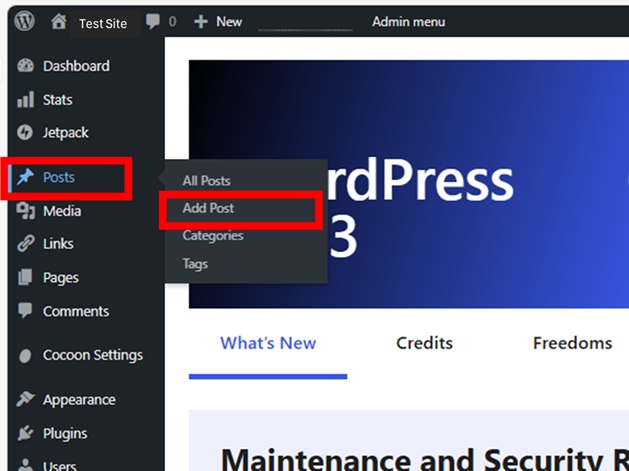
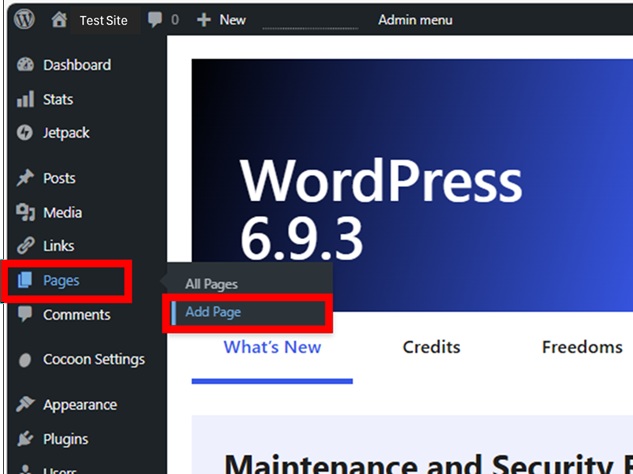
Page isn’t classified by category and tag, so it supposes to have an disadvantage to get the top of the search, but if set a page as home screen, it’s going to get a lot of views, so it really doesn’t matter.
The most differences are that it will appear in the “Recent Posts” and it can be commented on. Pages are not done these. Use them on the purpose.
And it relates on setting the buttons of “Previous” and “Next”.
It is called pagination. It orders the posts by date. Pages are not included in this link.
It cannot link by specific genre (category, tag). Look for plugins if you want.
Editing Screen
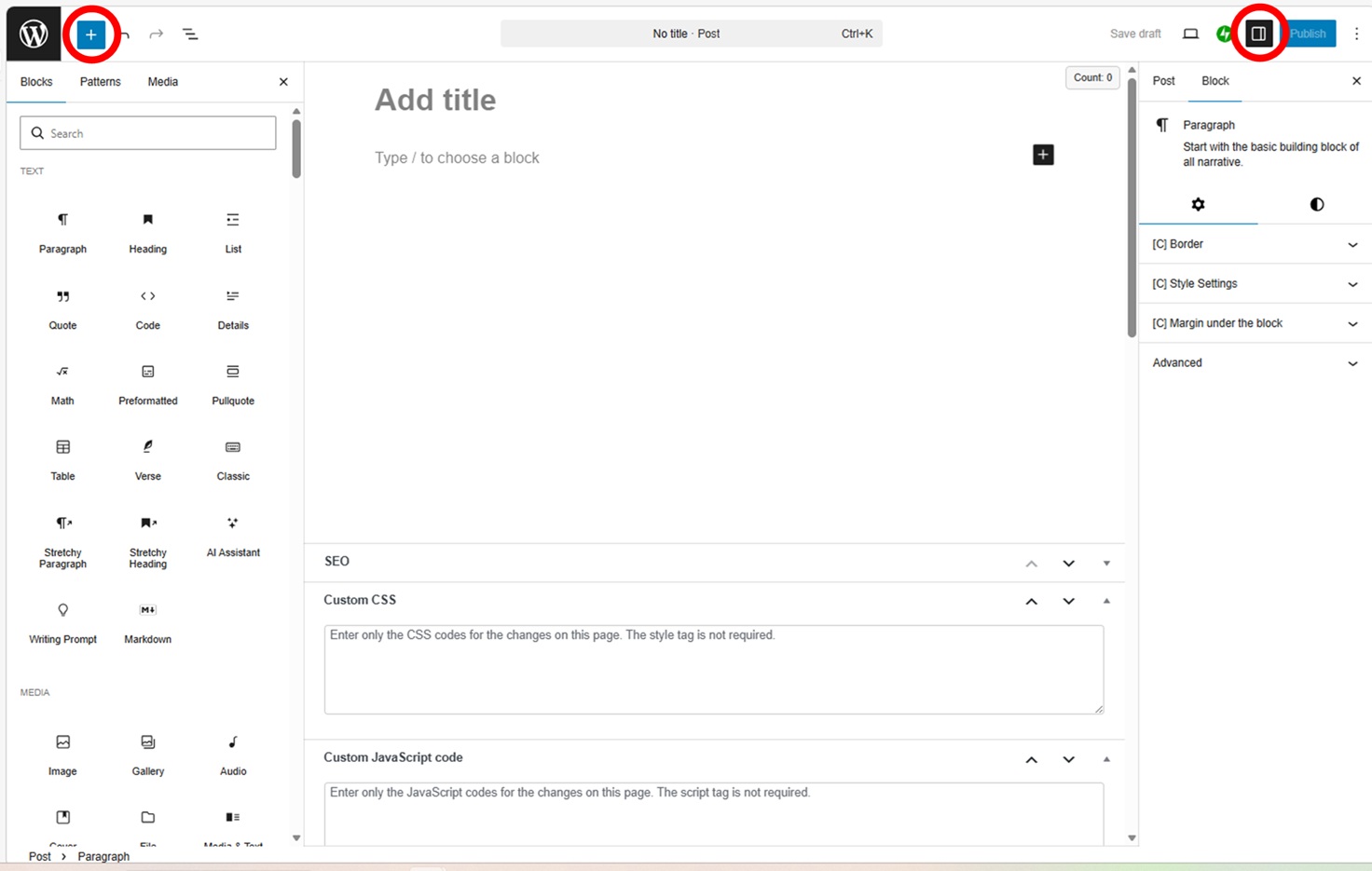
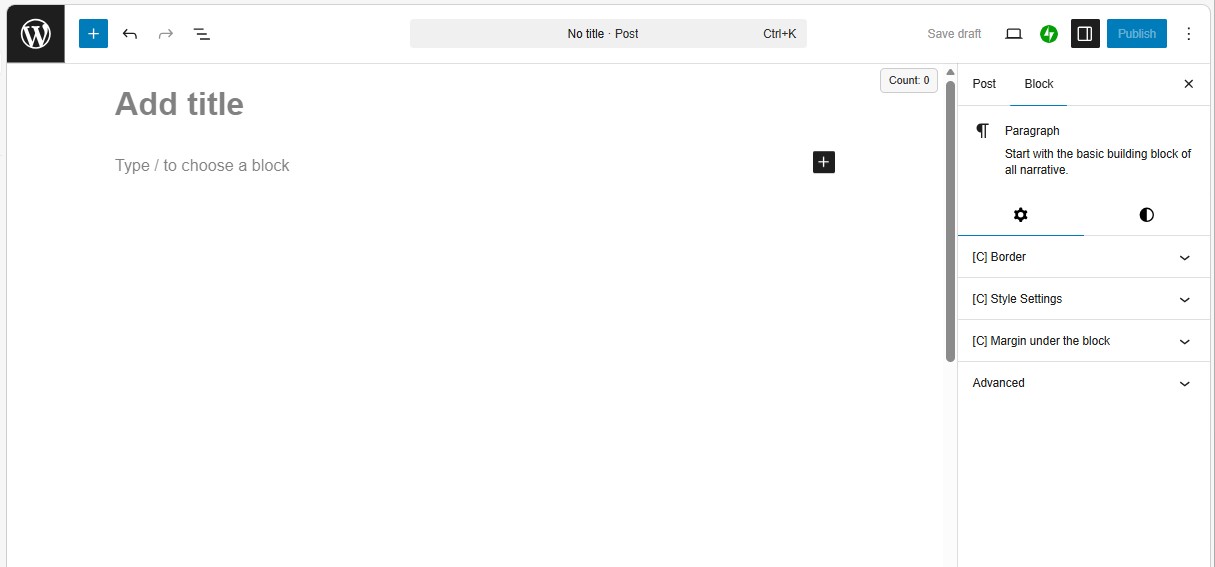
The editing screen is divided by three — right side is “Setting Sidebar” for page/post and block, left side is “Block Inserter”. It can turn on/off with pressing the red circles above.
On the smartphone, the editing screen is full-covered by these sidebars turning on. You must edit by blind touch (^_^;. Be used to.
From this screen, you edit a site by Block Editor.
Here’s how to use Block editor.
Right Sidebar ( Post or Page Setting )
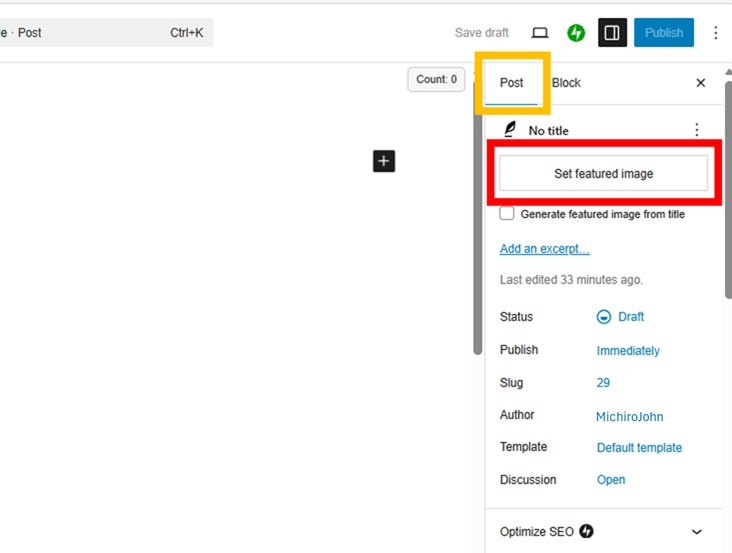
“Set featured image” is to set a top picture. It can’t set a video. But it can set a GIF image, so you can use GIF animation instead of video.
Other functions are below.

Right Sidebar ( Block Setting )
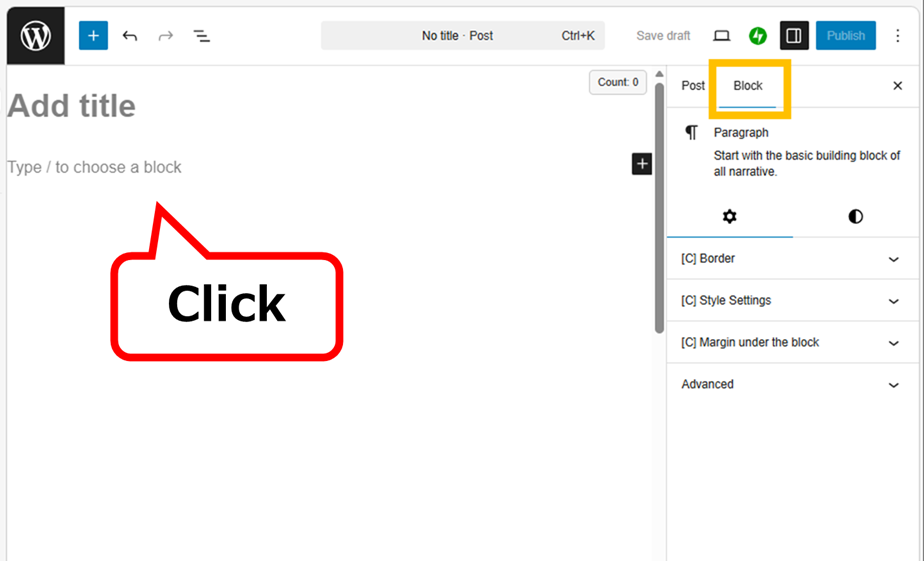
When you click on the center of screen, the tab at the right sidebar automatically switch to block setting, you can enter the text.
When you want to change the width of spacer, create a sticky block, change a button setting, create an internal page-jump, you will operate it from here. The ways are below.
Left Sidebar ( Pattern and Media )
You can call “Block Inserter” pressing  button at the right edge or the top left.
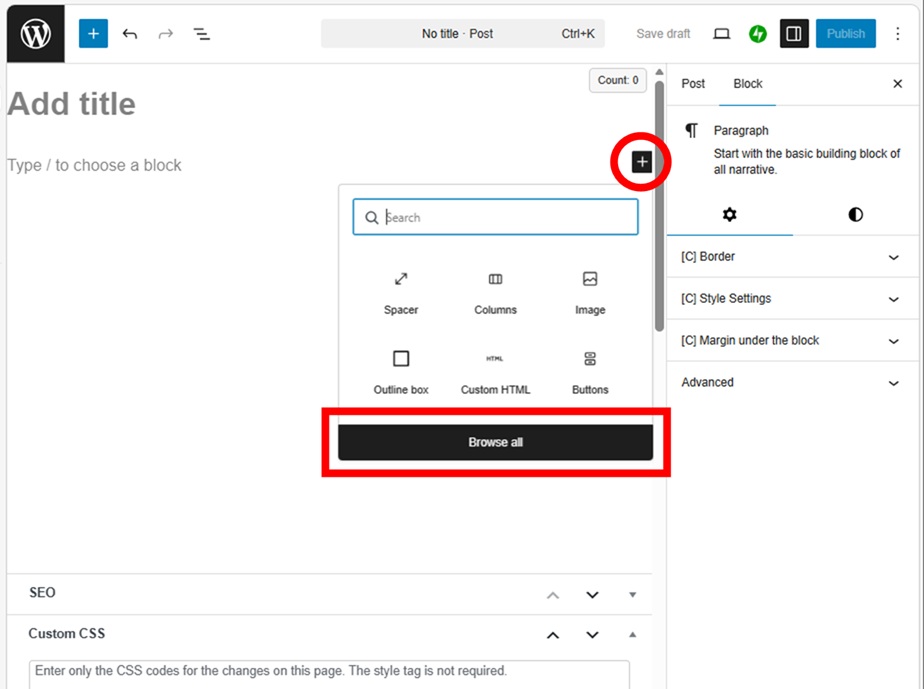
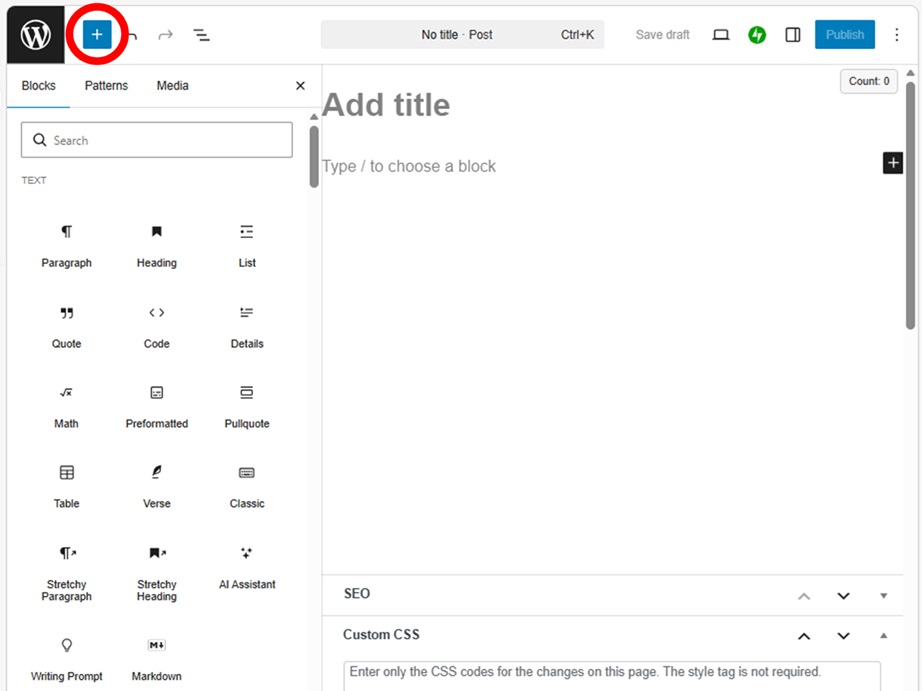
Next to Blocks, “Patterns” and “Media” are there. Patterns are where you can call the block templates, Media is where you can call the saved images and videos. Free images are also available, so check them out.
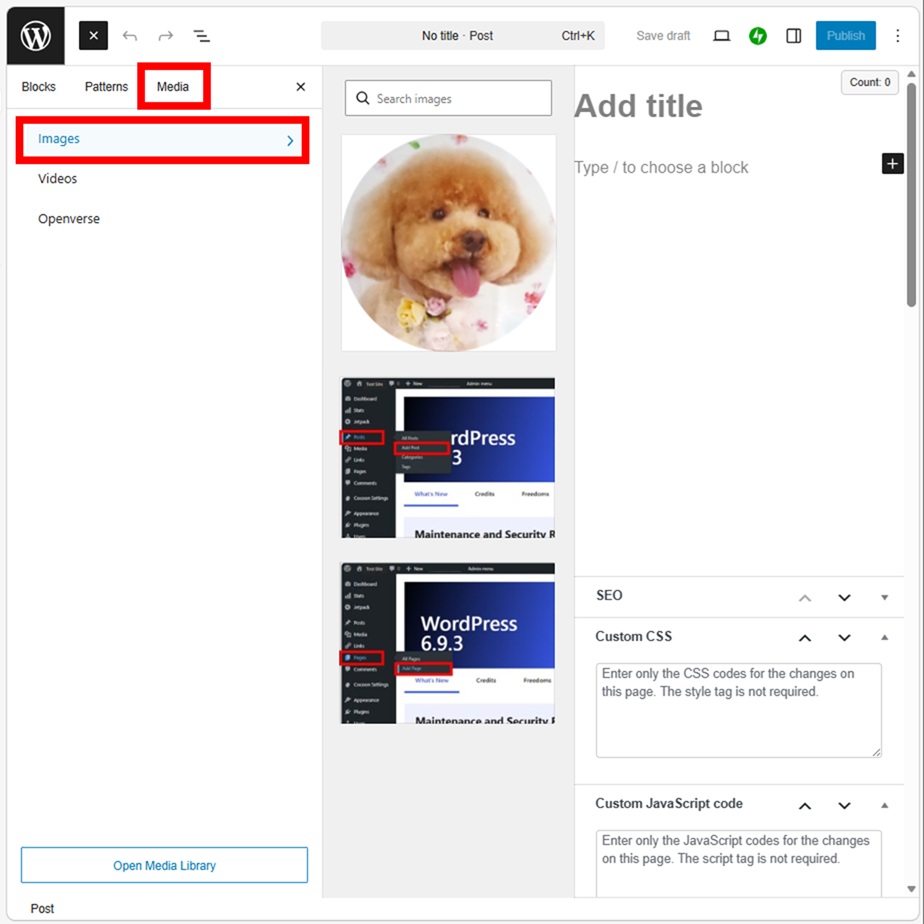
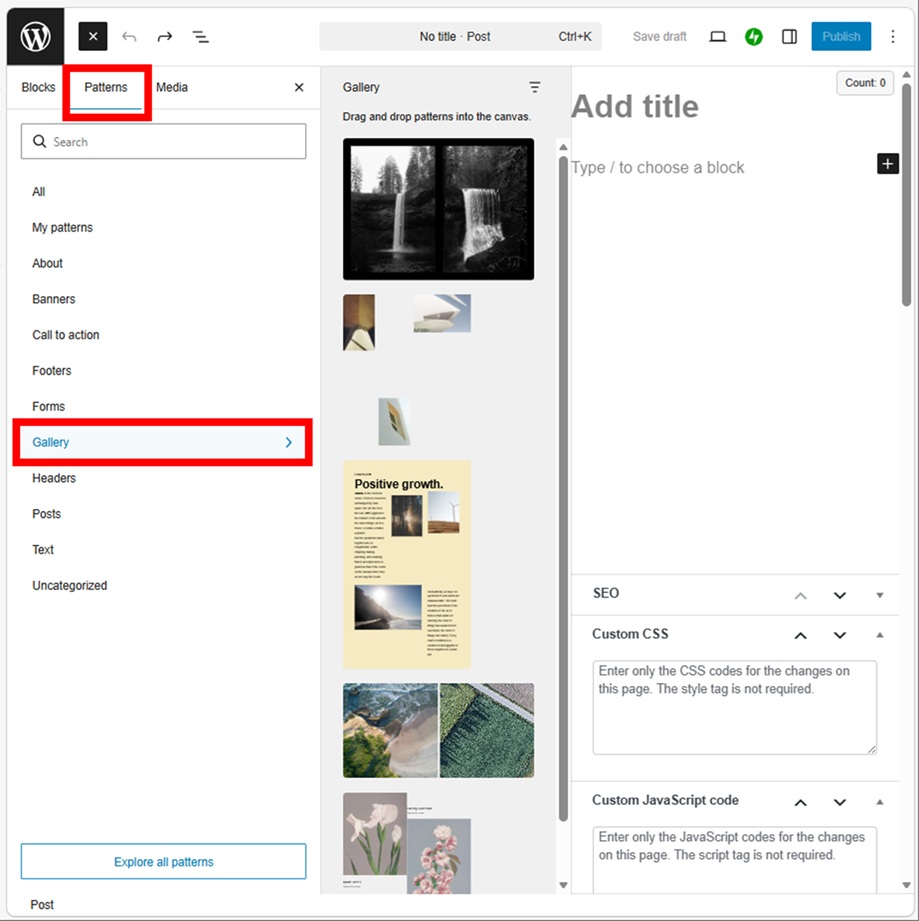
Be able to use Patterns. If you create “My pattern”, you can change the content just by editing the pattern. The update time does not change. It is a technique.
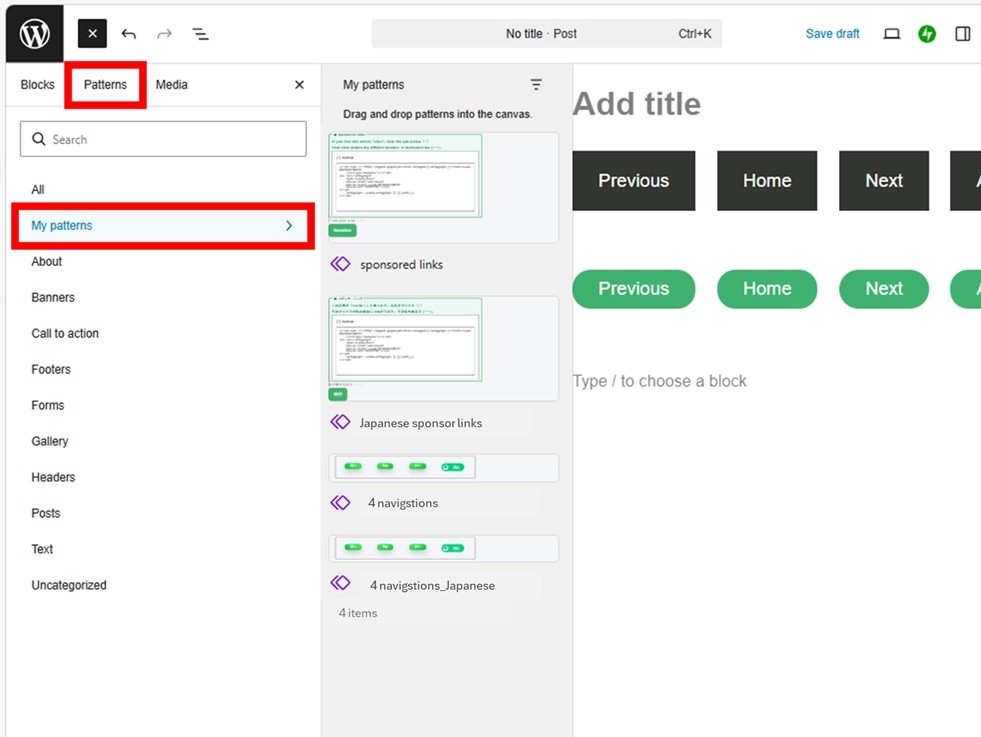
Here’s how to create My pattern.
Left Sidebar ( Tree View )
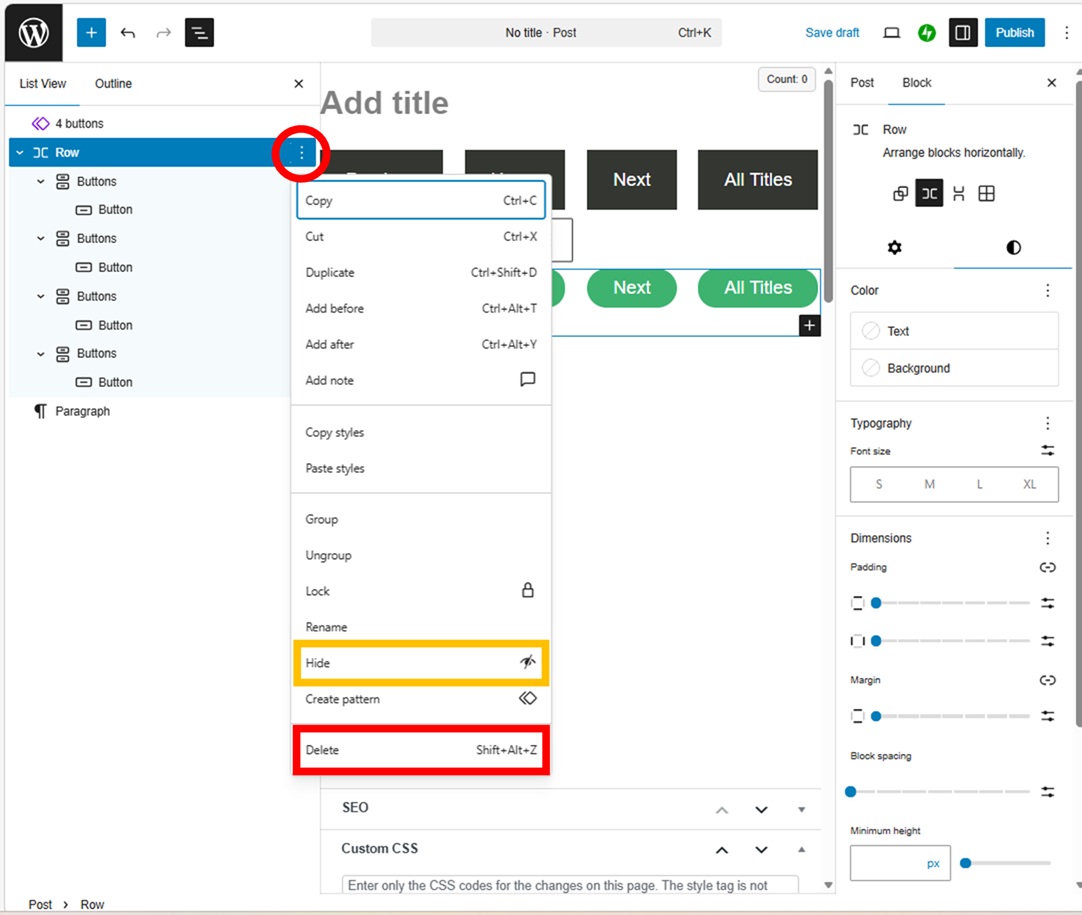
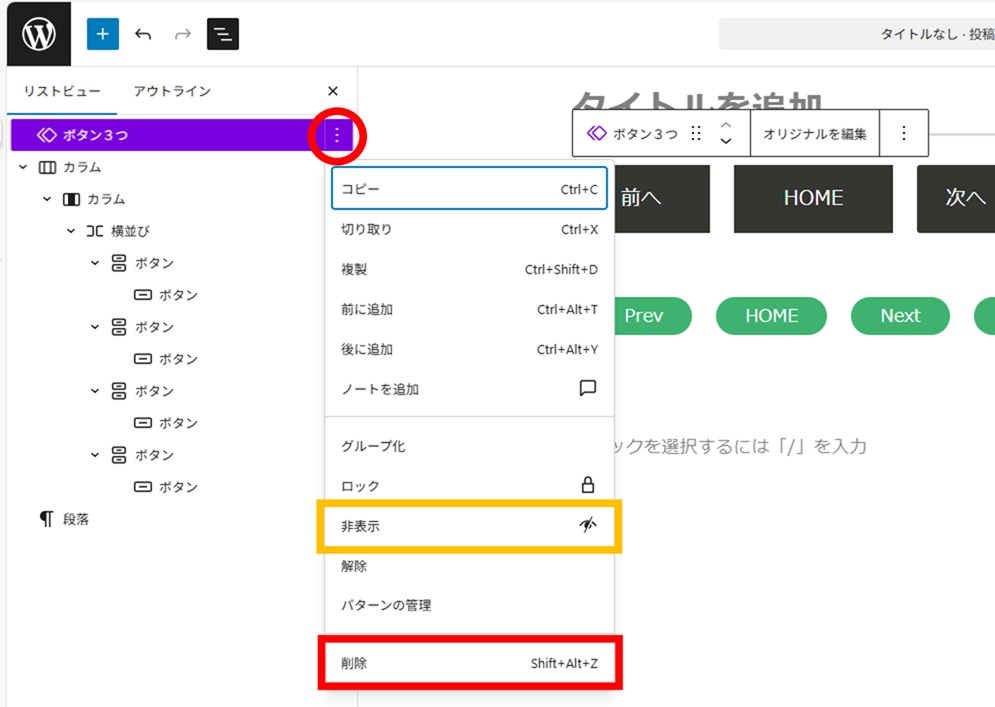
Click on the three lines at the upper left corner to tree all blocks.
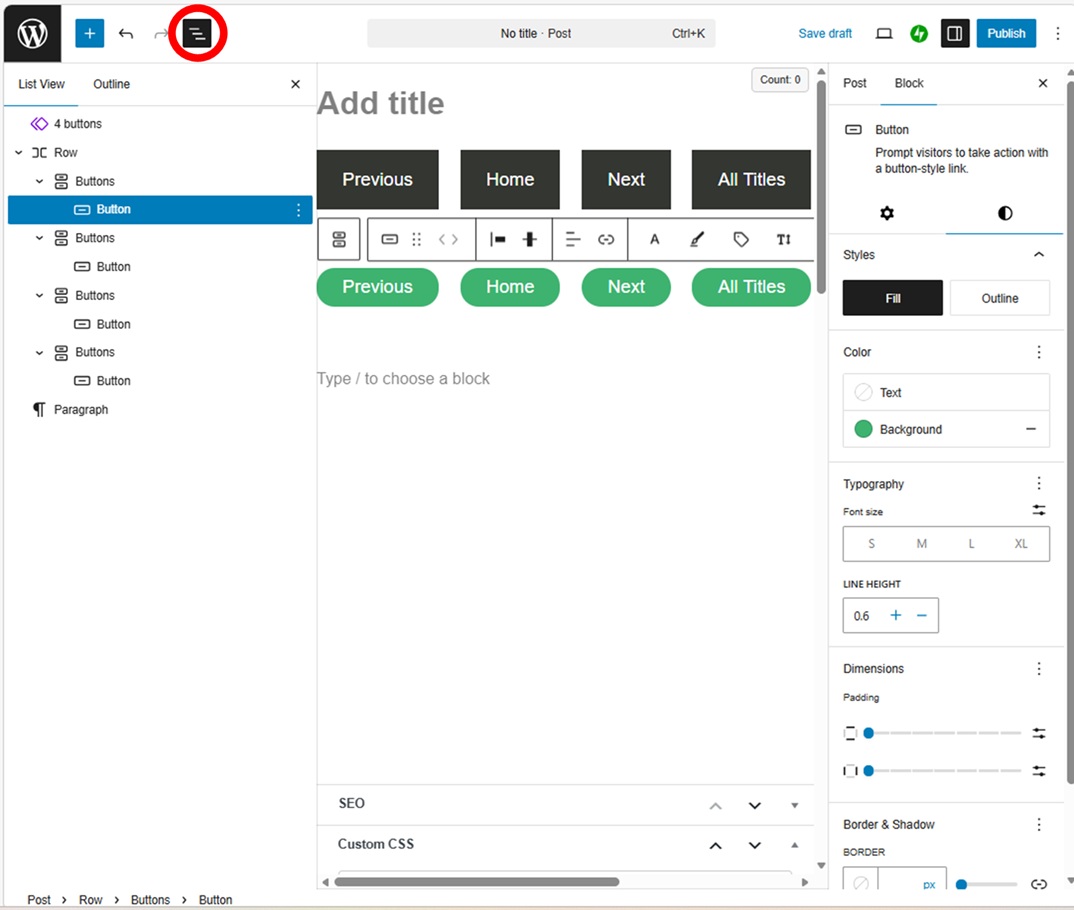
If you move between trees, the work will be faster.
The tree view is also useful for removing a complex block at once, and it is also possible to deactivate a block object. You understand the way.
Thank you for reading.
If you feel this article “Like!”, click the ads below ⇩⇩
Your click makes my affiliate income. It motivates me (^^;.
If you give a tip ——
Leave a comment(コメントを残す)