


The WordPress block editor is called Gutenberg. It is an excellent editor designed to be used on both PC and smartphones. It’s superior to move between the hierarchical structures of a site. Themes and plugins also provide rich functional extensions.
Here I will show you the features of genuine WordPress.
Instructions
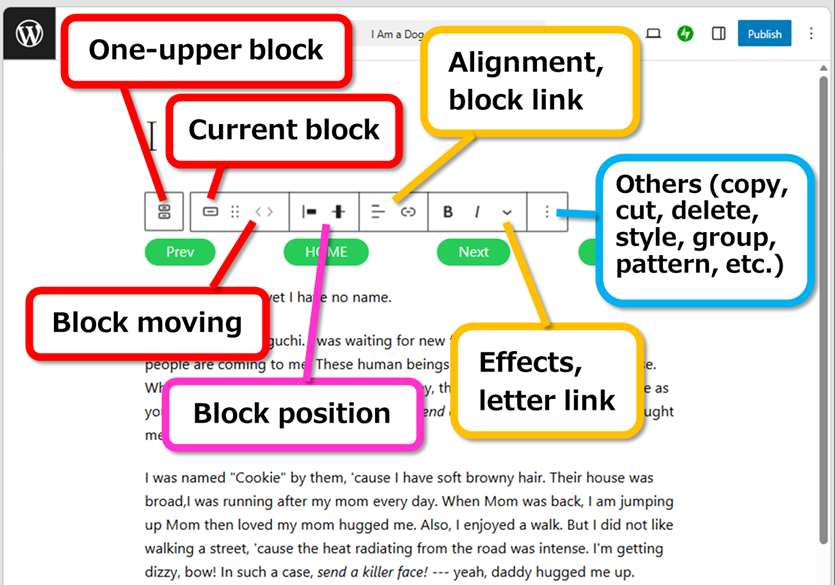
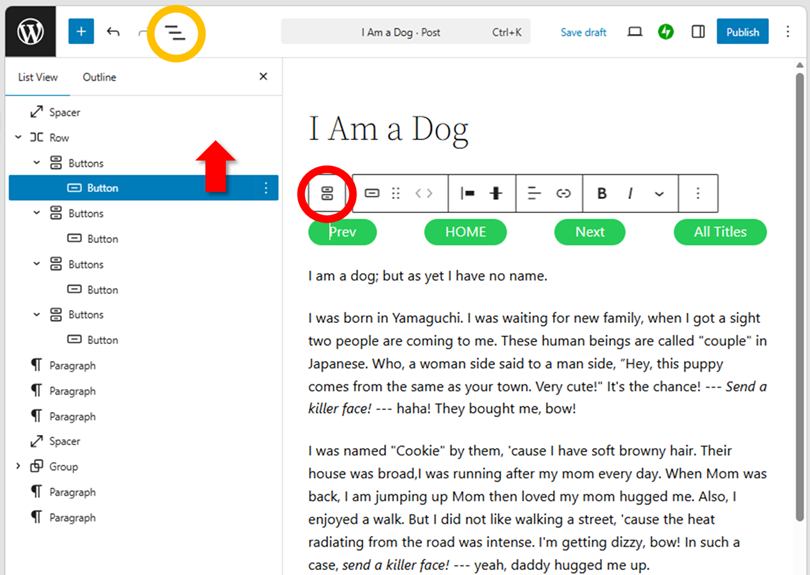
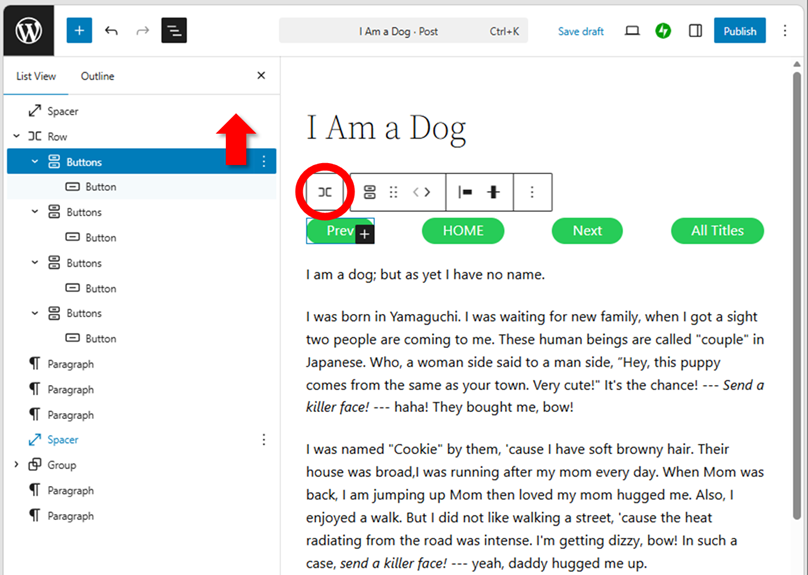
The left edge is displayed one-upper block (parent block), and the next icon is current block (inner block). You can move to a higher block by pressing one-upper block. You cannot move to the lower blocks.
If you want to repeat moving between blocks, it’s easier to use the tree view in the left sidebar.
The buttons are different from each blocks, and the button always displayed is until ” block moving”.
The line-up after “Block position” is specific for each block, with intuitive operation. These are the items mainly aligned on the right sidebar.
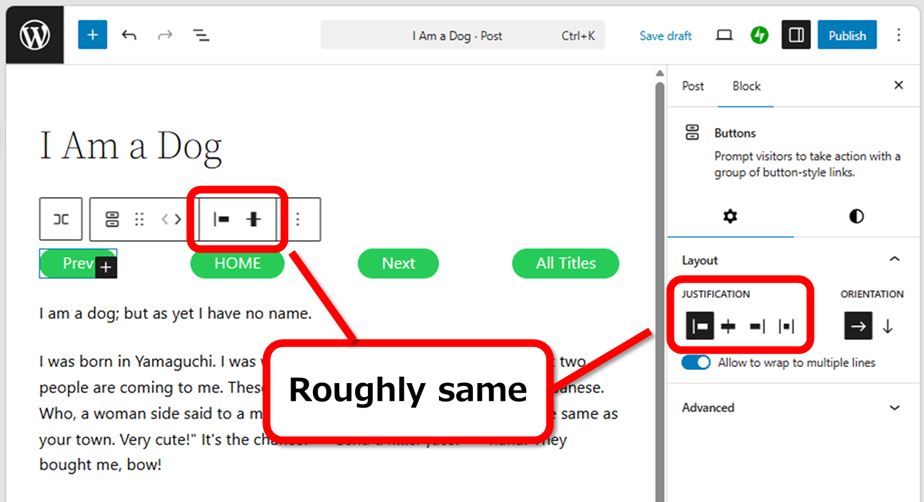
The explanation for all buttons would be a huge amount, so I would like to show the functions as like the hidden techniques only.
Hide Gutenberg Editor temporarily
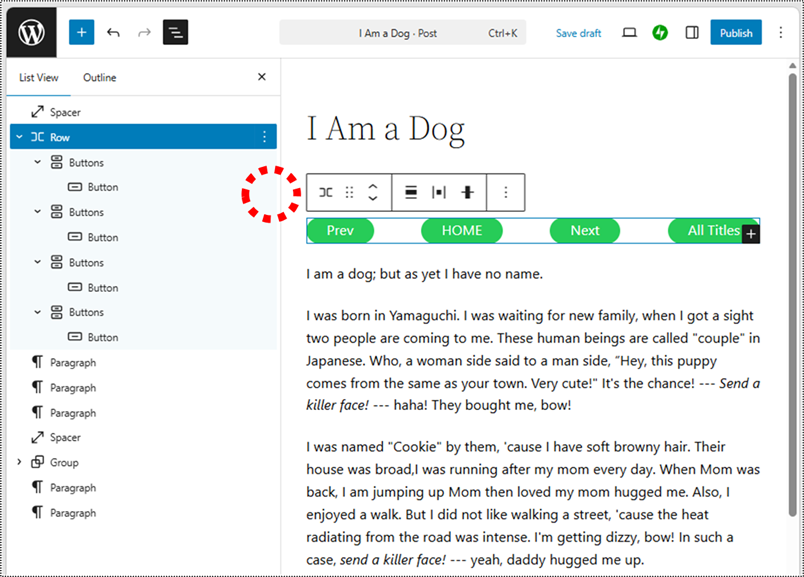
You can drag the part of red circle to hide Top Toolbar temporarily.
Use it for looking at the block that the bar has hidden.
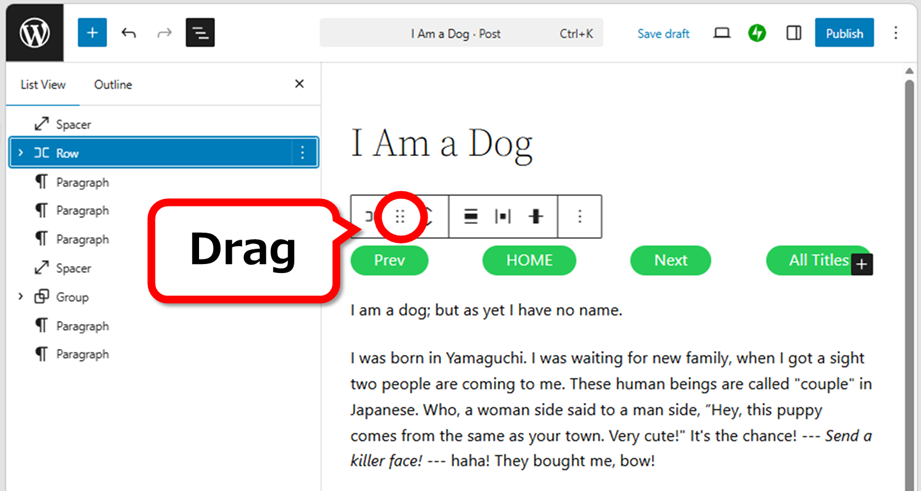
Moving it up or down, you can change the order of the blocks.
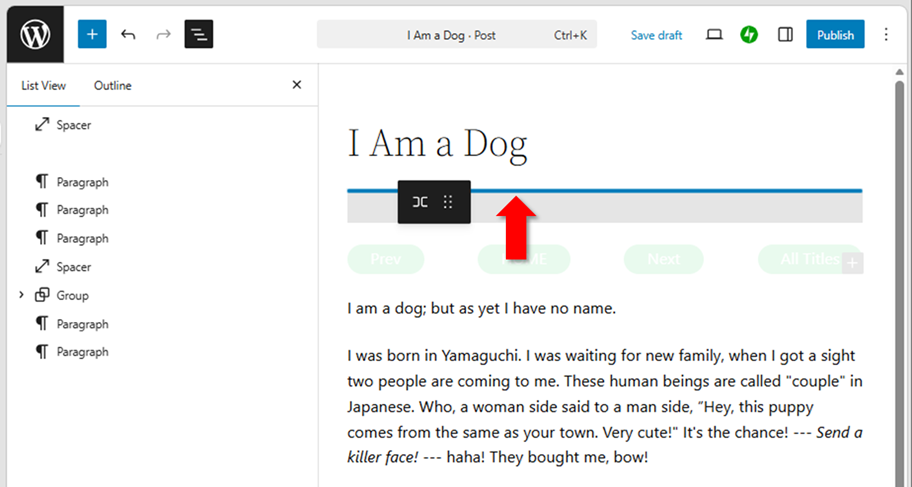
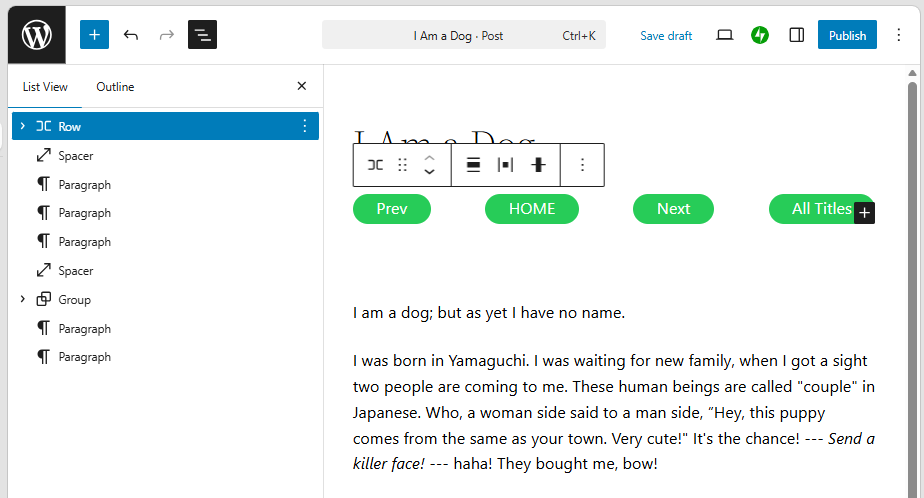
This way can only be used when the block is on the top.
Change the order of blocks
Press the arrow button (< >) to change the order of a block.
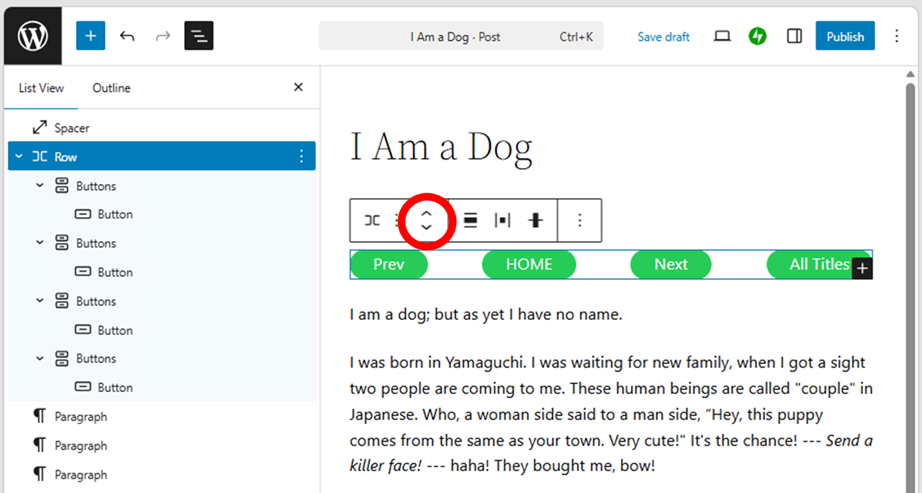
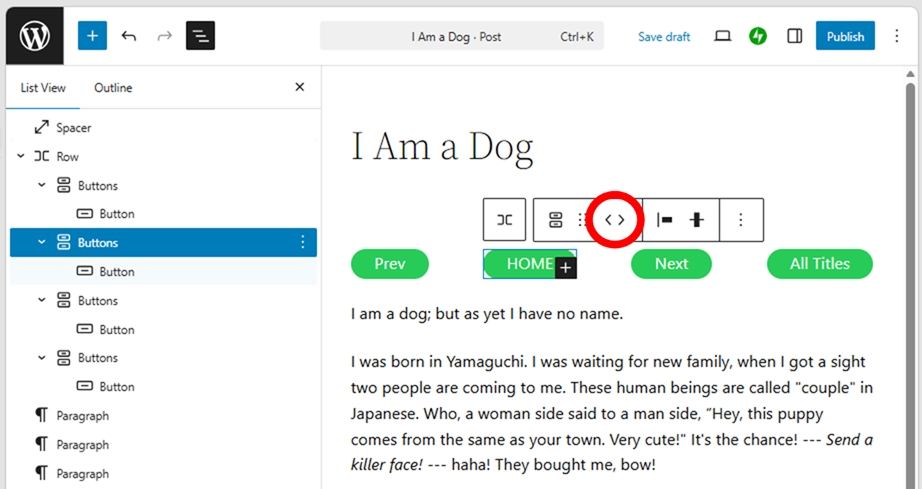
The arrow directions are changed by each block.
Also, you can change the order by drag & drop.
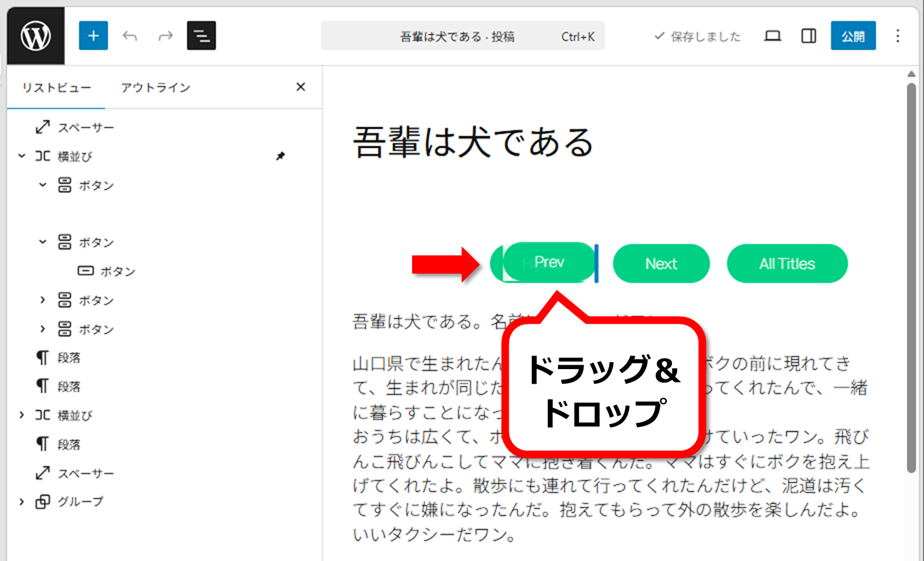
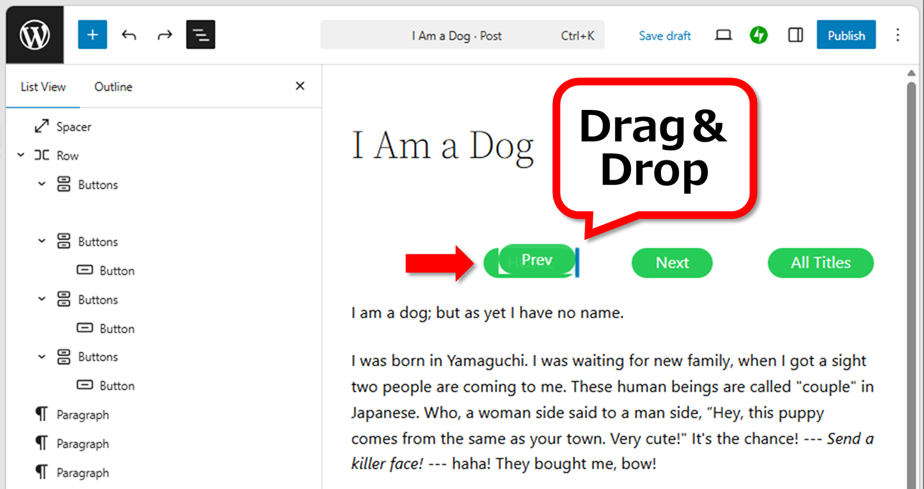
This function is available when  icon being displayed, so it cannot be used in paragraph blocks. If you want it, use the arrow button (< >), or do the way in the previous section (drag the
 button to move).
Transform a block
You can change a block by pressing the button of this block.
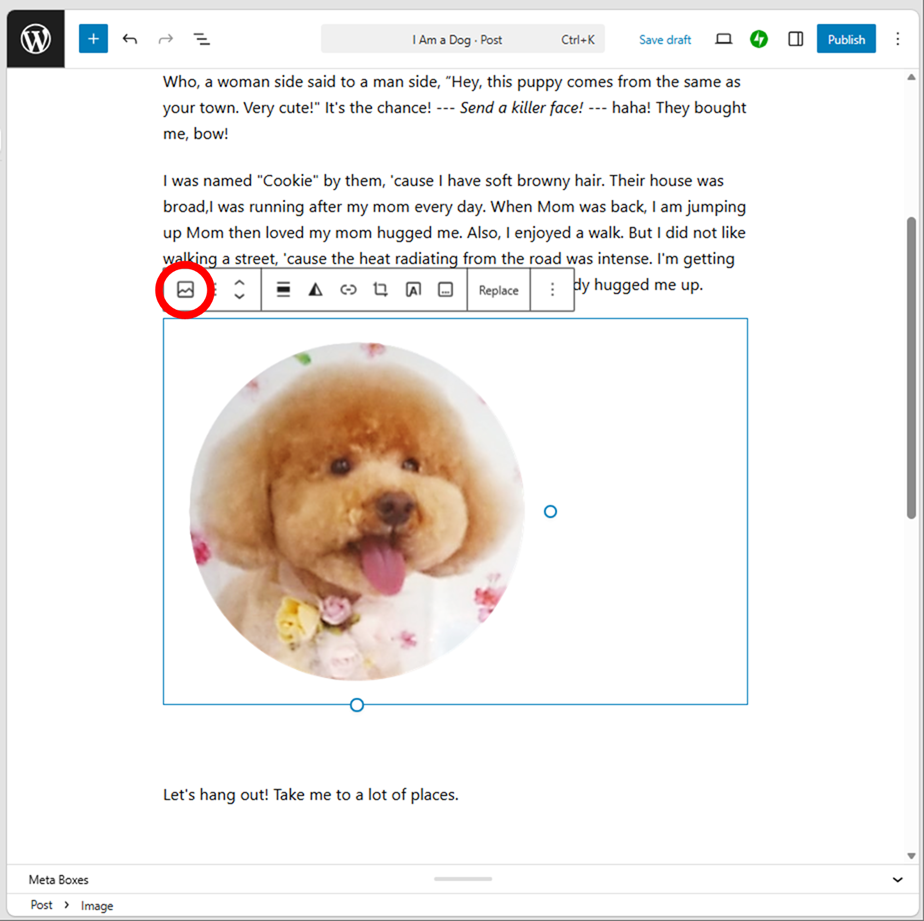
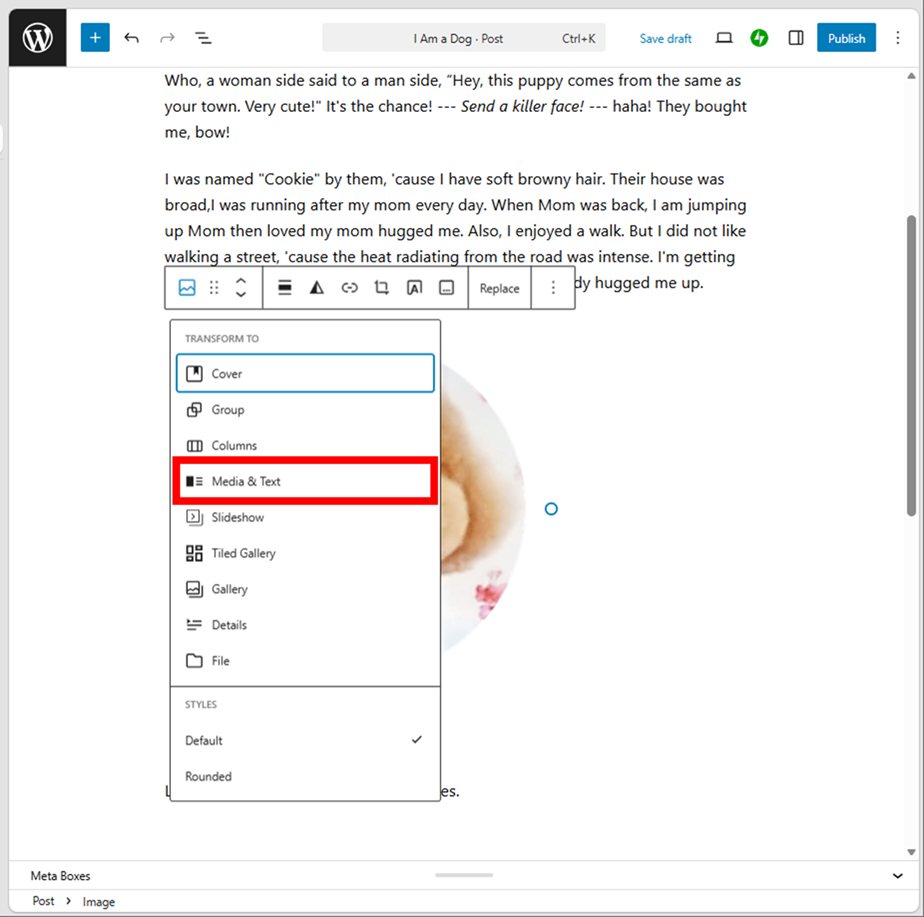
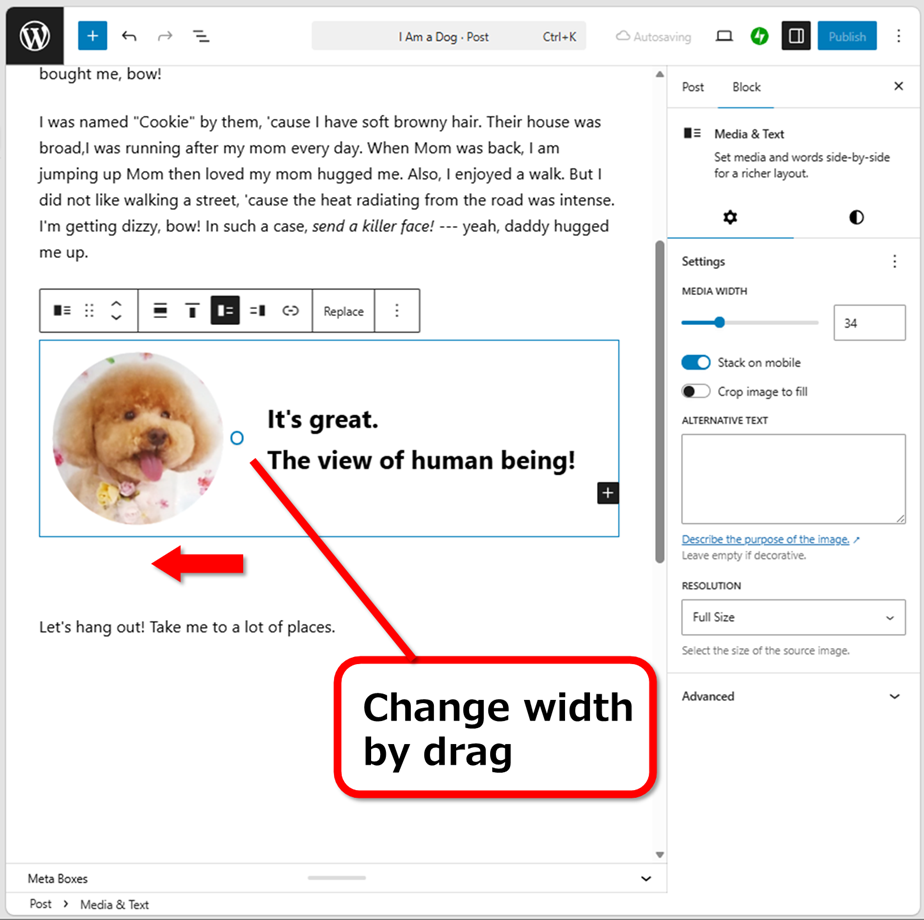
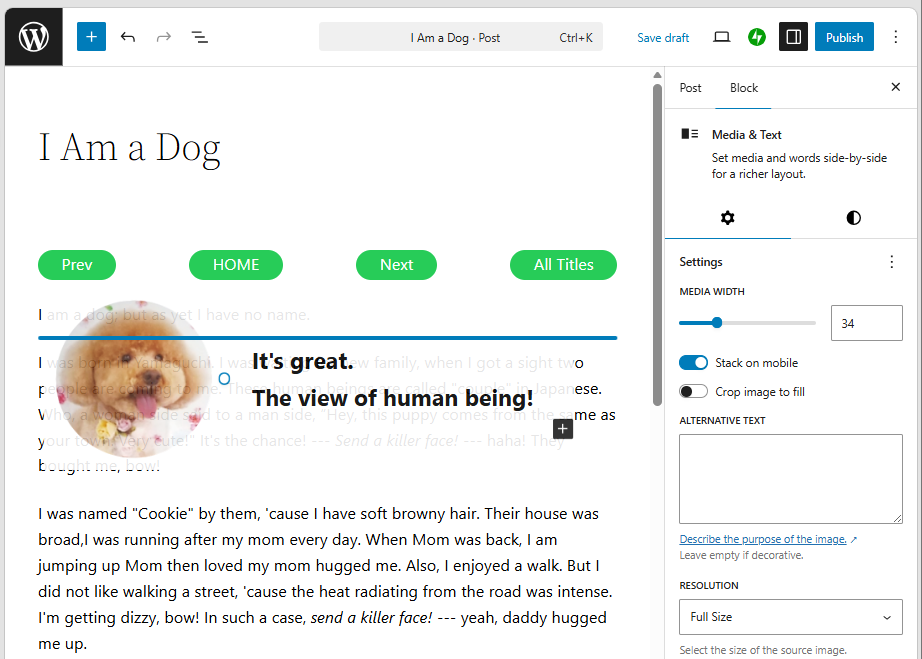
Put text on an image
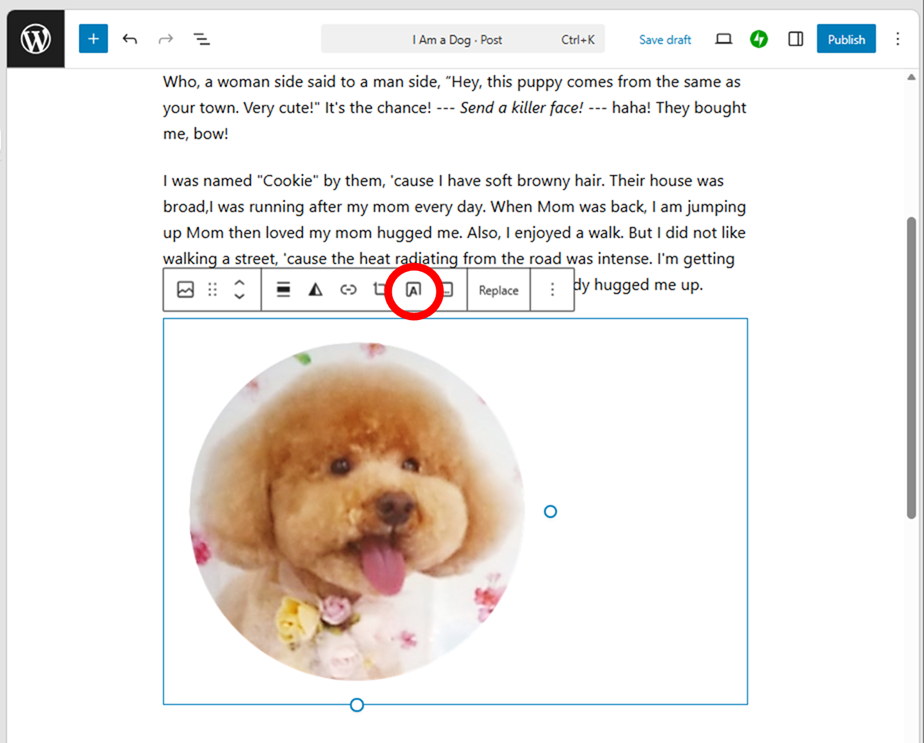
You can change an image to a block “Cover”, just with one click.
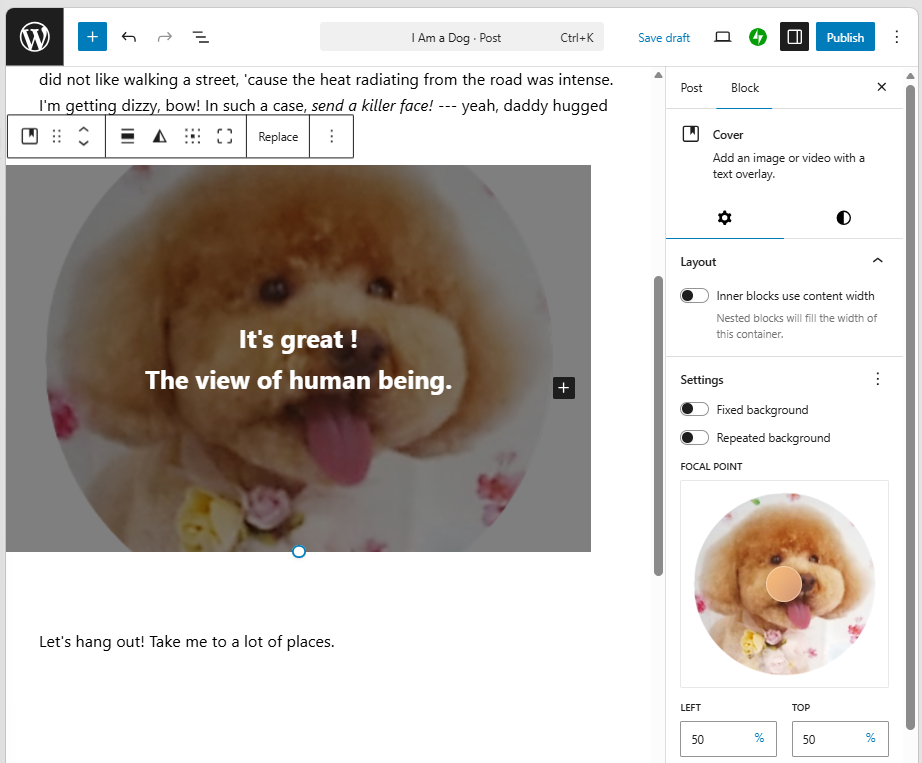
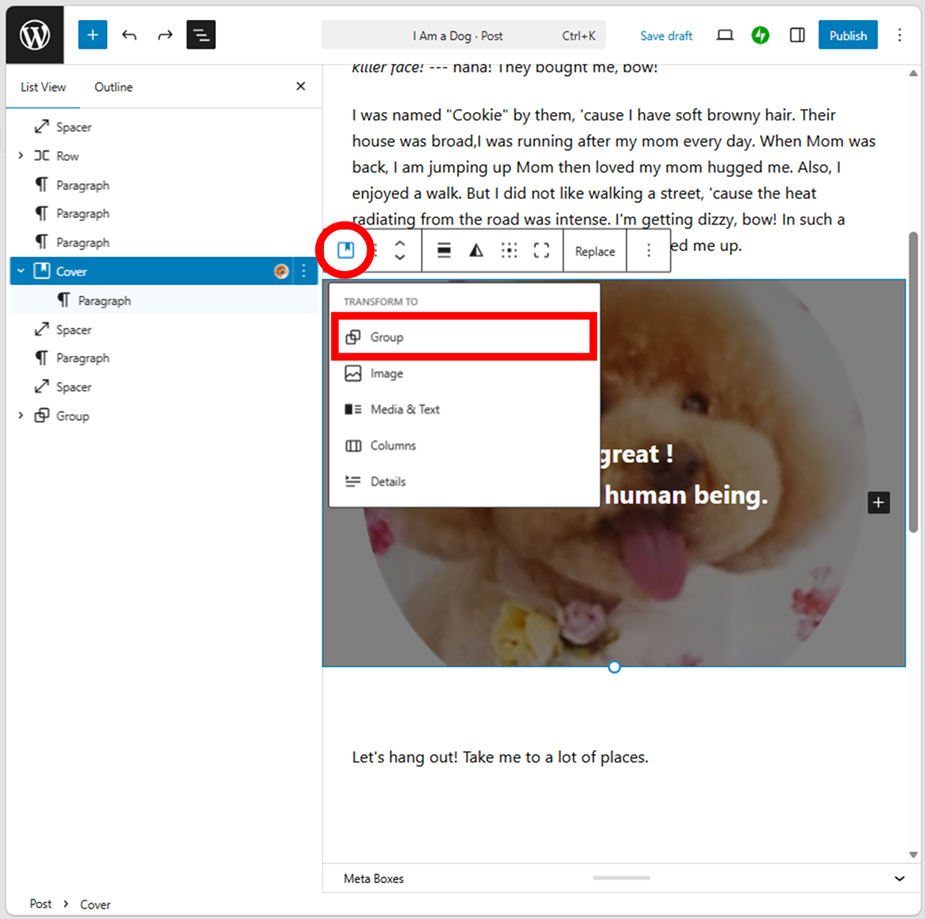
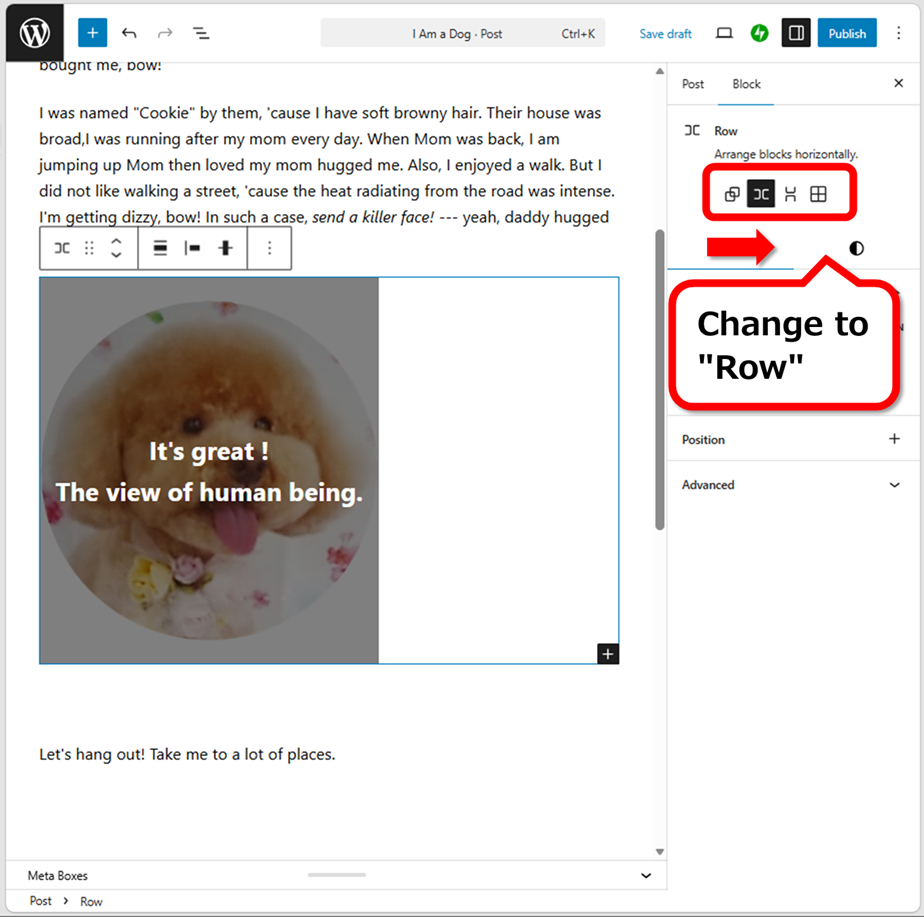
If the image is too large, add “Group” on the image then transform it to “Row”. This transformation is just creating a new block to the top, so the image itself is not affected.
If you don’t like dark images, set the background opacity to 0%.
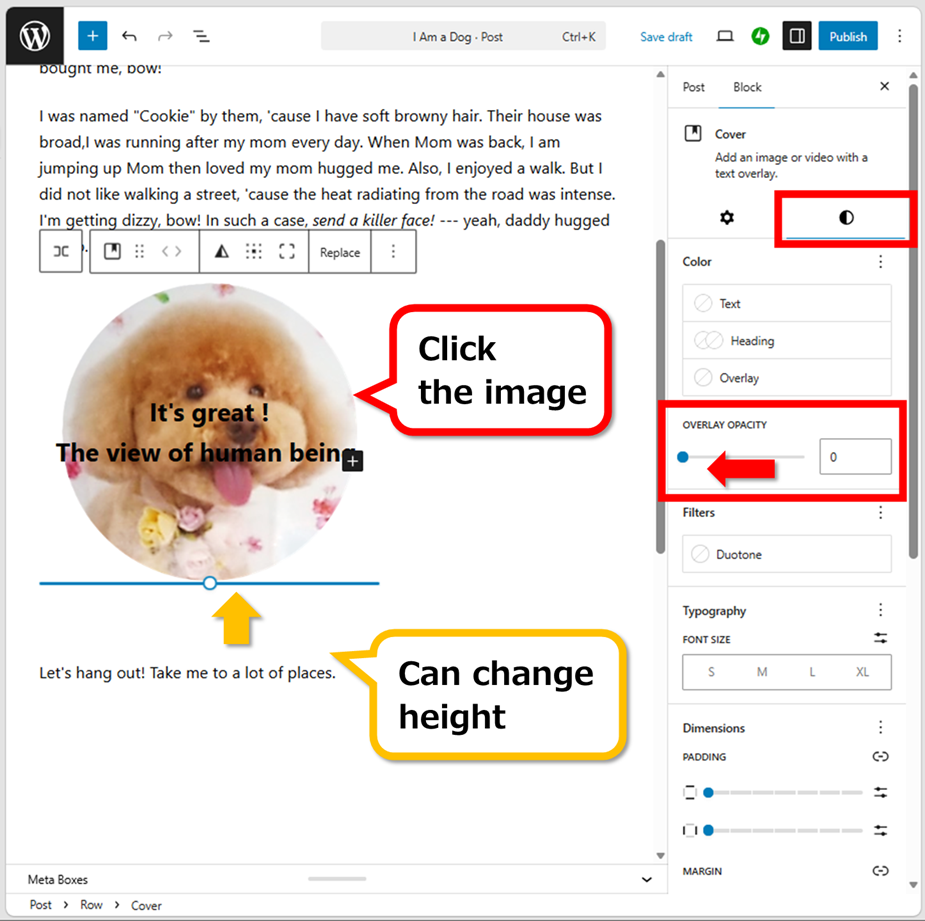
If you cannot smallen the image, change the length of paragraph.
Change font color
You can change font color by “Highlight” after selecting characters.
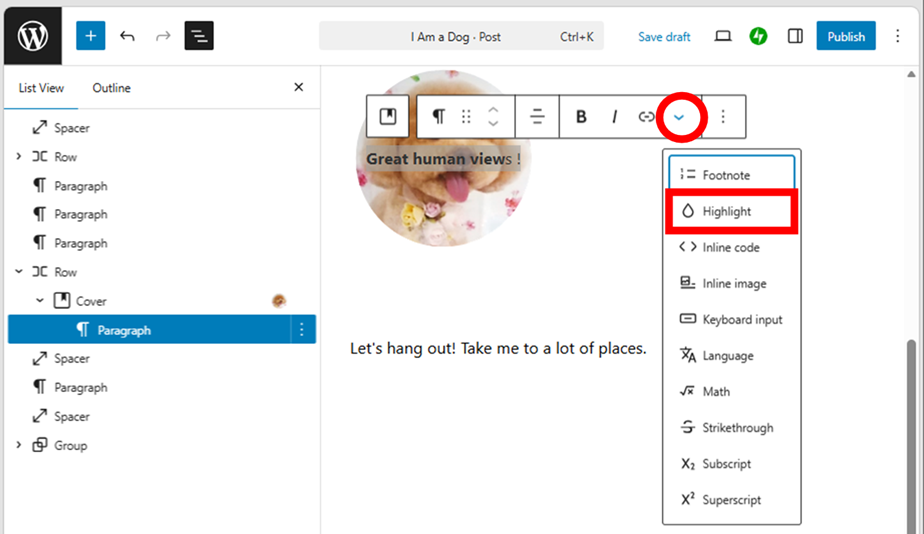
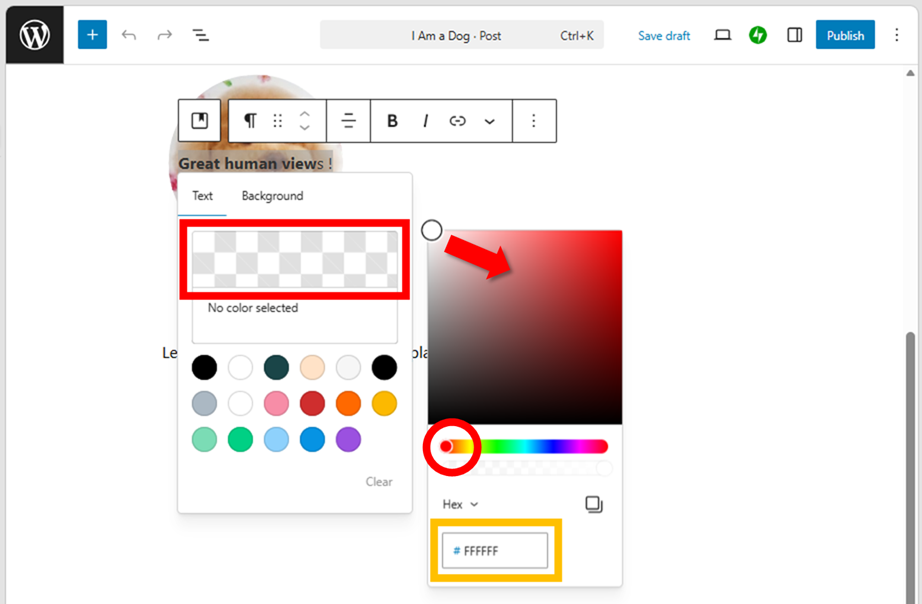
Click on the part of red square to call Color Picker. You can select color with the handlers (〇 mark). There is a Hex number at the bottom (orange square). You can select the color by number.
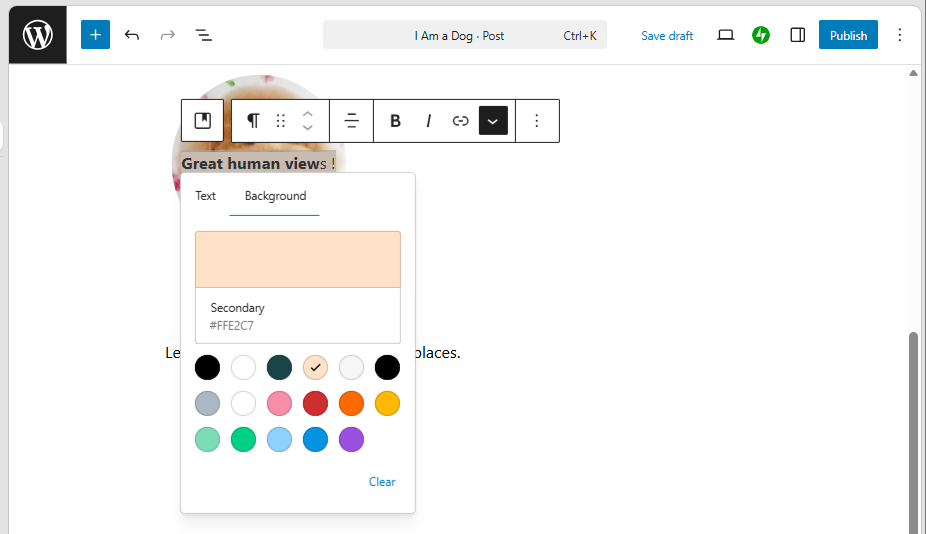
It’s difficult to watch characters, you can change the background color.
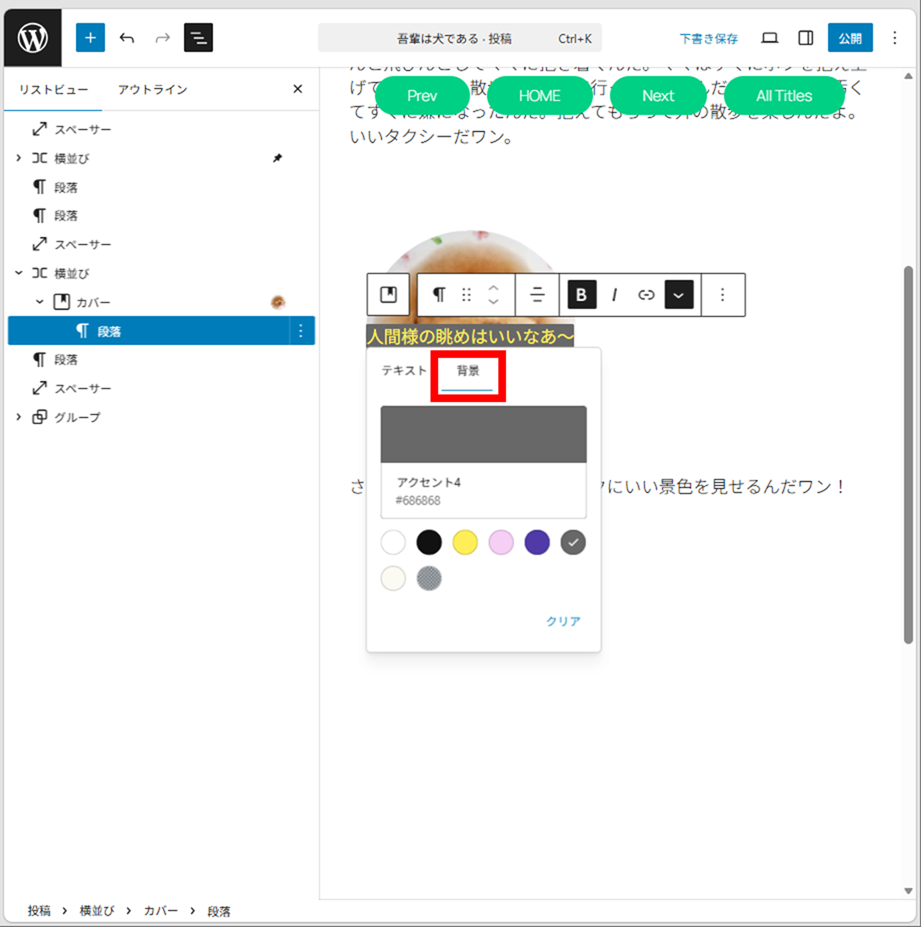
WordPress does not support text’s outline (SVG text). If you want to add the outline, create such a text image and paste it in a block.
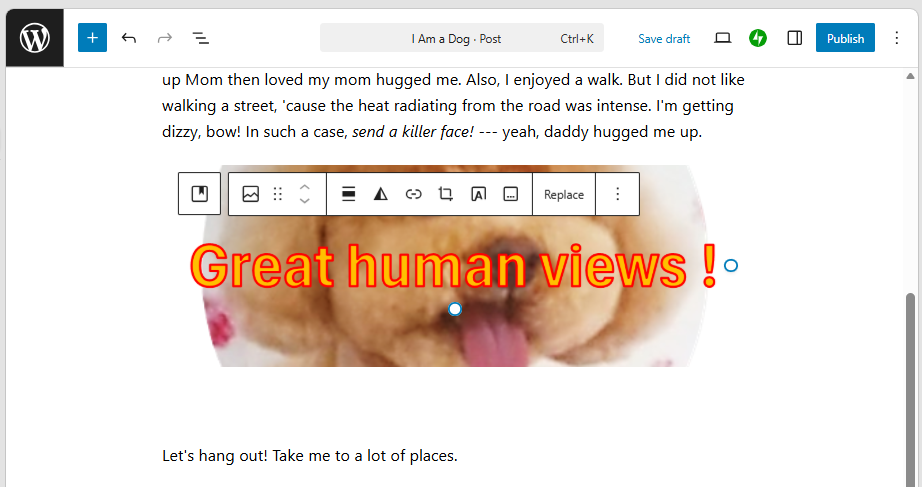
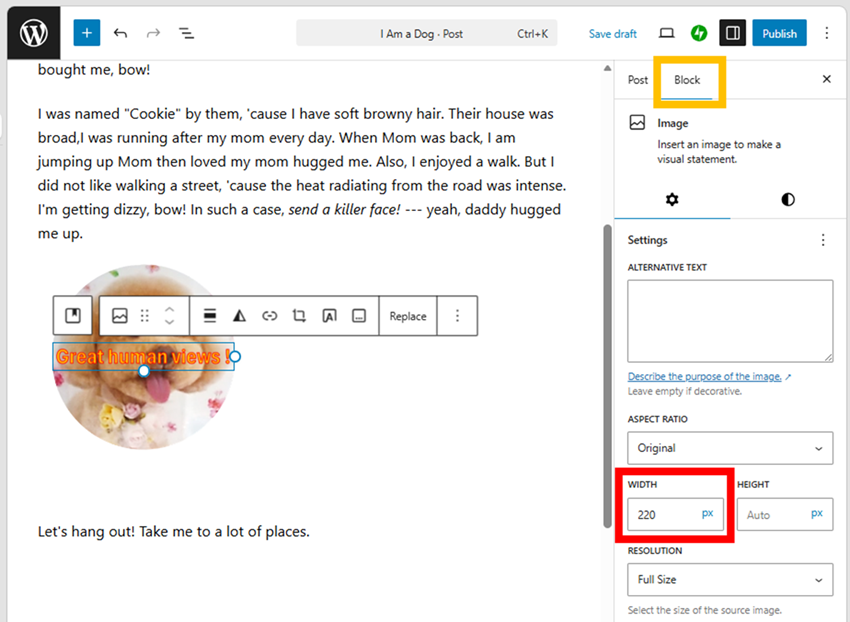
The transparent-background text can be easily created by using WordArt in Microsoft Office. Just paste it to image editor like GIMP. If not, create it on the image editor. If the text is too large, change the width of text.
Convert to monospaced font
You can change a font to the monospaced font by “Keyboard input”. You’ll use it for making same width of characters. The “Inline code” has same function.
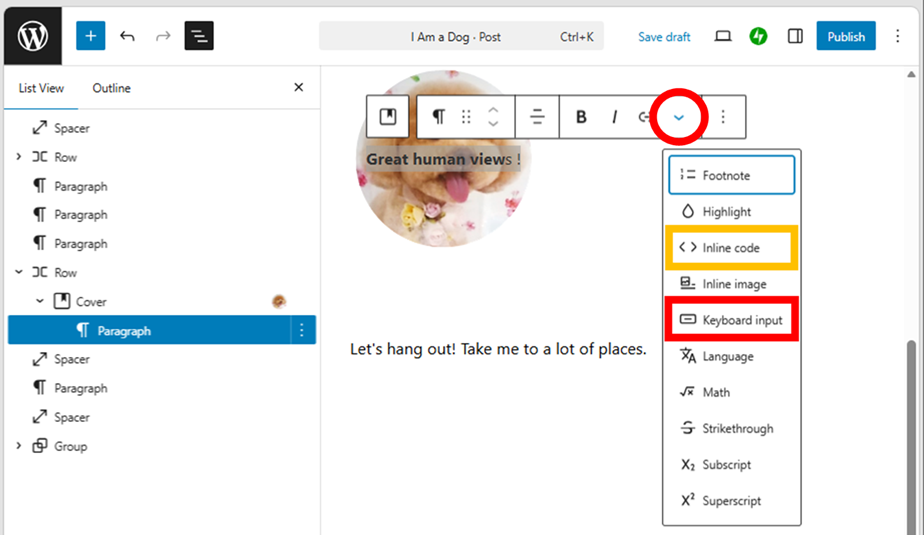
Alt+Ctrl+Delete ☚ Keyboard input
<a href="target"> ☚ Inline code
Alt+Ctrl+Delete ☚ no Keyboard input
<a href=”target”> ☚ no Inline code
Proportional fonts have different width. Especially, angle bracket keys (< >) expands the width.
Embed a formula
It is possible to embed formulas using LaTex commands.
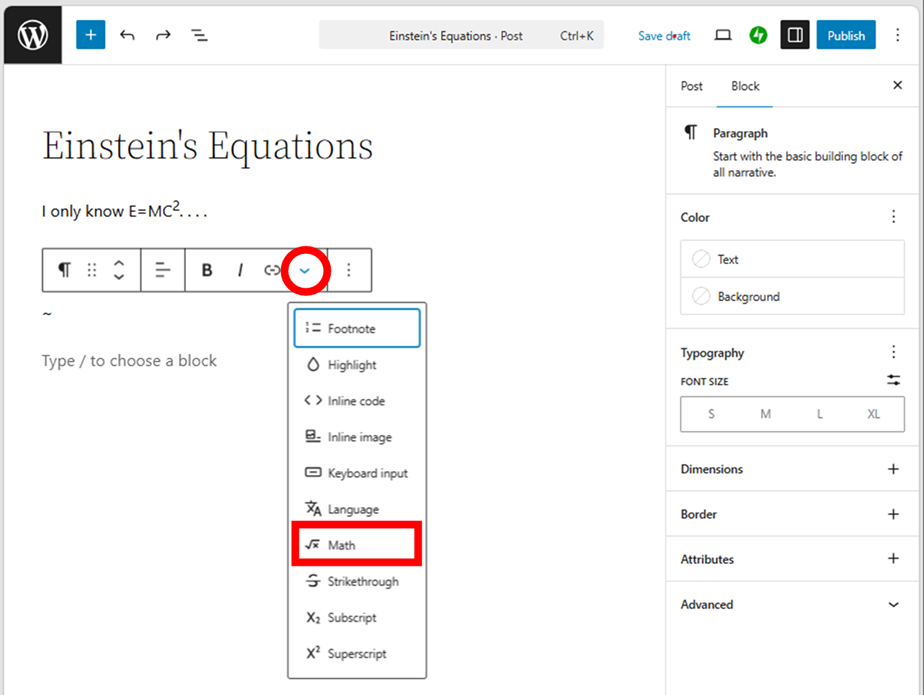
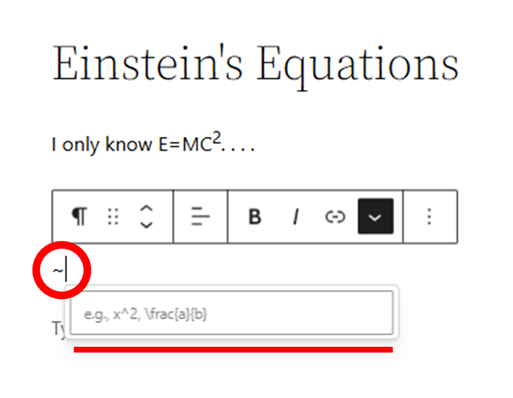
In first, type something of letter to change a block to the paragraph block. Then enter the formula. As LaTex commands are a bit difficult, it’s better to ask the AI.
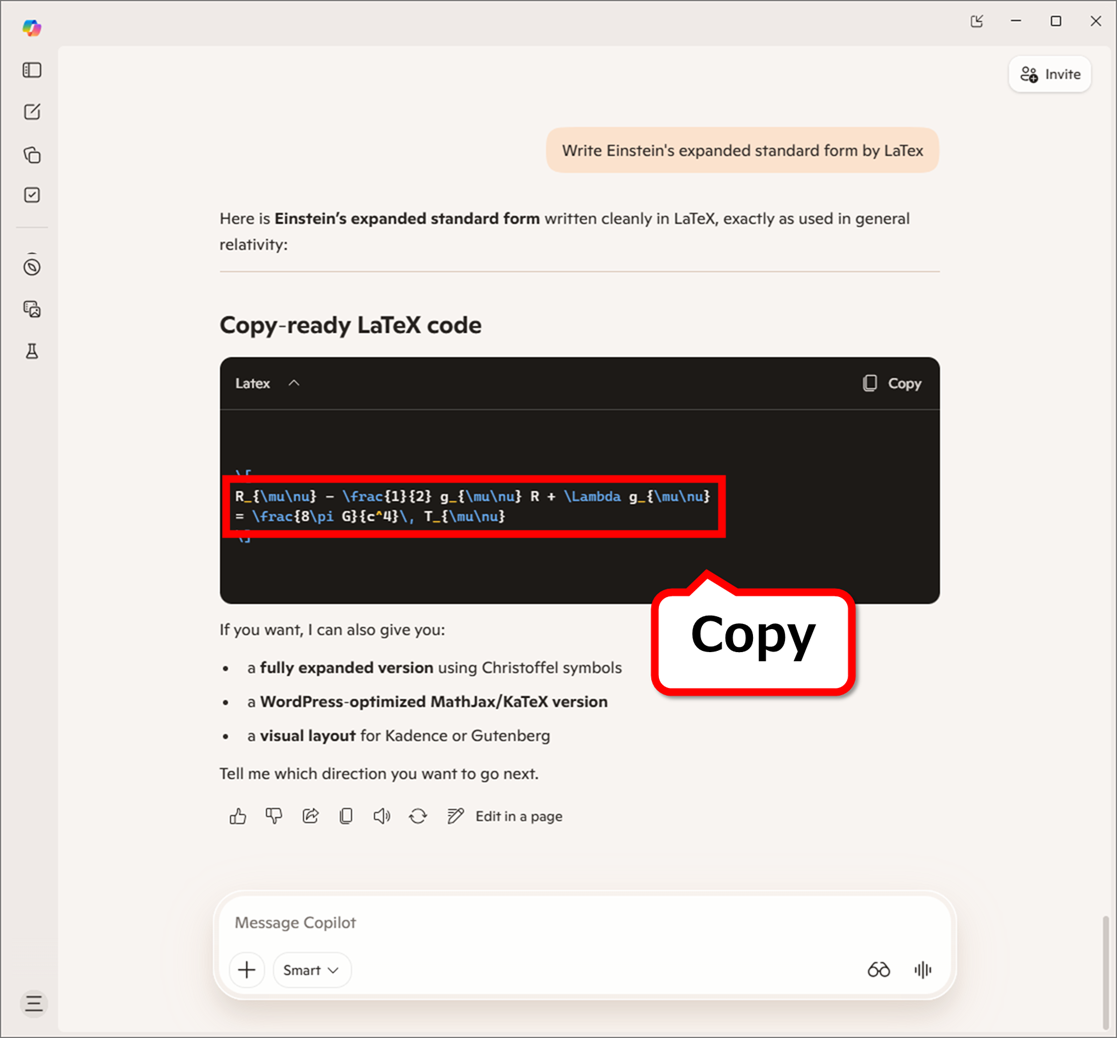
~
Delete the unnecessary character to complete it.
If you want to embed your own formula. . . Let’s study (^_^;.
Thank you for reading.
If you feel this article “Like!”, click the ads below ⇩⇩
Your click makes my affiliate income. It motivates me (^^;.
If you give a tip ——
Reader's comments(読者の反応)