


WordPress has two ways to link with internal articles of the page. One is to use table of contents, another is to use HTML anchor. You can jump to Headings or blocks by using them. Let you understand how to.
About Table of Contents
Genuine WordPress themes don’t have a feature to create tables of contents, so you have to use the third party’s themes or plugins.
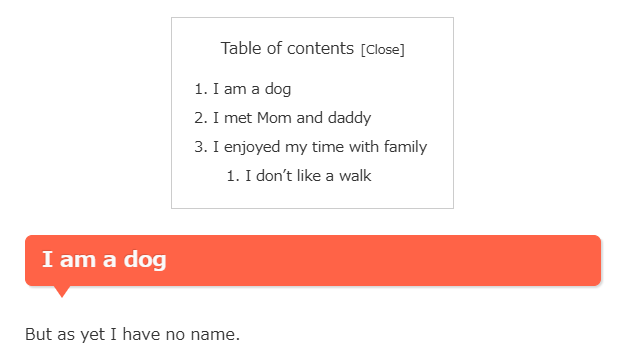
It’s not useful because it appears in the text.
Some theme has a feature to display it in the sidebar.
This site displays the table of contents in the right sidebar. It uses a plugiin “Easy Table of Contents”. There are other similar plugins, so you can use the one you like.
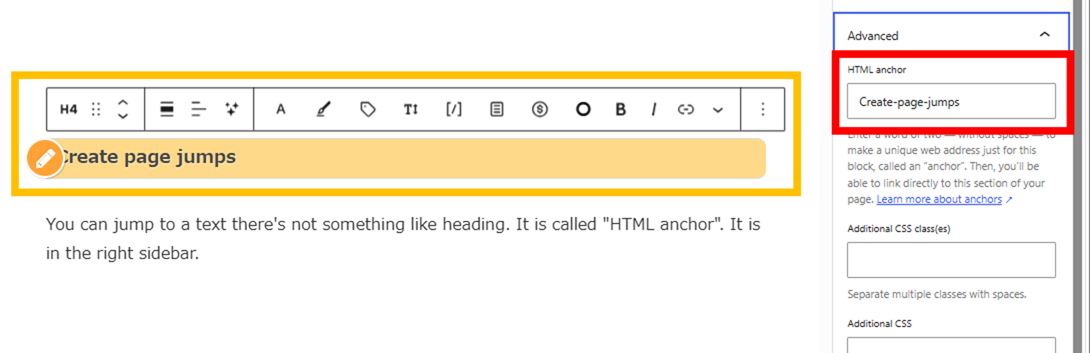
Create page jumps
You can jump to a text there’s not something like heading. It is called “HTML anchor”. It is in the right sidebar.
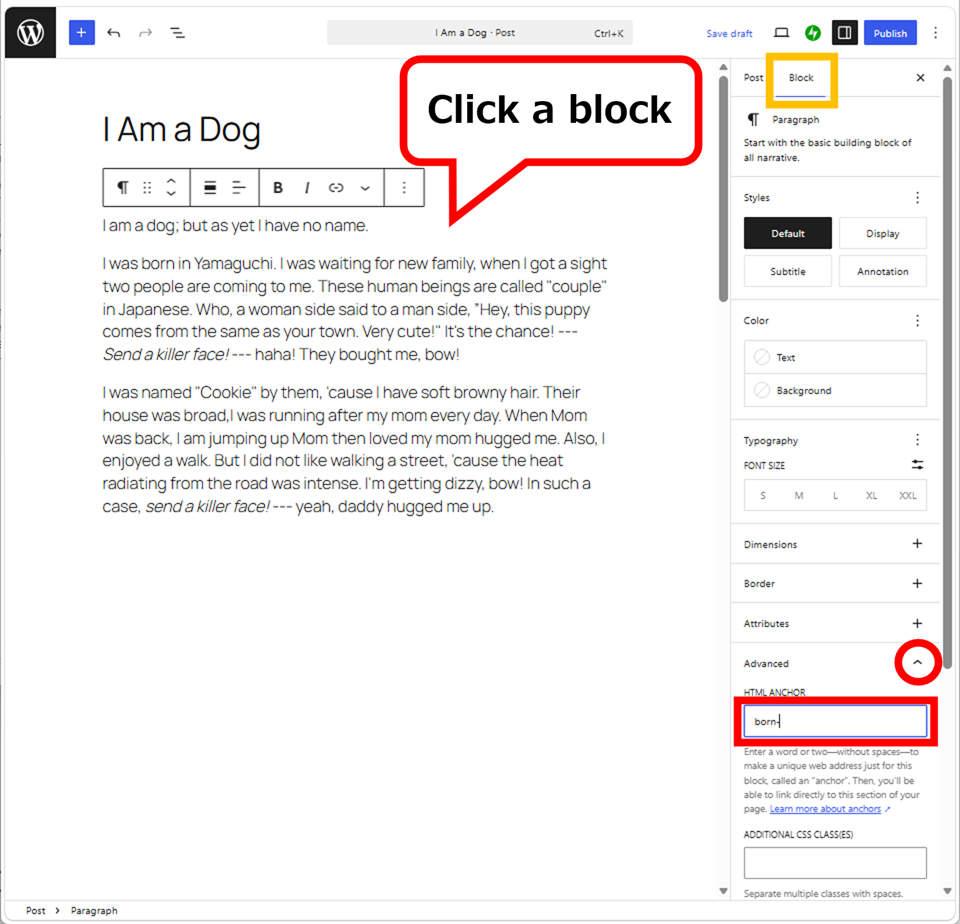
The explanation looks like the anchor string is up to two characters, that’s not true, you can enter as many characters as you want. The anchor is a part of search engines are referring to, so it is a part of visit’s number. Enter the meaningful strings to increase the number of visits.
In the themes that measures for SEO, the anchor will appear on the headings.
Check if the anchor string is same as heading string. If only copy a heading from other place, there is a case the anchor’s string would be different from heading string. Delete it then renew it.
Once the anchor is created, create a URL link on the target text. It is “URL#string”.
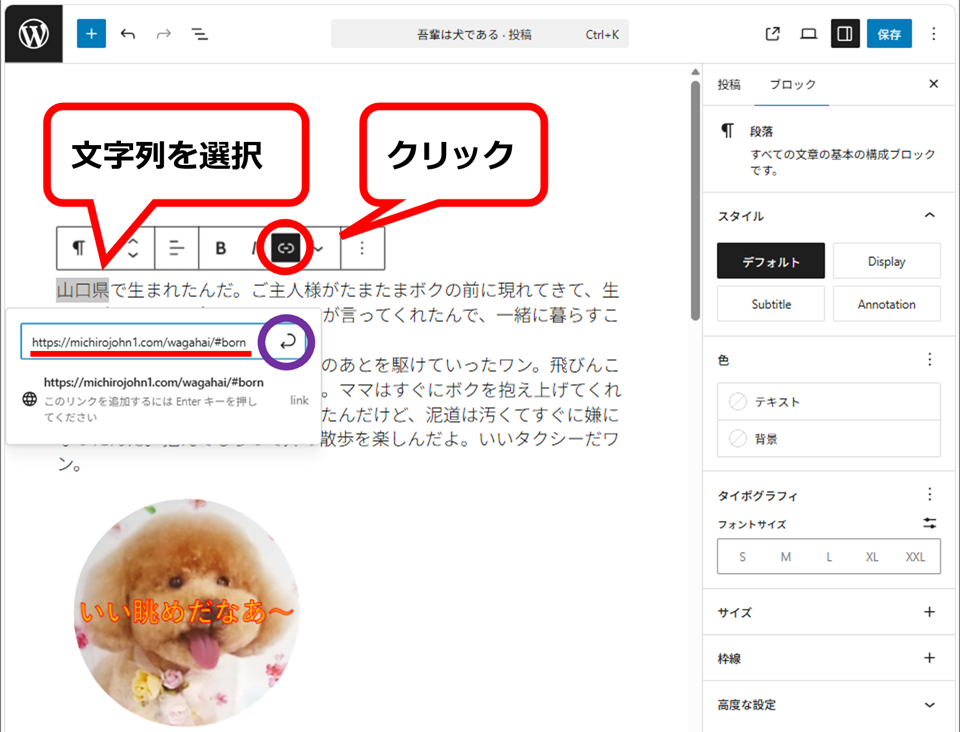
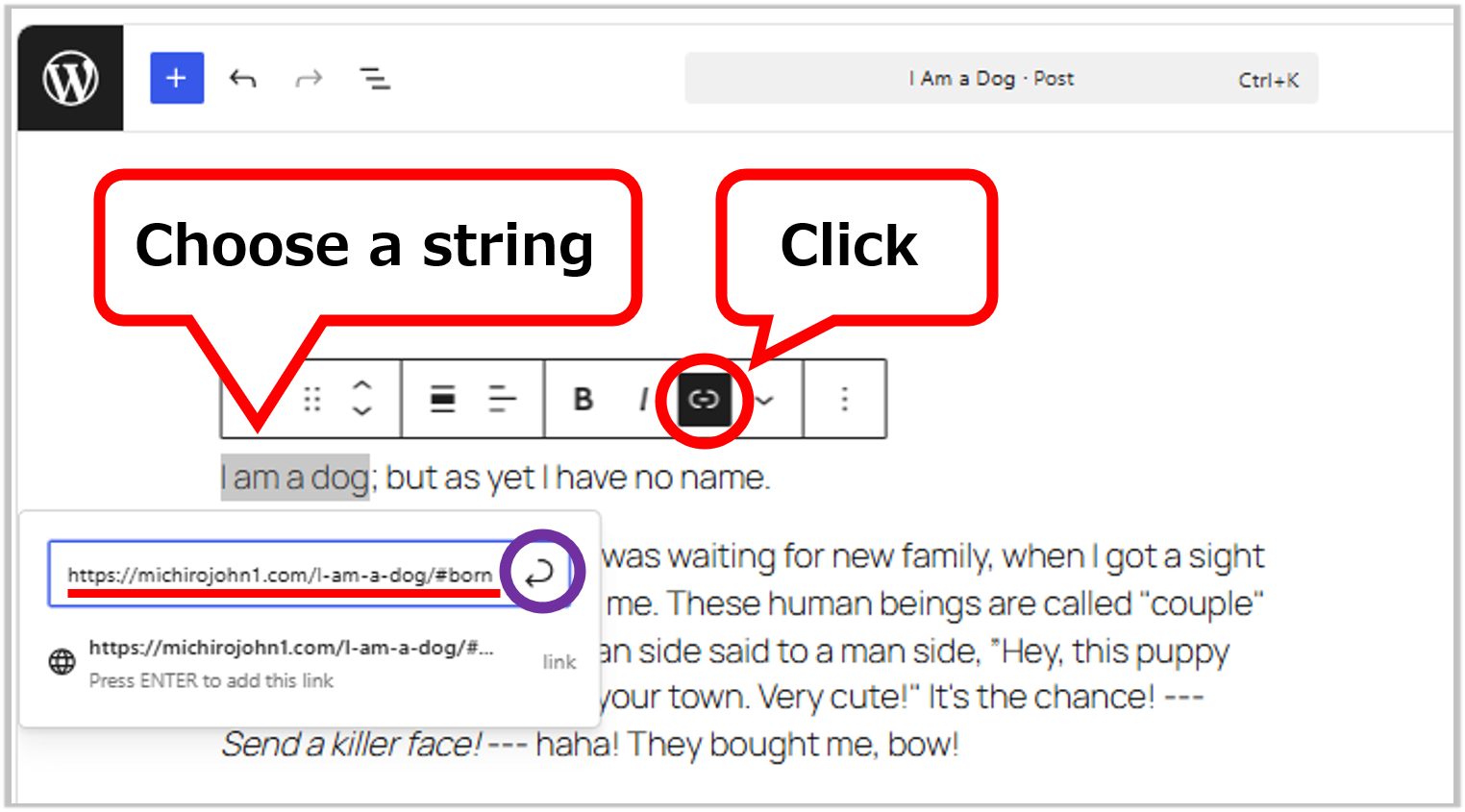
Confirm it to click the part of purple circle.
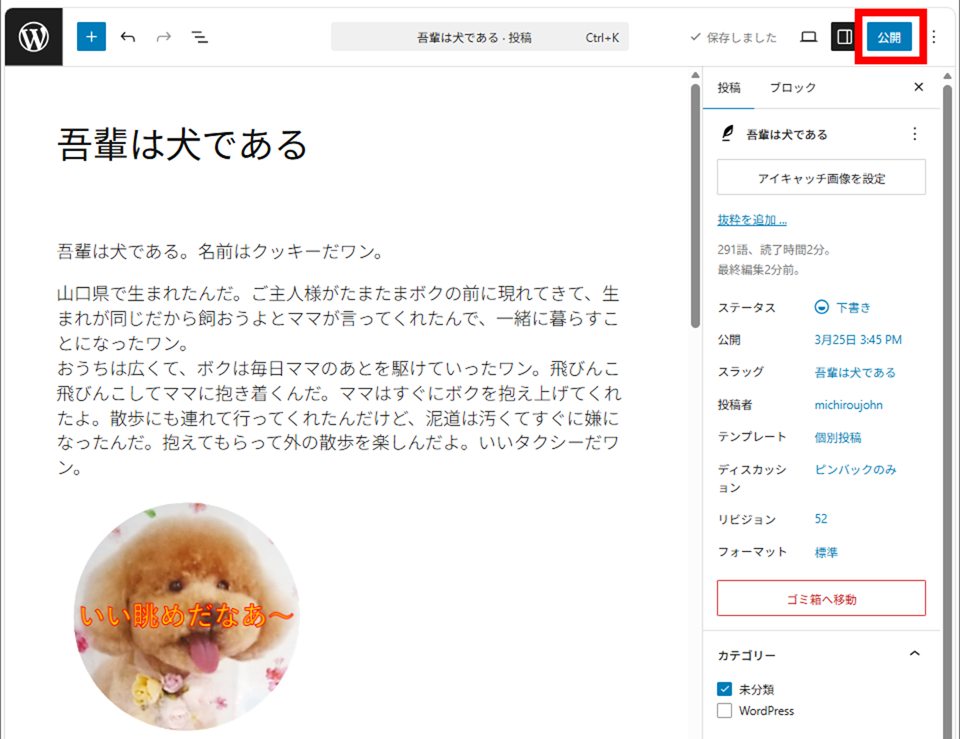
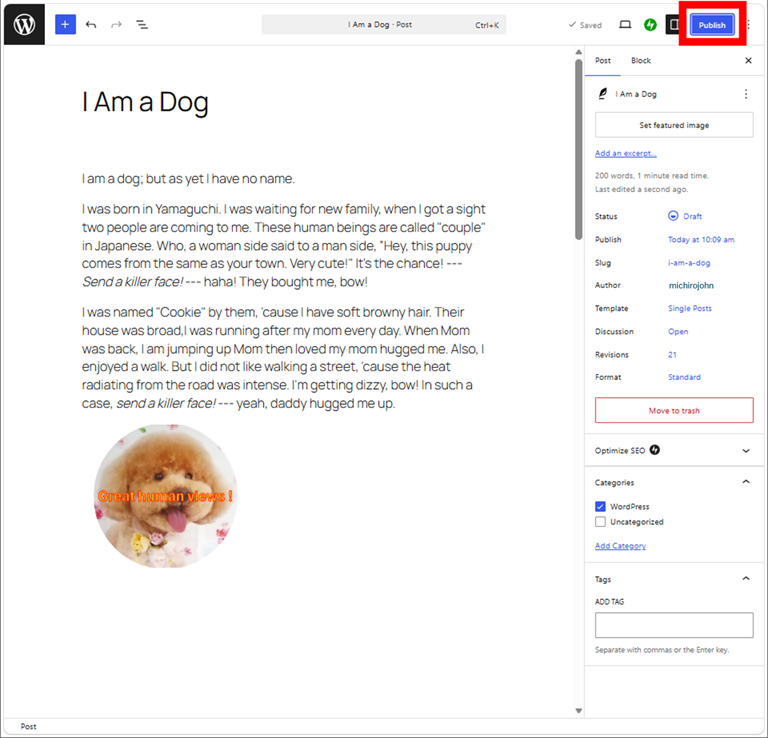
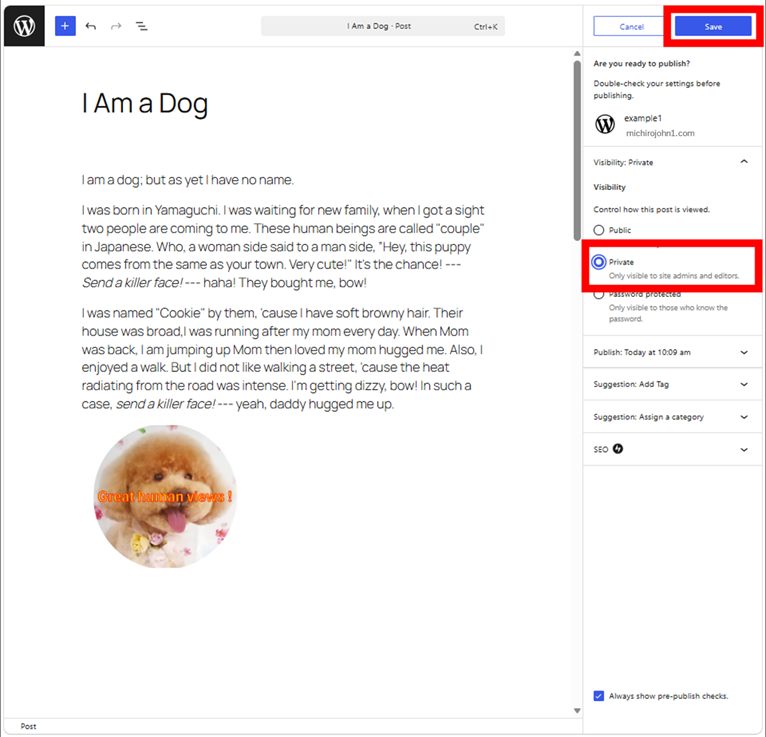
If you haven’t published the page yet, you can get the URL by saving as Private.
Shift the jumping position
Anchor is a structure of block, the jump moves to the top of the block. However, this jump goes too upward then hard to see the target. To change the jump position to the end of previous paragraph, it becomes easy-to-read page link for viewers.
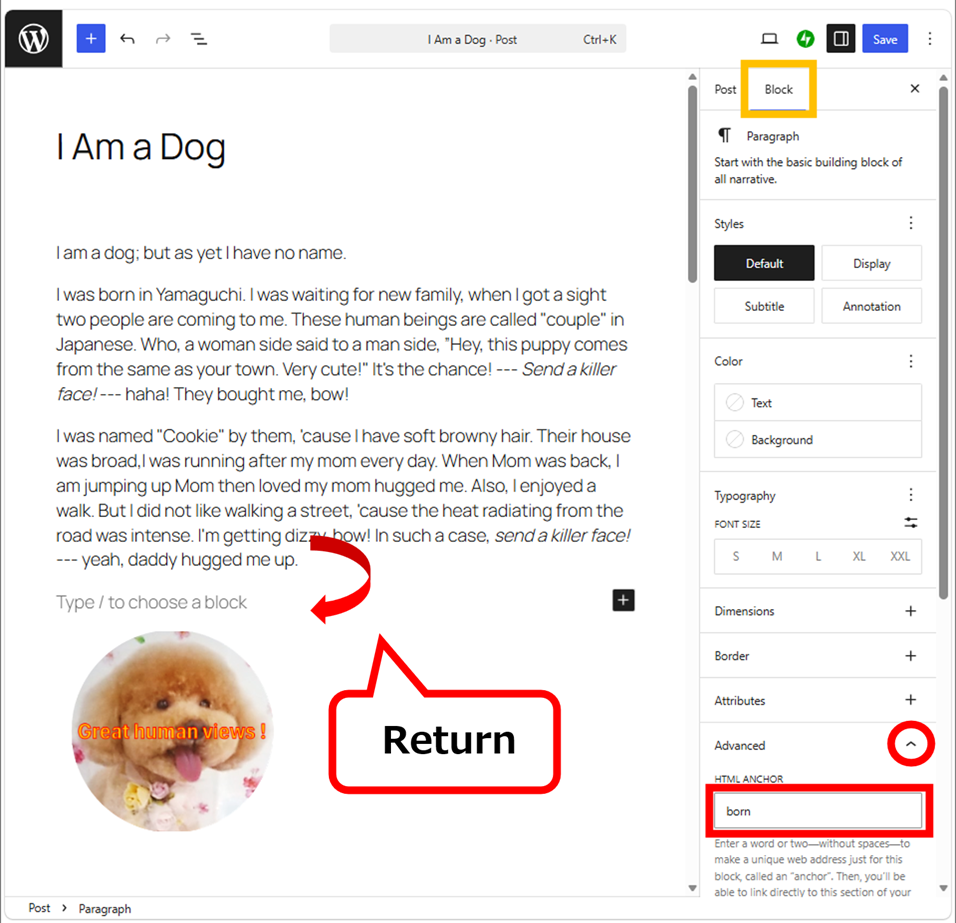
It just creates a block only for HTML anchor.
This even measures for the case of a sticky block is there at the top.
Samples of HTML anchor
Create anchor at the end of previous paragraph
Shift the jump position in the table of contents
If you want to change the jump position of the table of contents more downward. . . Let’s ask AI (^_^)/ .
According to AI, embed additional CSS from Customize in Appearance.
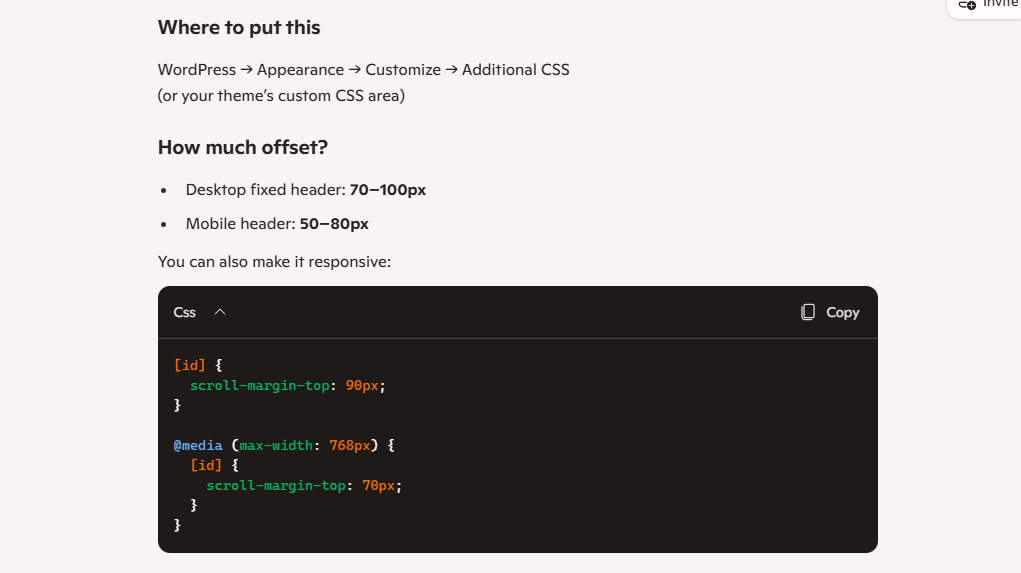
But the plugin “Easy Table of Contents” does not work with this code. You have to configure it manually. Entire relying on AI is kinds of risky, you know (^_^;.
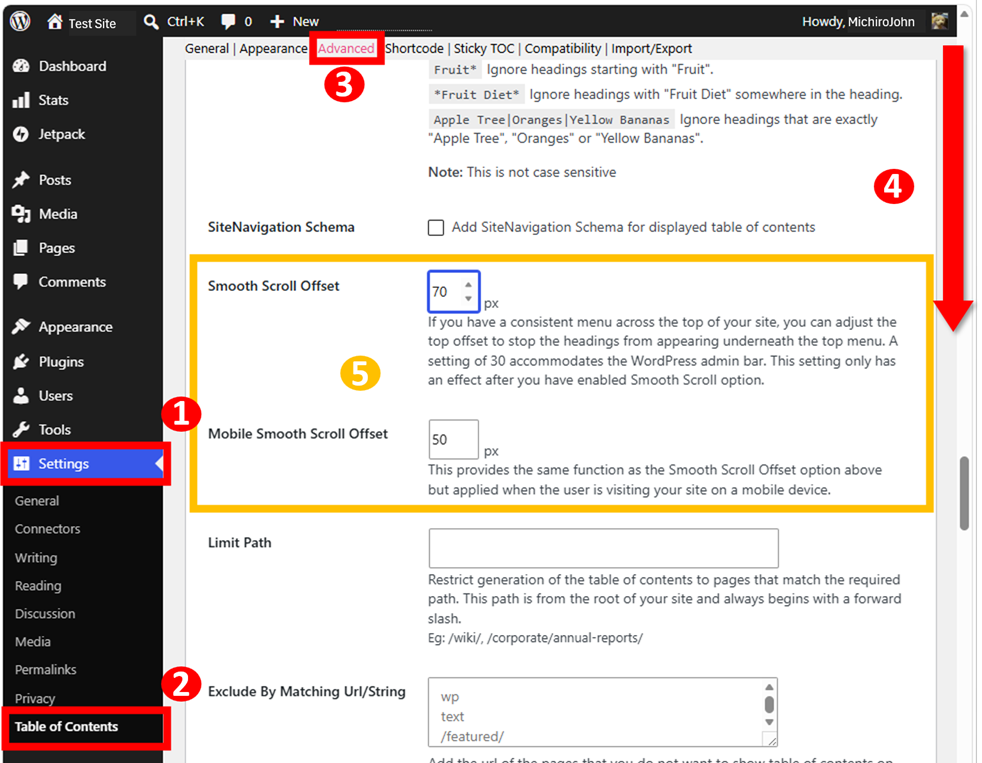
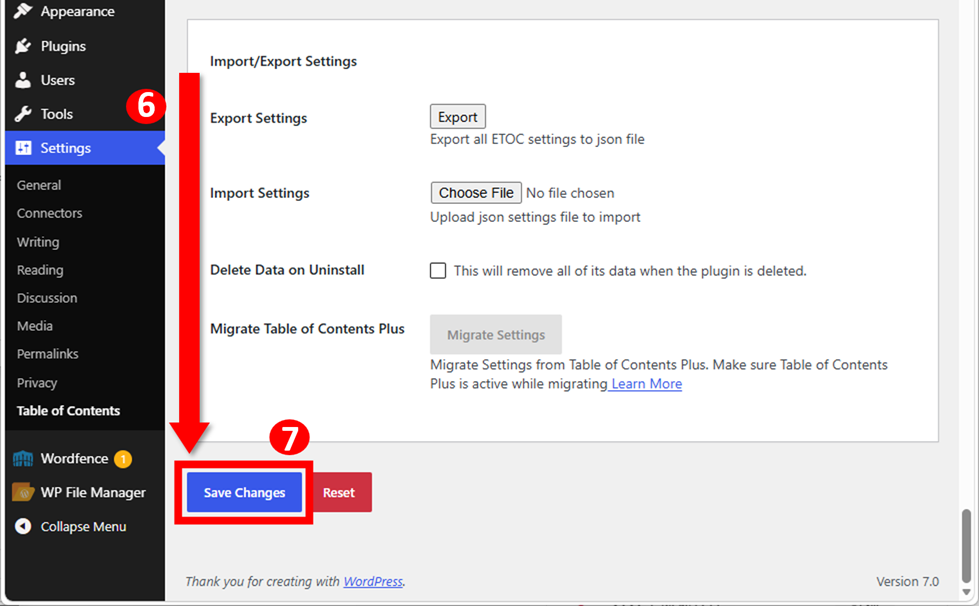
Adjust the positions yourself to configure ❺.
Thank you for rading.
If you feel this article “Like!”, click the ads below ⇩⇩
Your click makes my affiliate income. It motivates me (^^;.
If you give a tip ——
Reader's comments(読者の反応)