


Beautiful buttons make a site looking much better. It is also a place where you can learn the basics of creating a website. The concepts such as margin, padding, and style are. Master them all.
Instructions
Even in genuine WordPress, buttons are different from each theme. One theme has just a square button, another has a different hover effect (the color or the shape changed when the mouse pointer is on).
This post will create buttons to use the theme “Twenty Twenty-Five”.
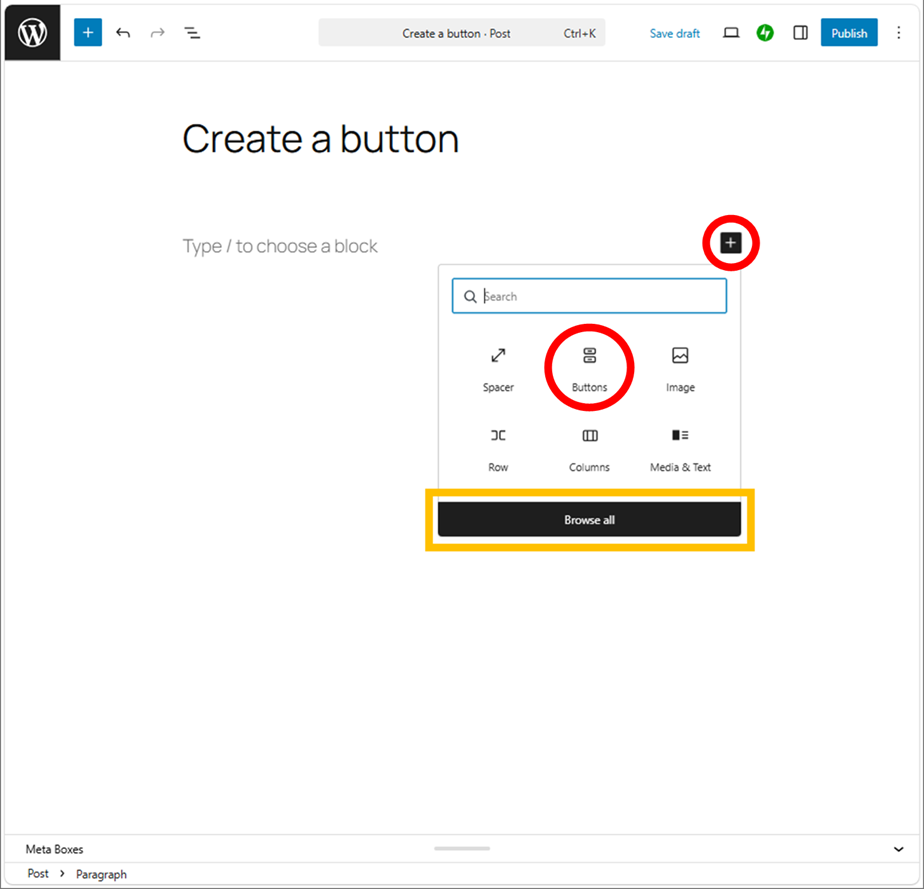
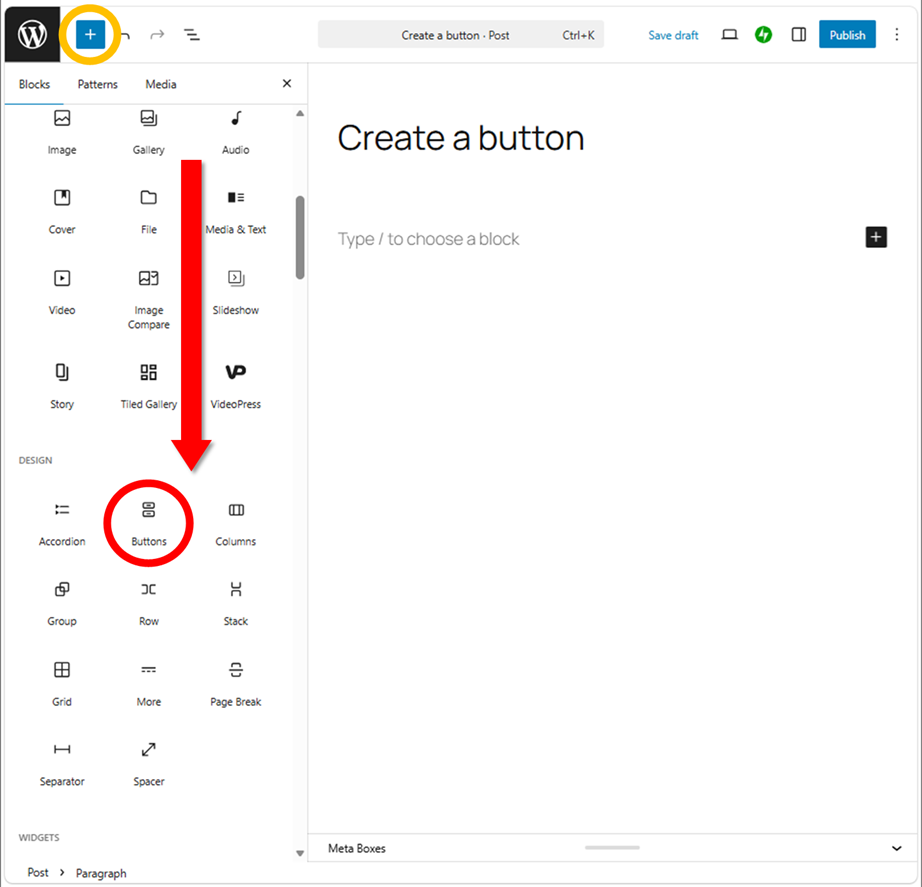
There are several ways to create a button.
You can make as many buttons as you want by this operation.
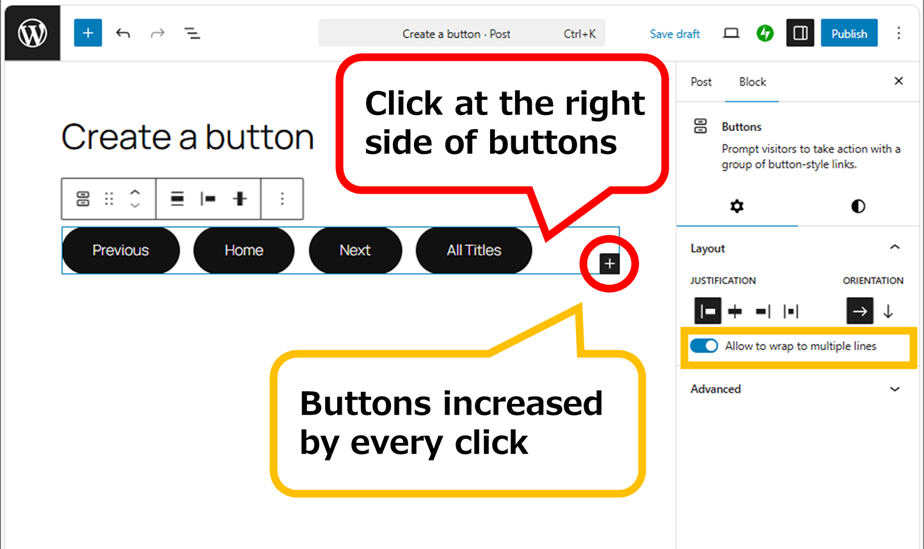
By default, when the button reaches the edge of the screen, the button will move to the next line, but if you toggled off “Allow to wrap to multiple lines”, you can align the buttons with a single line.
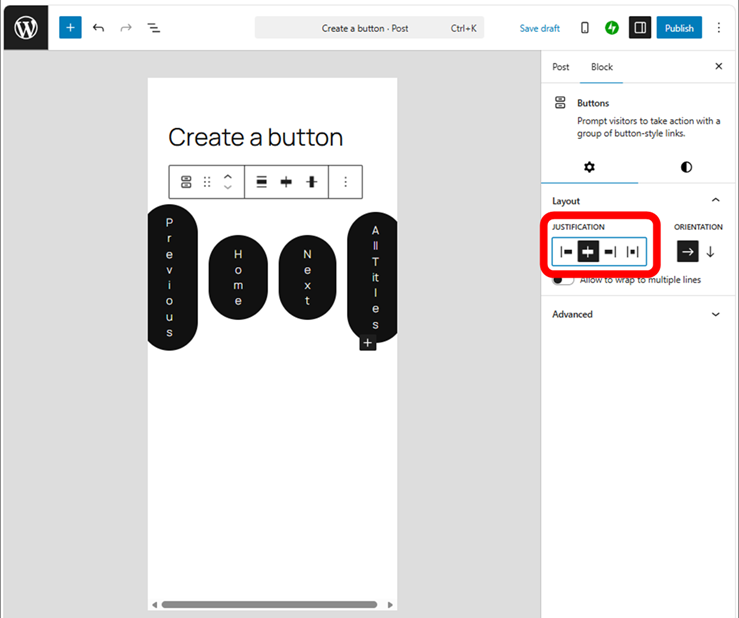
Don’t forget to center the layout.
You cannot change the buttons by PC and mobile. If you want to show different buttons on every PC and mobile, you will look for an extension plugin for the block editor. Think about smartphones, I feel three buttons are the limit.
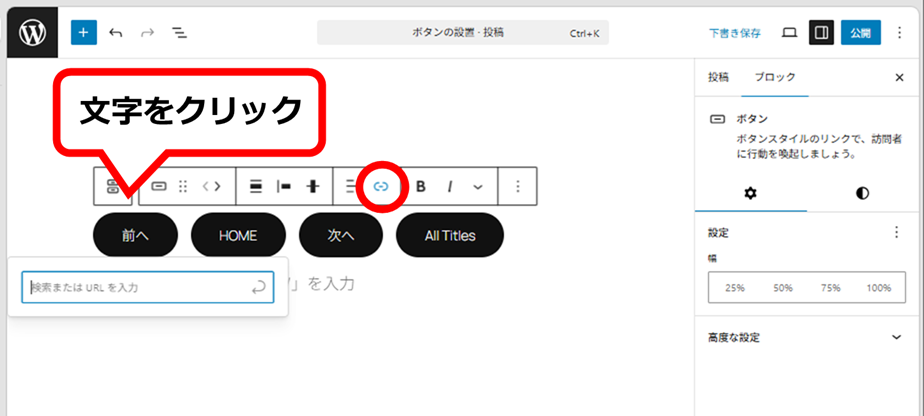
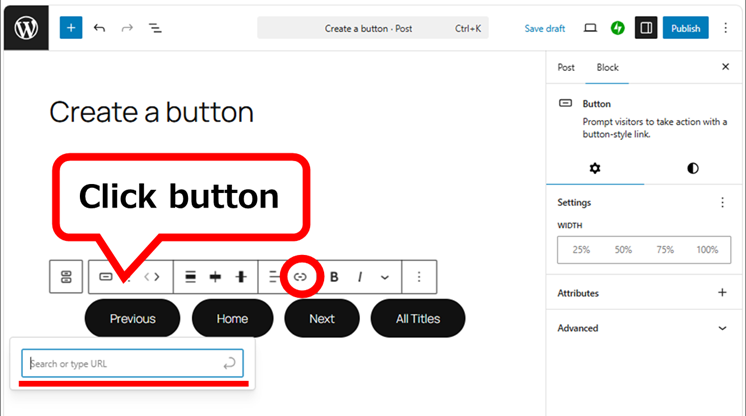
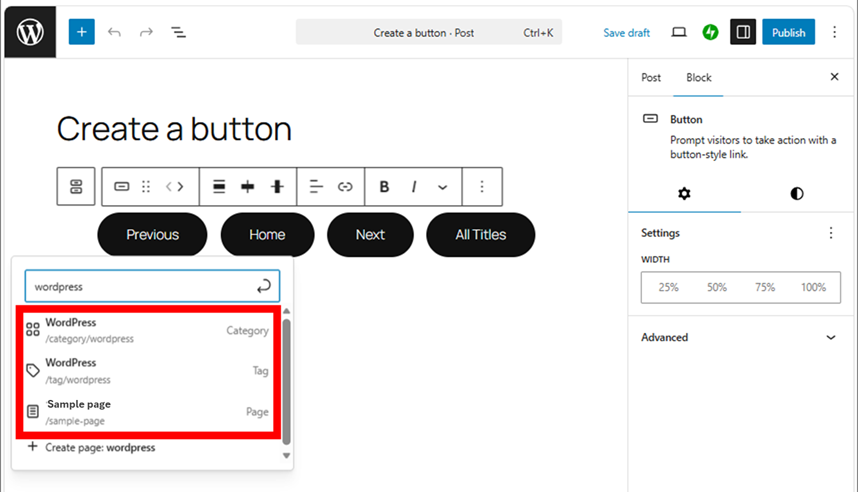
Entering a keyword here is to show a list of categories and tags. It can also select articles easily. It will be like a “latest posts”.
Button Settings
Black buttons are not good, let them change the color and shape.
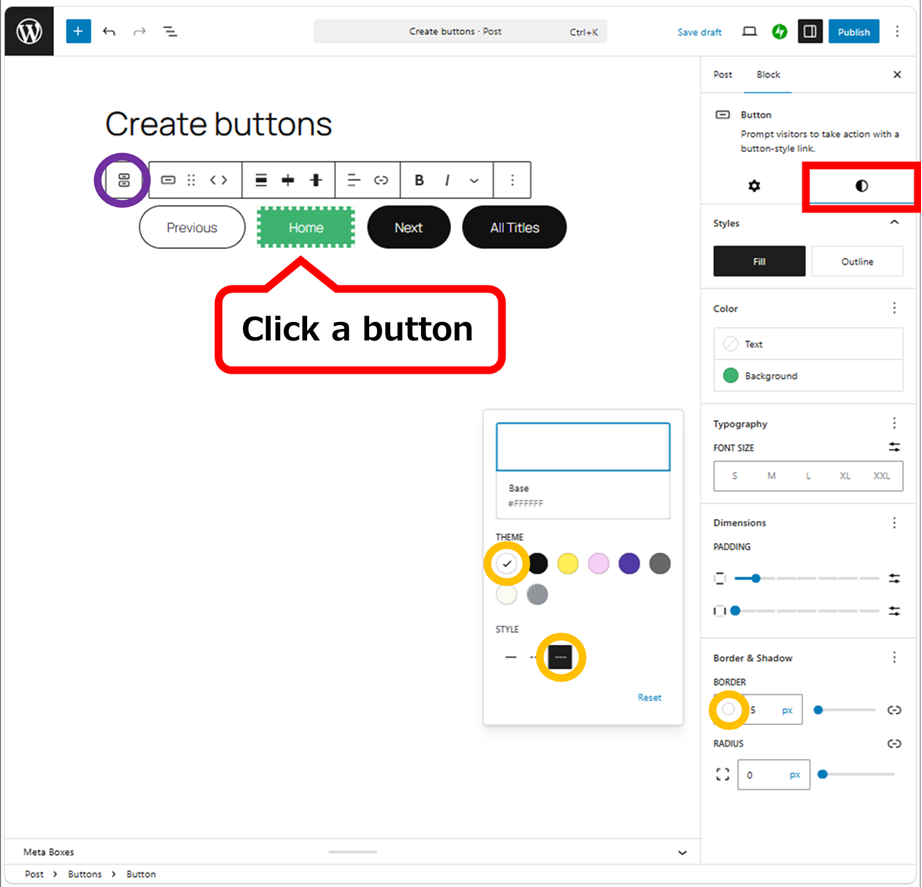
I don’t explain all because it would be a huge amount of. Let’s try it by yourself. Practice makes perfect. In the image above, I added perforation along a button. Create your unique buttons with your ideas.
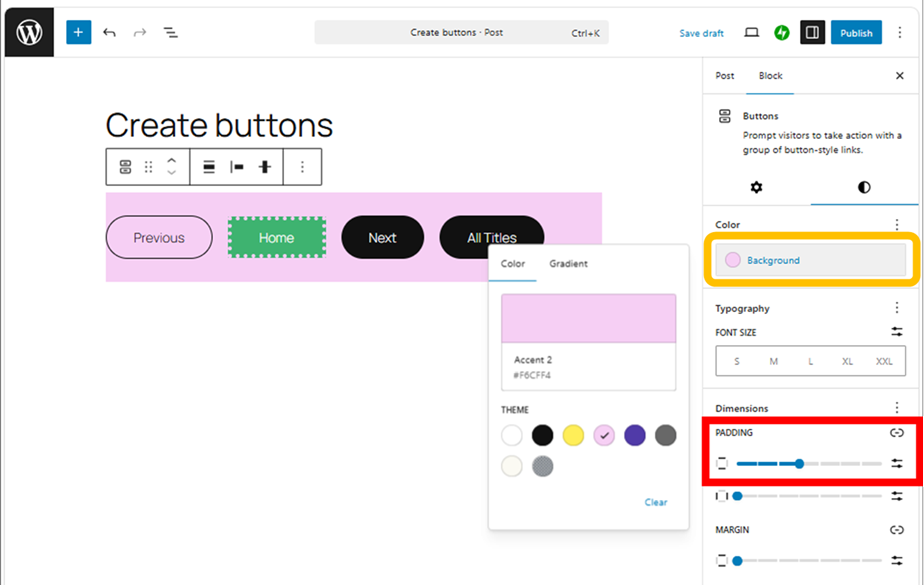
The size of buttons can change in the padding here.
Press the parent block (purple circle) to change the size of a block.
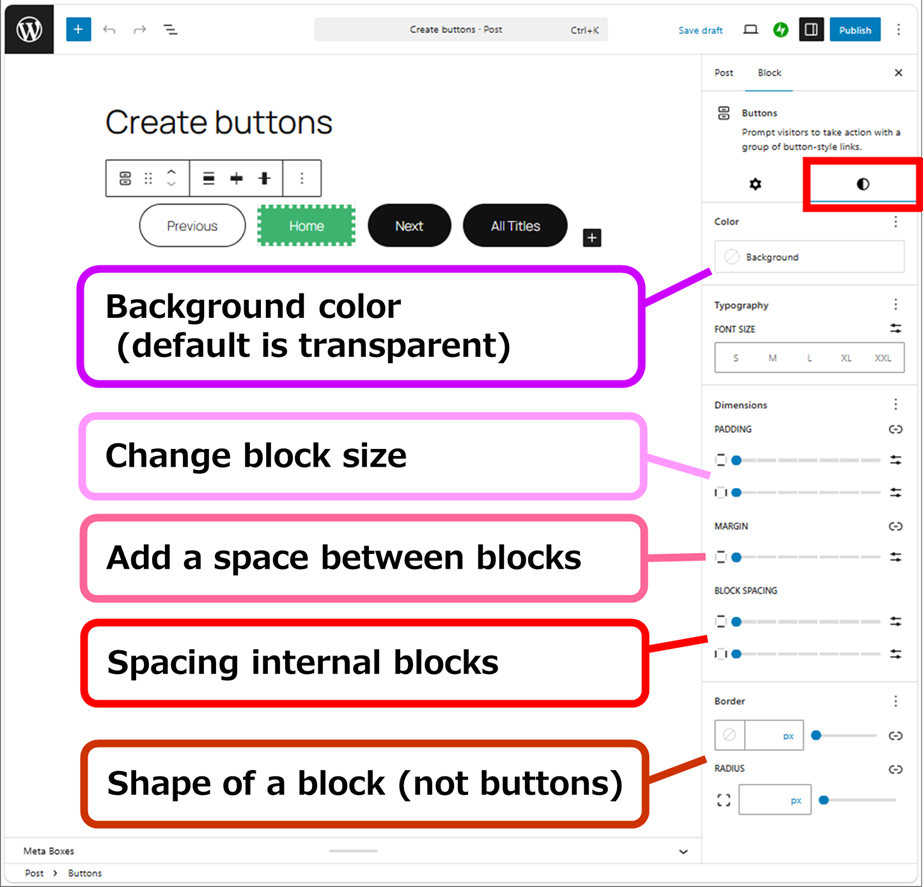
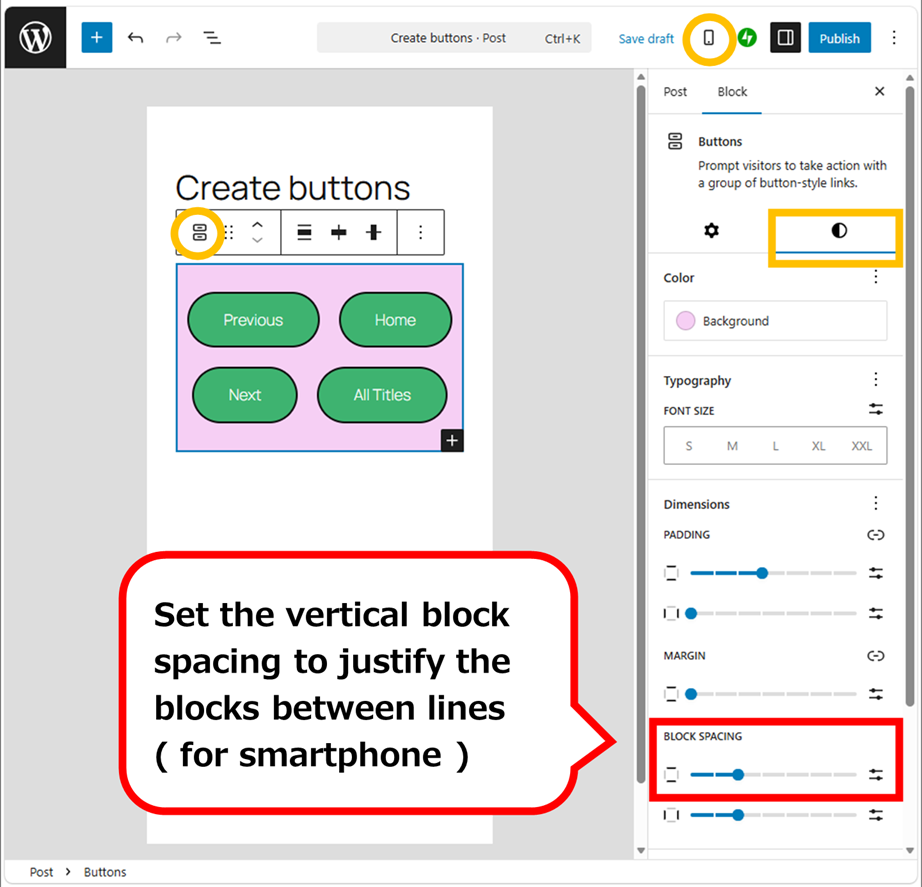
Padding, Margin, Block Spacing —— It’s difficult to understand how to operate them (-_-;, that are the technical terms, so you must understand them. In short, the directions of spacing are different.
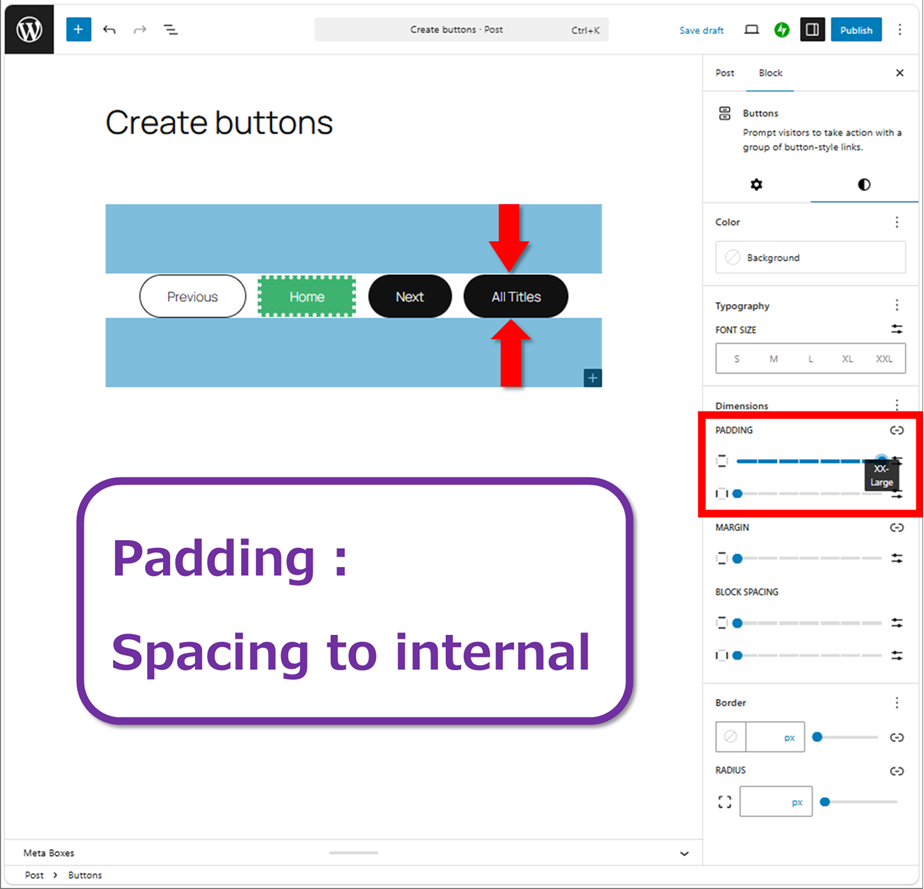
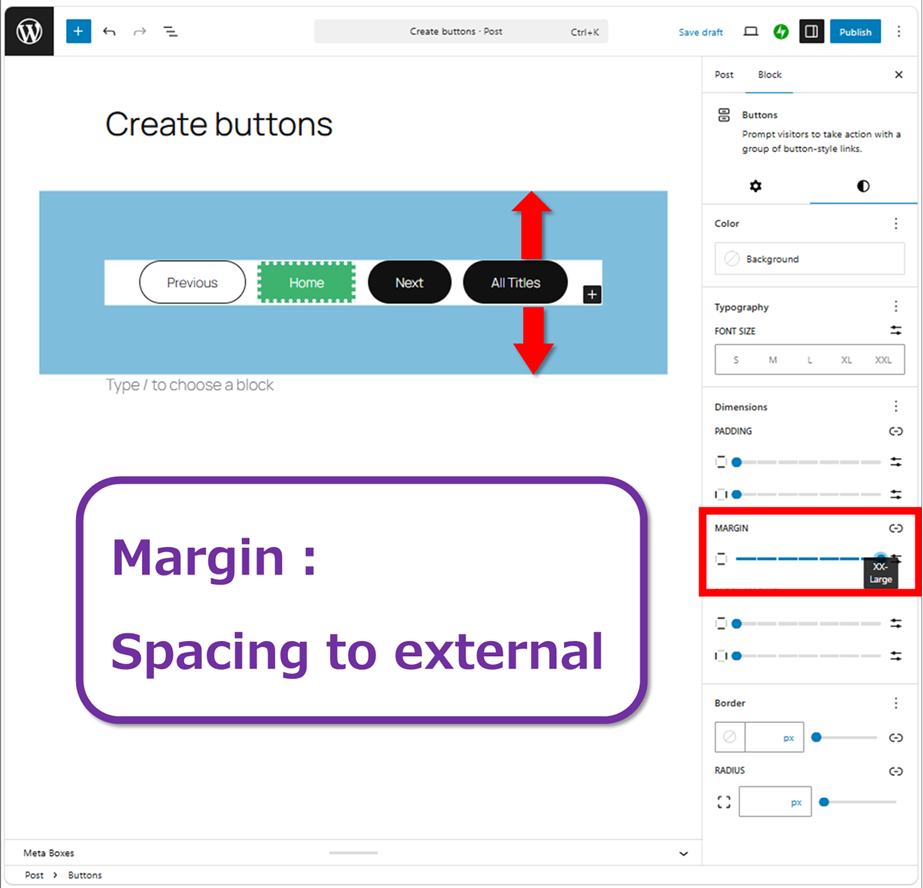
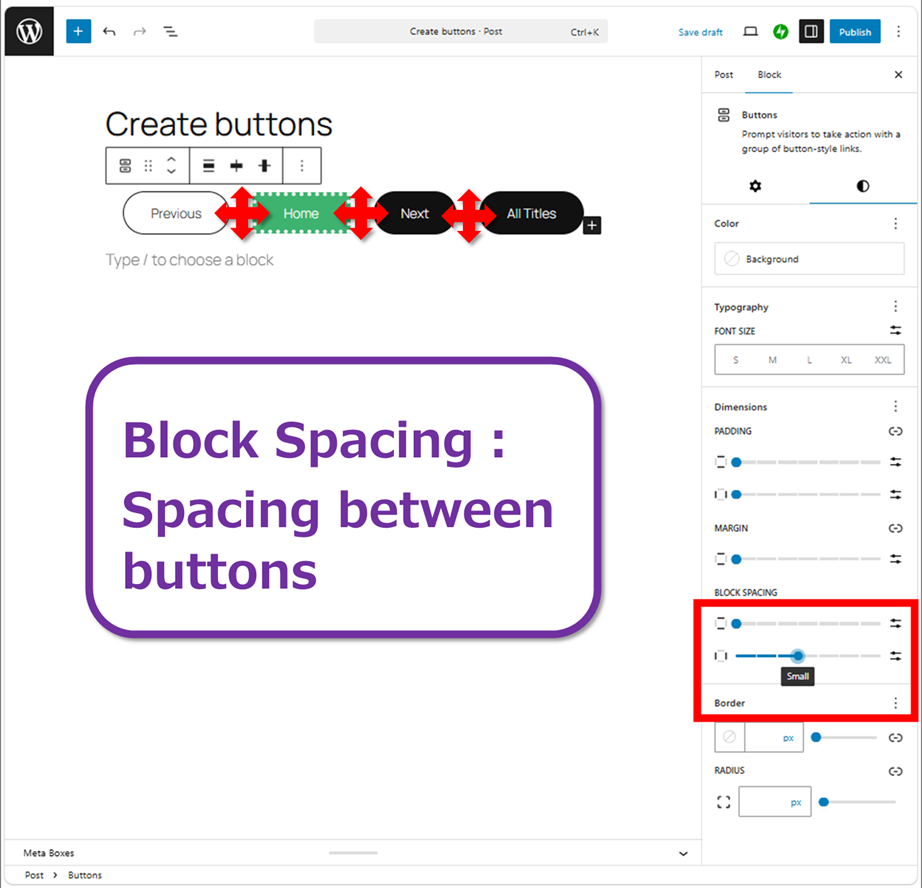
Of these, commonly used is “Block Spacing”. Padding can use for a block to adding the background color.
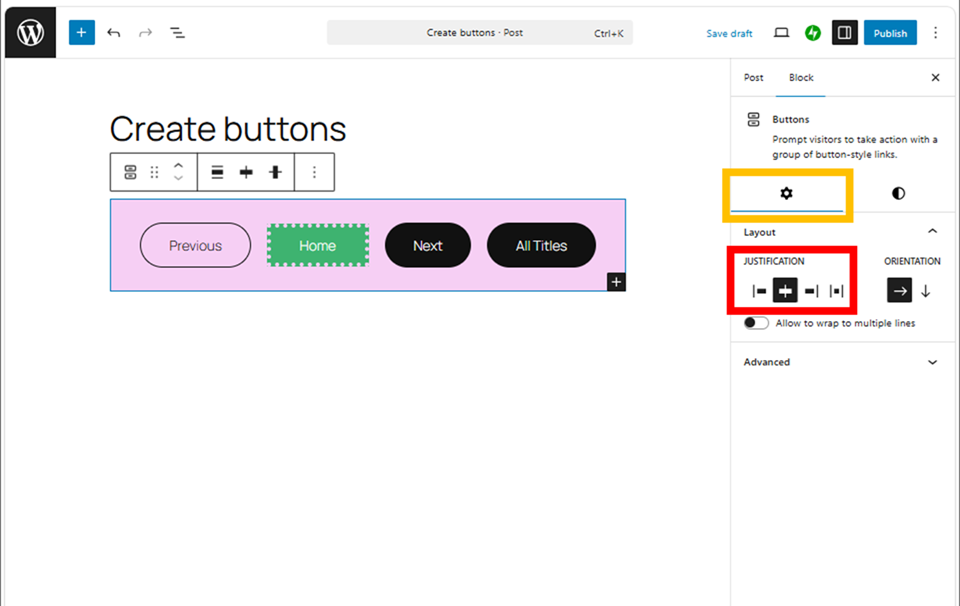
Don’t forget to center the layout. There are several ways of the layout, as another way, make the buttons arranged at equal intervals then added horizontal padding. Try a lot.
Once you created a button you like, copy and paste the style to create other buttons.
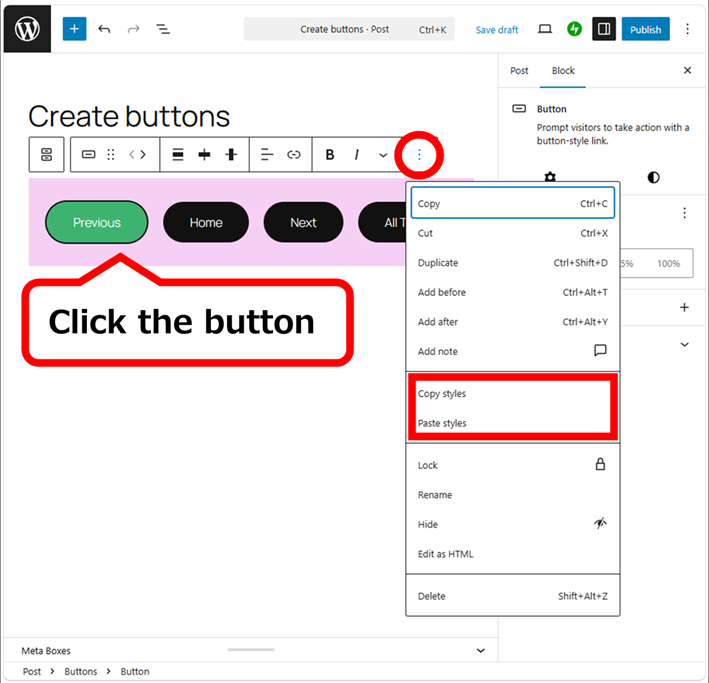
I did it.
Considered the appearance in smartphone, I set the vertical block spacing.
The settings are like this.
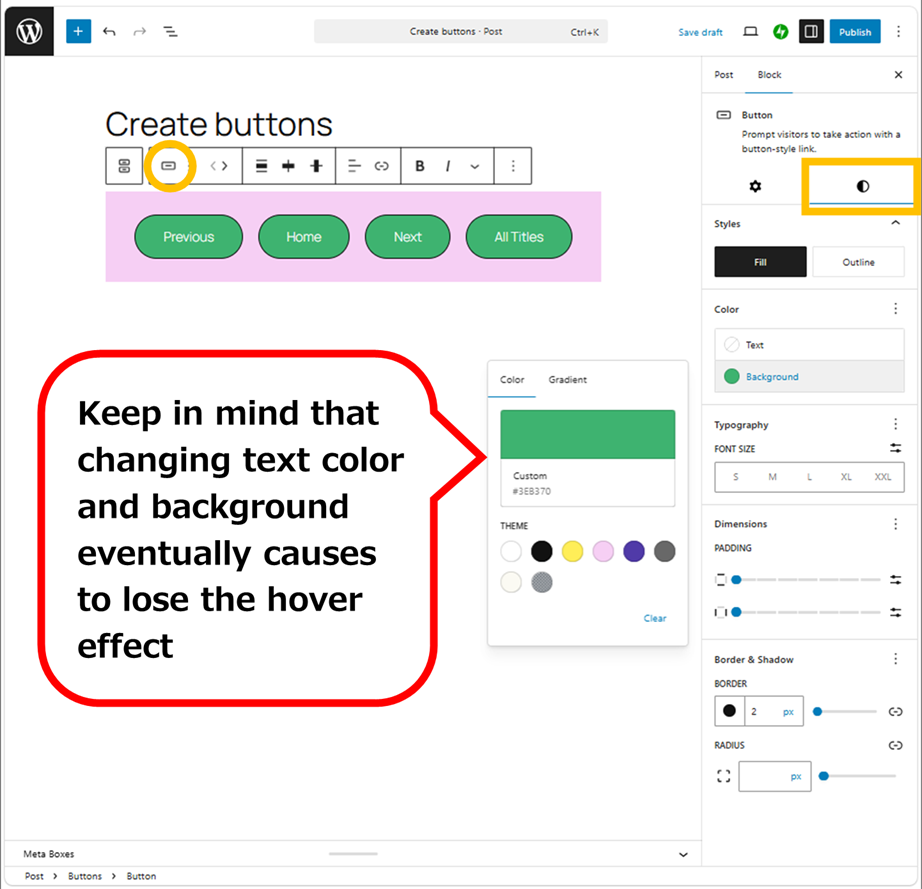
Make the Buttons Solid
Using gradient for buttons, you can make the buttons look like three-dimensional.
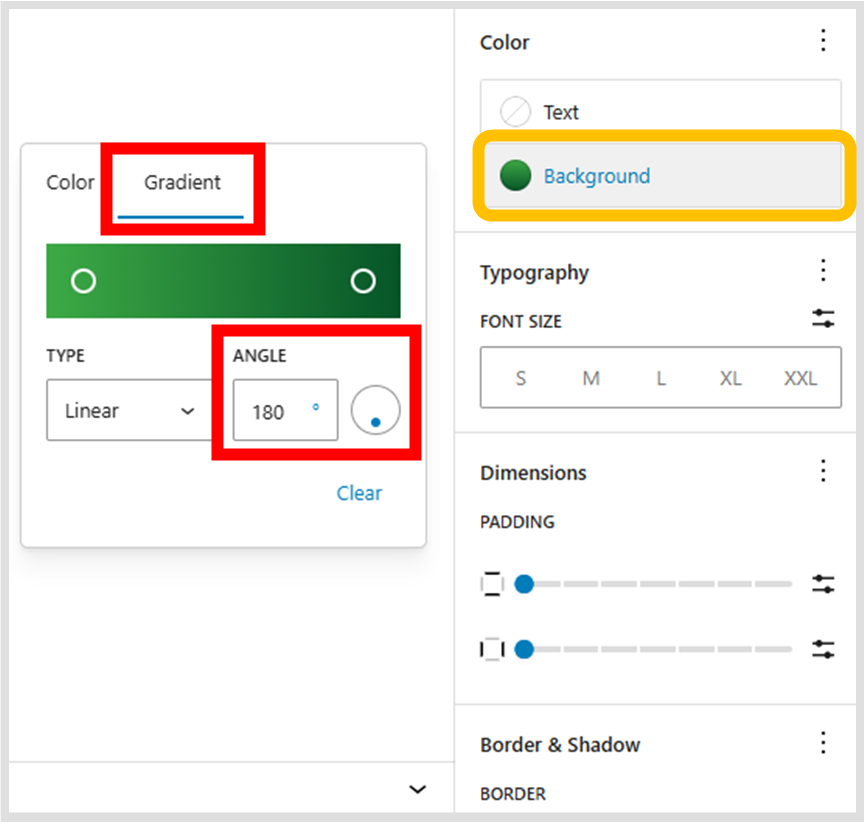
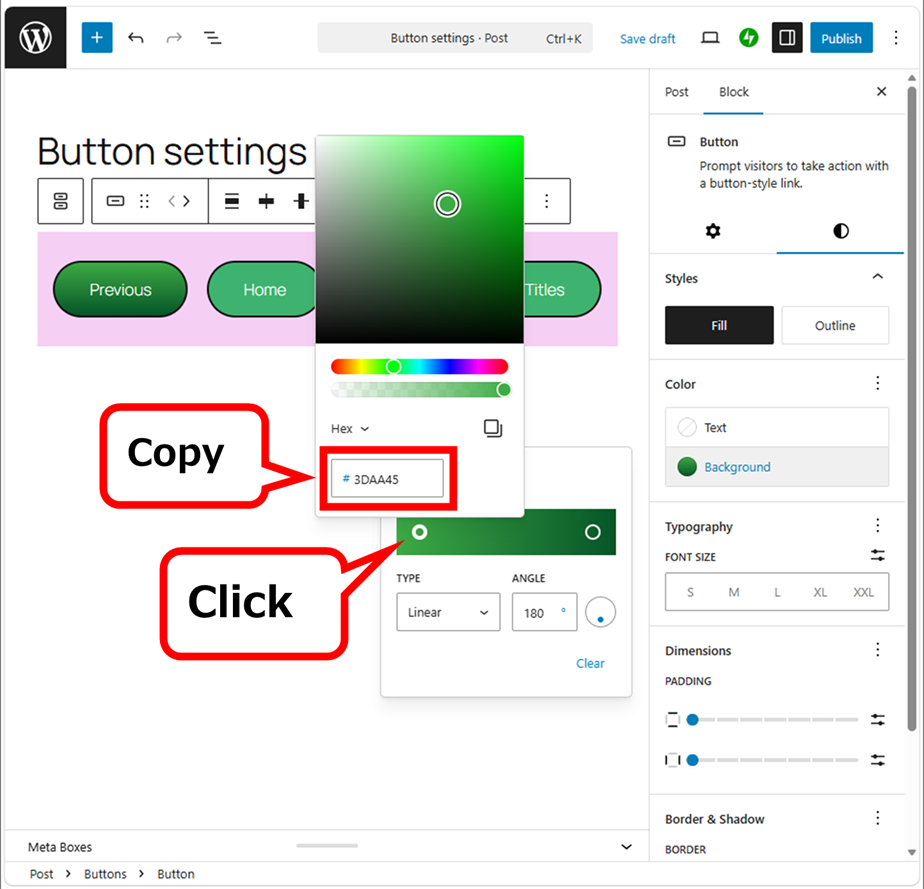
Drag the handler (white 〇) to pick up light and dark colors. Set the angle to 180° around. Copy the light-colored Hex number.
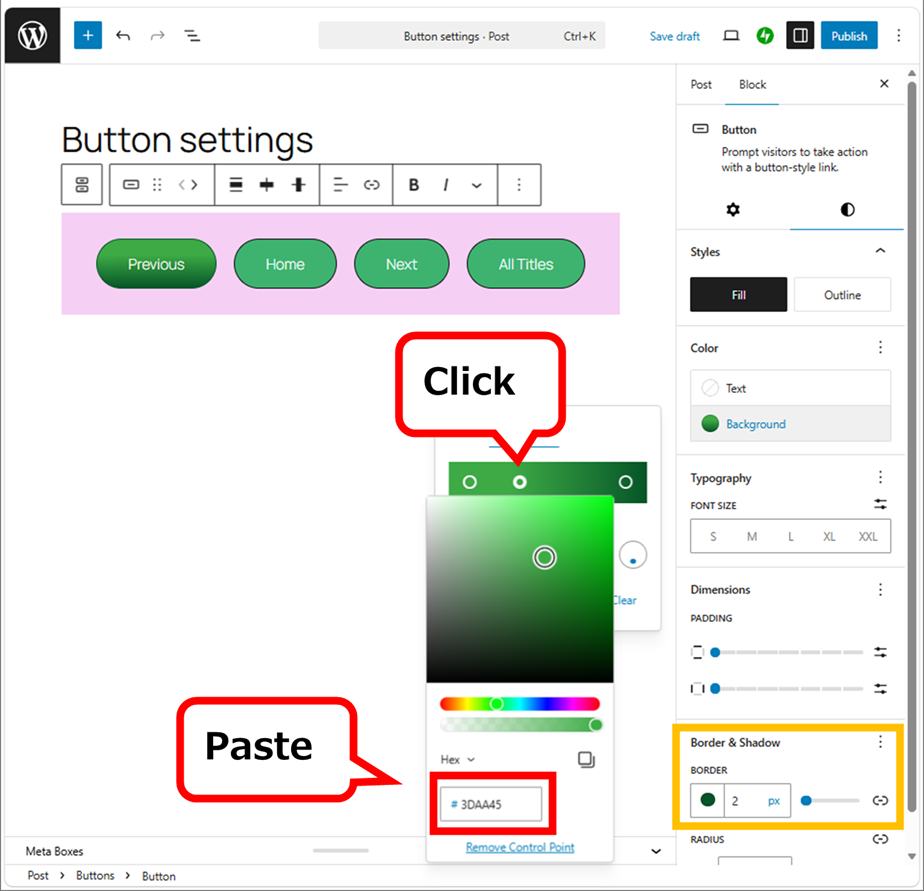
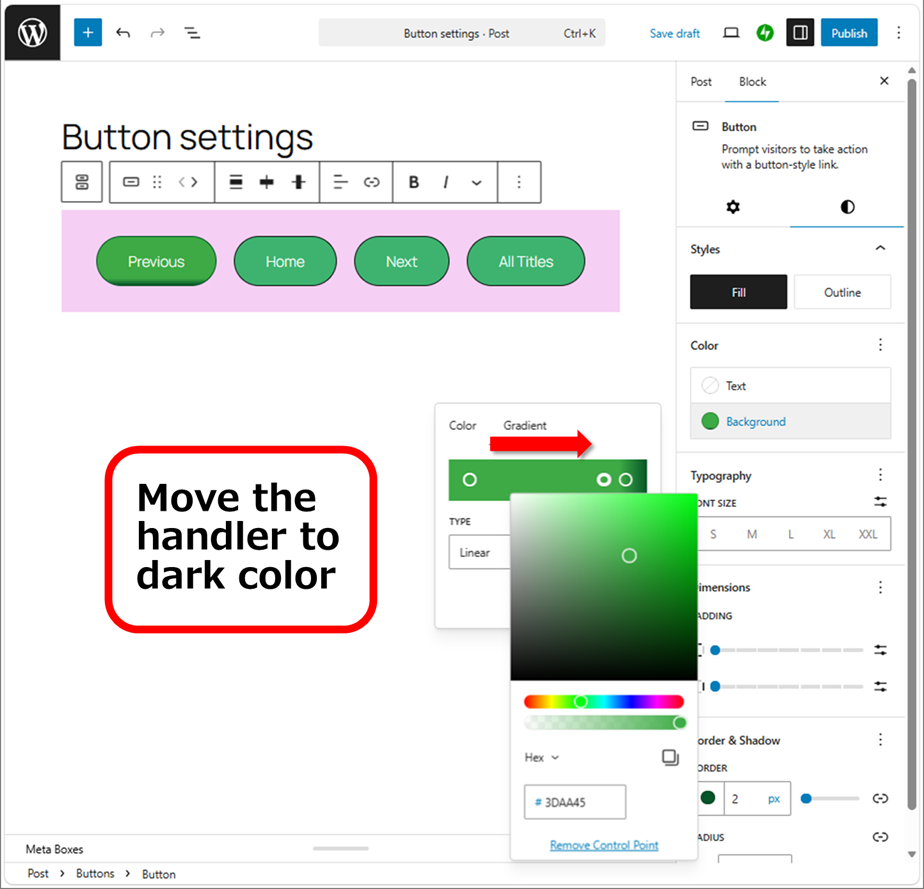
Move the handler towards the darker side. It looks like there is a shadow underneath. It’s good to copy and paste the darker Hex number on button’s border. Shadows may be emphasized. Like the left image, if the button had a soft solid appearance, you don’t have to change it specially. The important thing is the choice of color.
When you’ve done, copy and paste the style for all buttons.
Change Button’s shape
I did it.
As the buttons doesn’t look good, I adjust the button position. Change font size (size of button changed), the gradient angle is set to 179°. It looks the more natural roundness. It supposes to give a flatty three-dimensional effect.
The settings are like below.
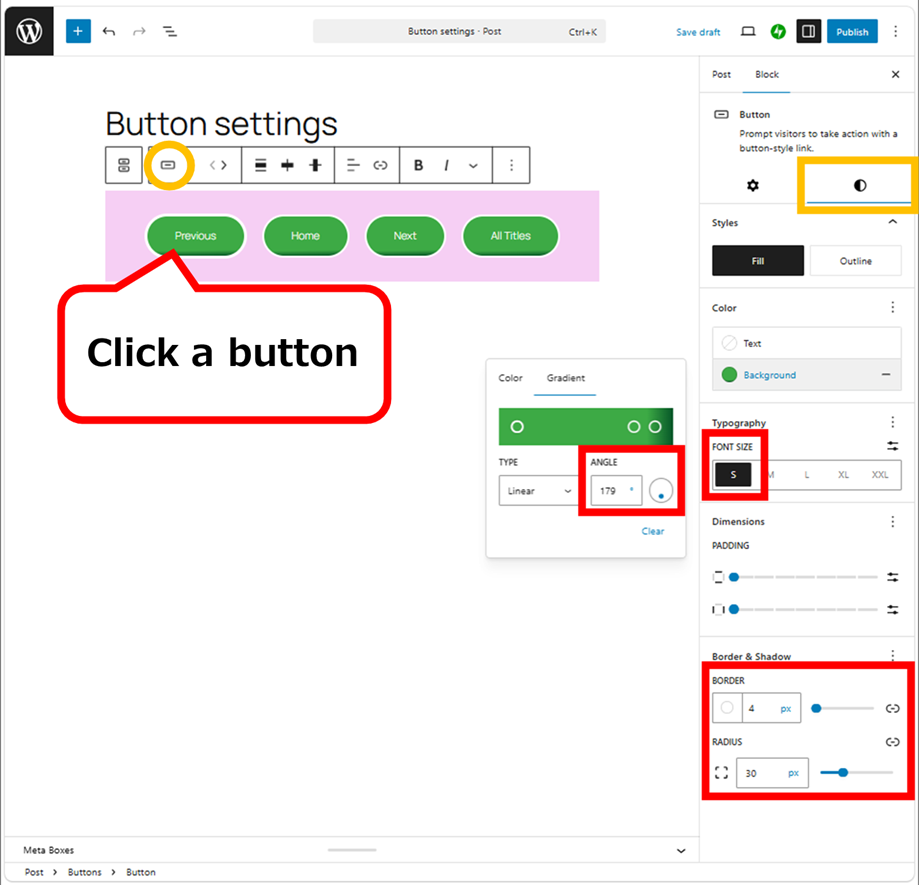
There are a little difference by each theme.
You will adjust it by your own.
Responsive Centered Buttons
By default, “Space between items (justify)” can make the buttons placed wider, but it placed too wide. In the hand, “Justify items center” might make the buttons too centered. It can happen on large screen either. On smartphones, the positions of buttons are not aligned beautifully. It’s not called the responsive buttons.
So, change the positions, using “justify” and “block spacing”.
In first, to avoid the influence of screen size, add a “Row” block on the button block.
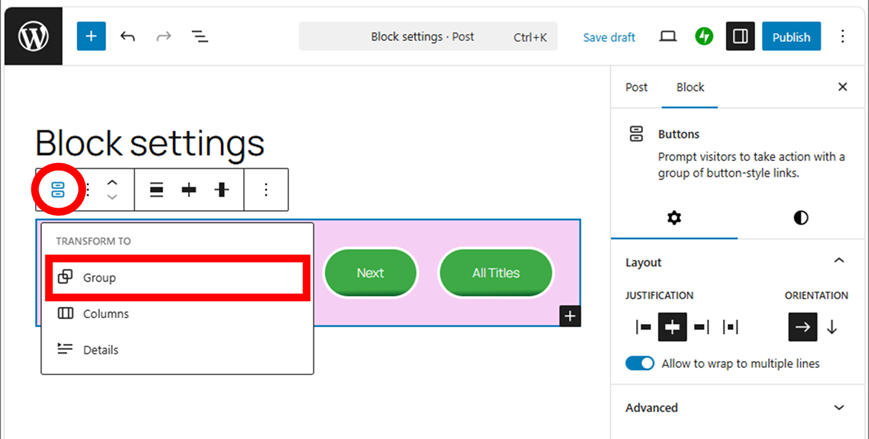
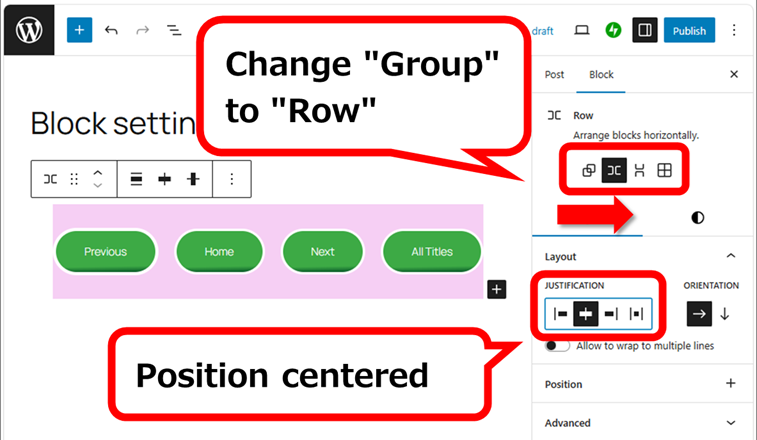
You can widen the button’s positions to the edge of block, without minding any screen pixels. This makes the buttons avoided too centered, also, the buttons can align with both of edges on smartphone.
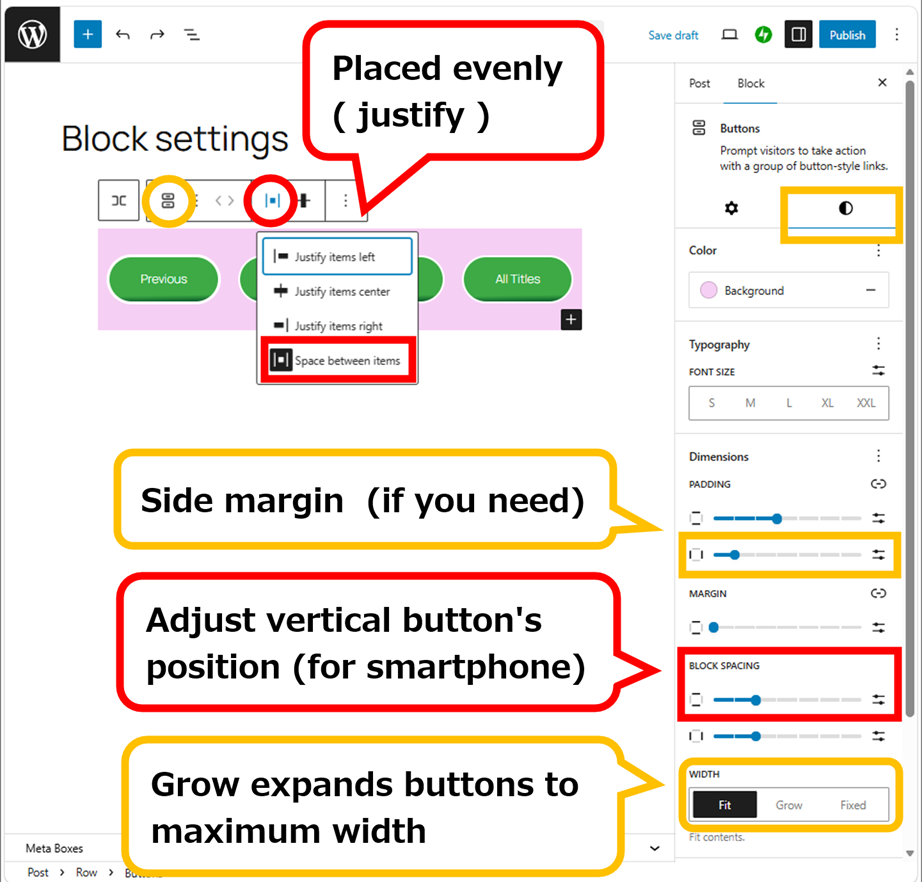
The appearance of each theme is different, so adjust it in your own.
I created a good one (^_^)/.
Thank you for reading.
If you feel this article “Like!”, click the ads below ⇩⇩
Your click makes my affiliate income. It motivates me (^^;.
If you give a tip ——
Leave a comment(コメントを残す)