
Using passkeys allows you to create a more secure login environment than Authenticator, also create a passwordless environment. If you use Wordfence, let you setup it.
Configure the passkey
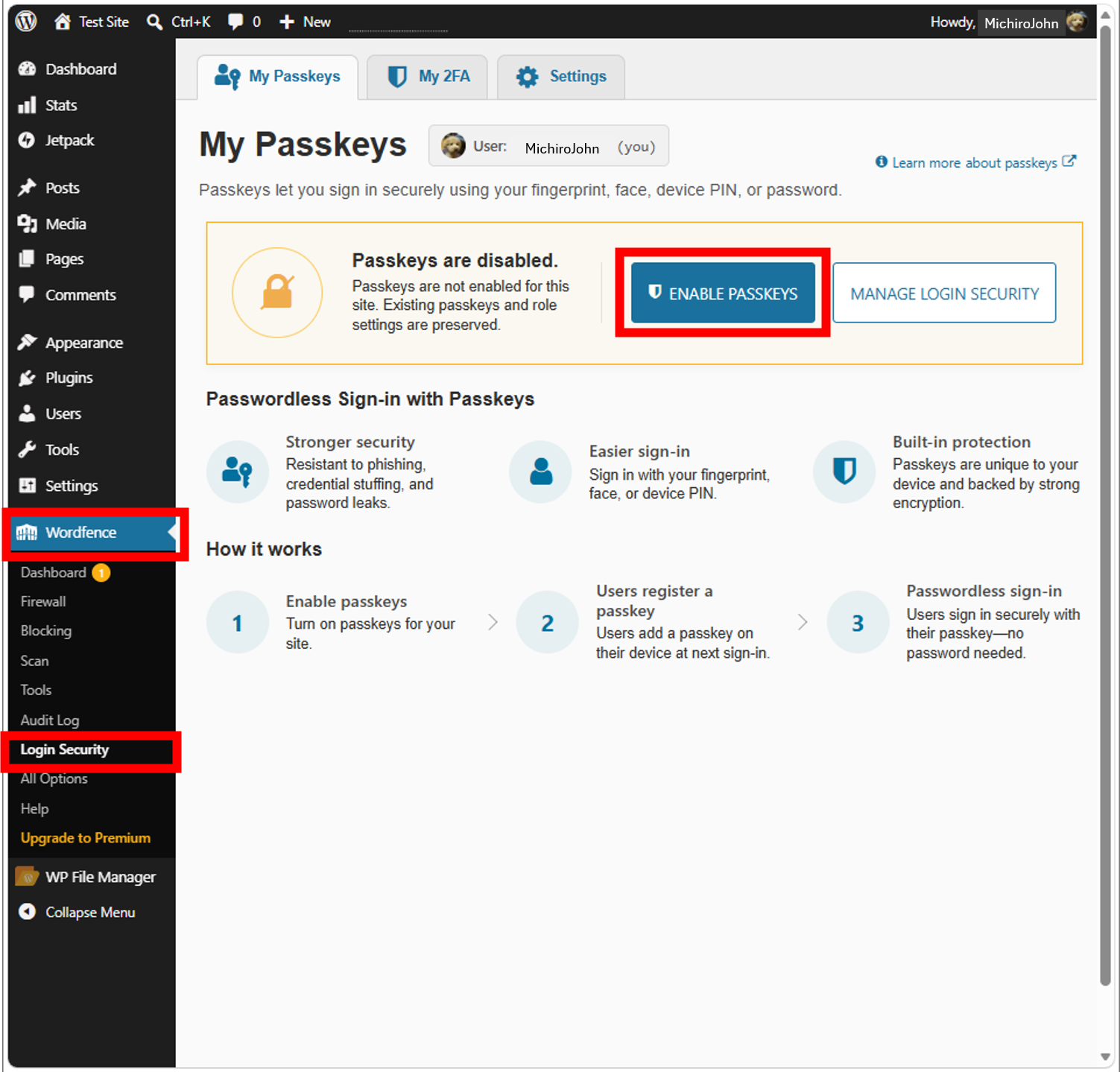
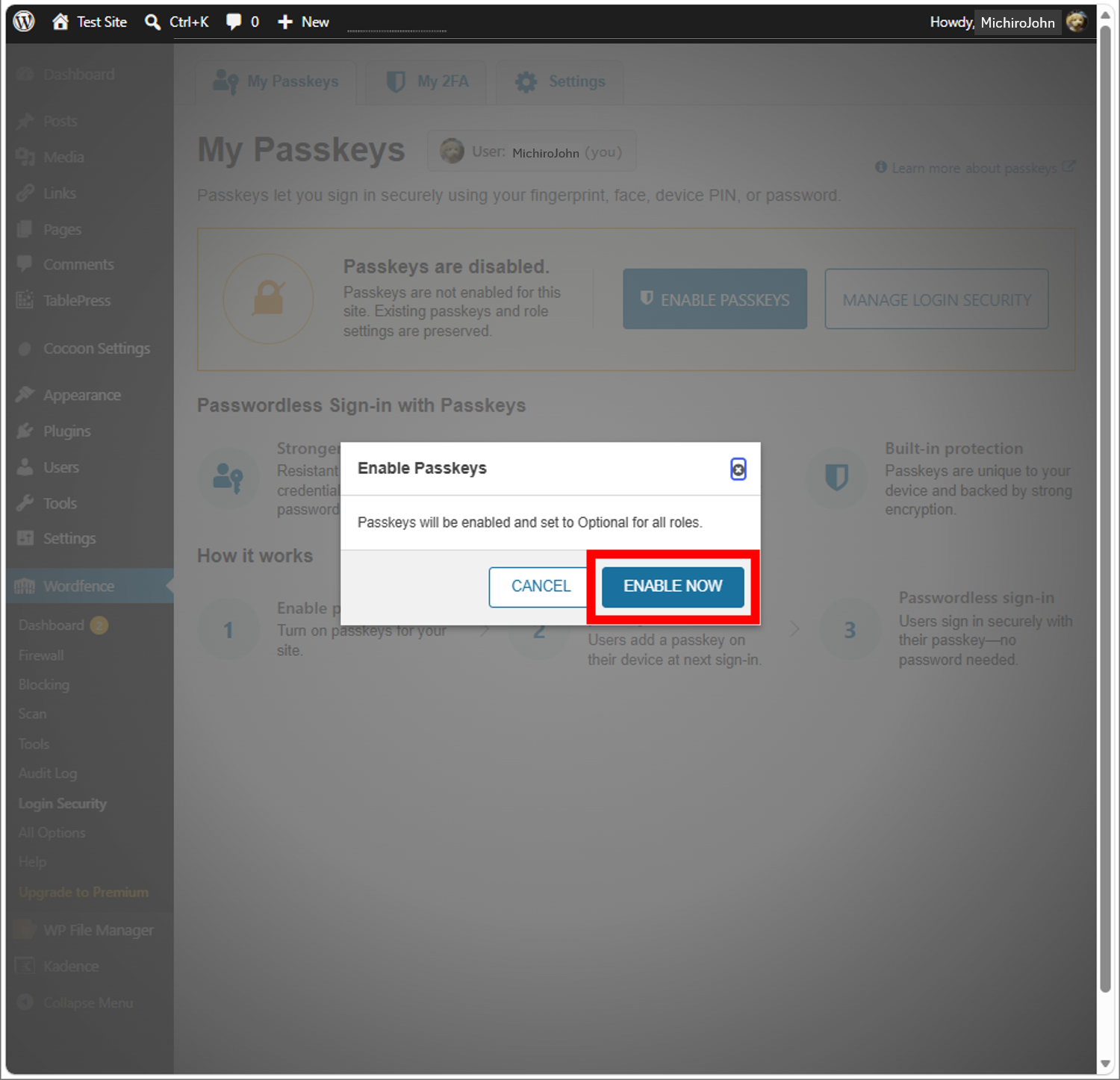
Setup passkeys from Wordfence ”Login Security”.
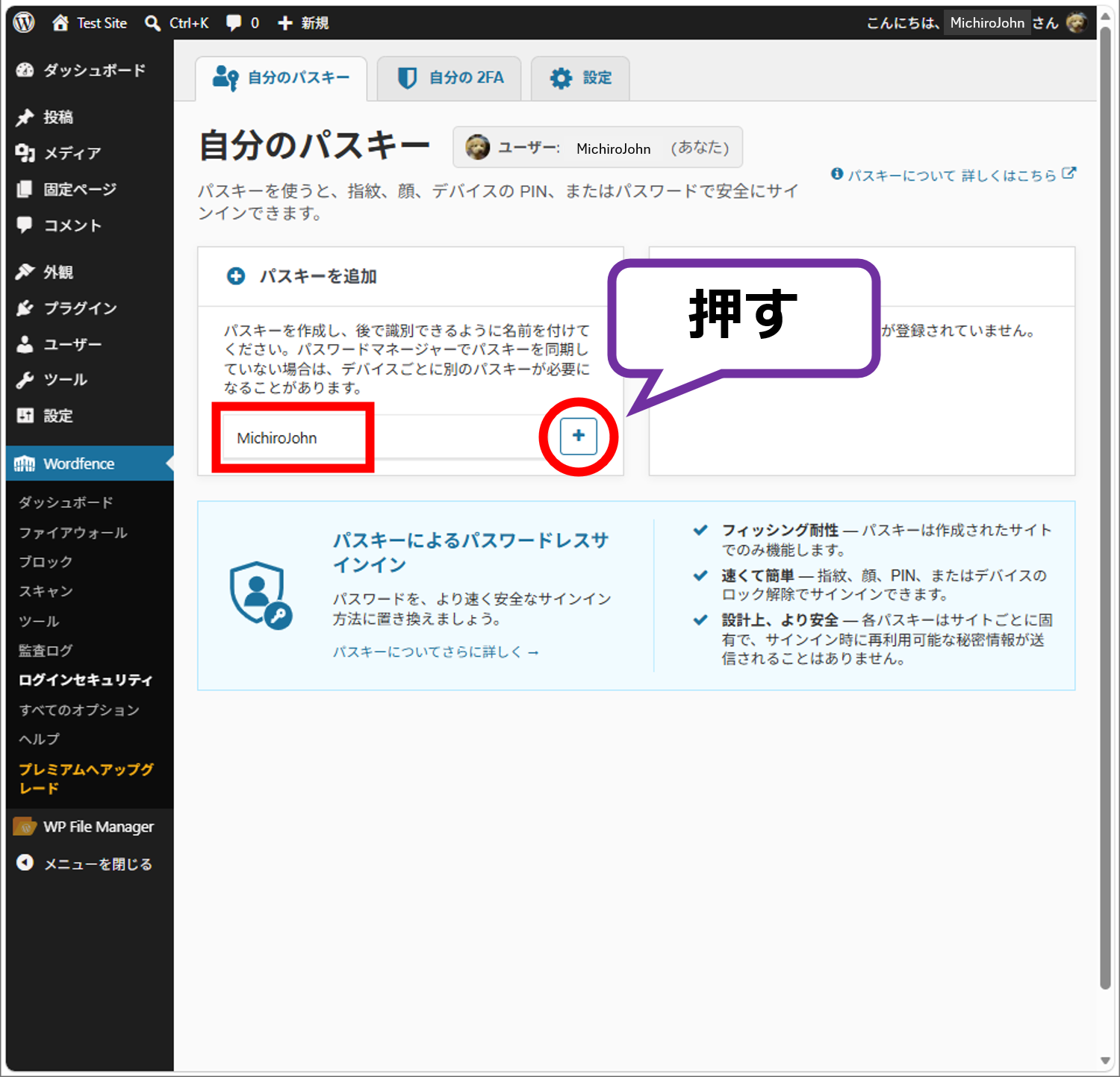
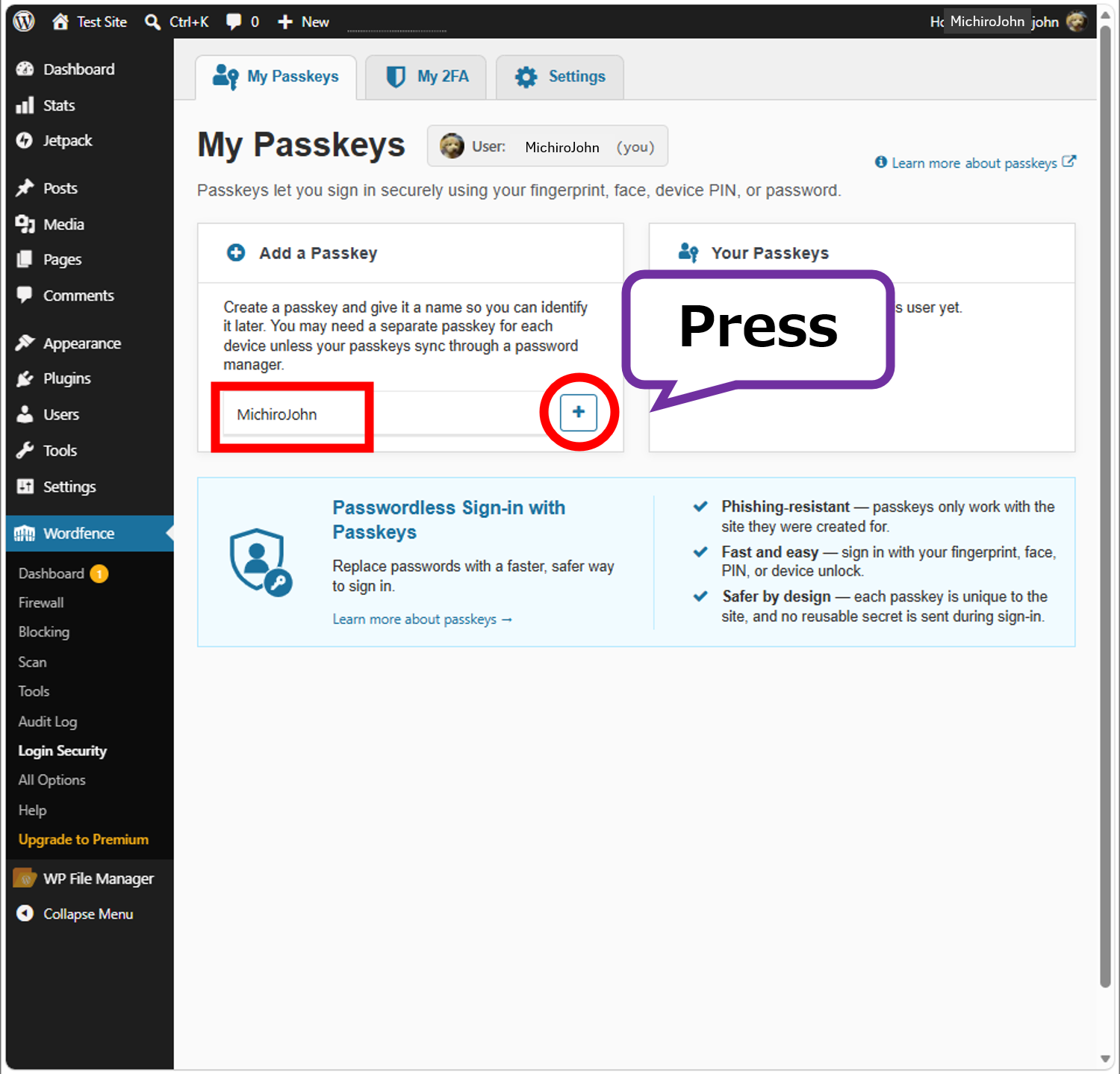
Next, enter a passkey name then click the button “+” next to it.
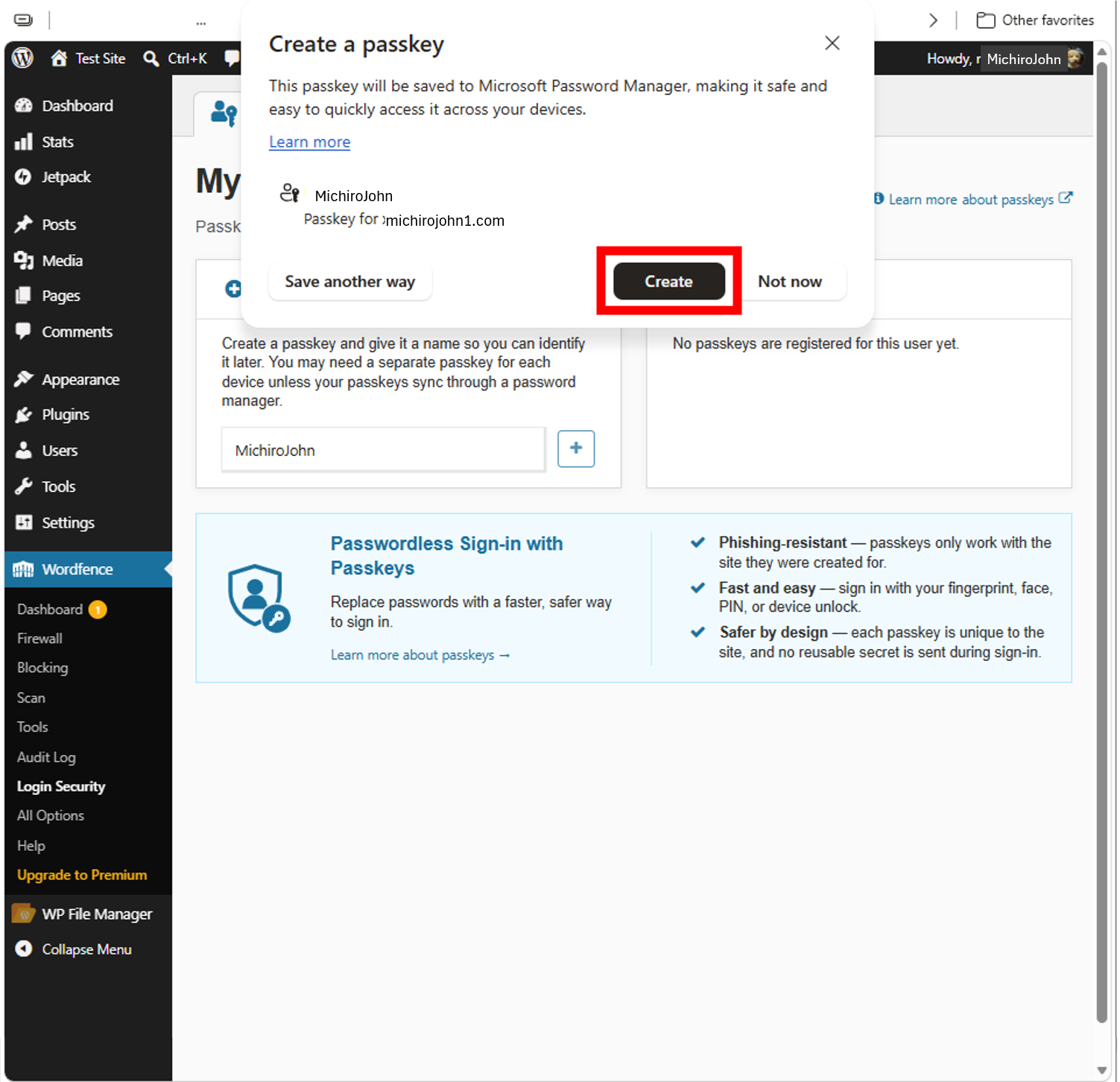
This is when I will use Passkey in my Microsoft account.
It is easy to configure if the passkey is already in the account.
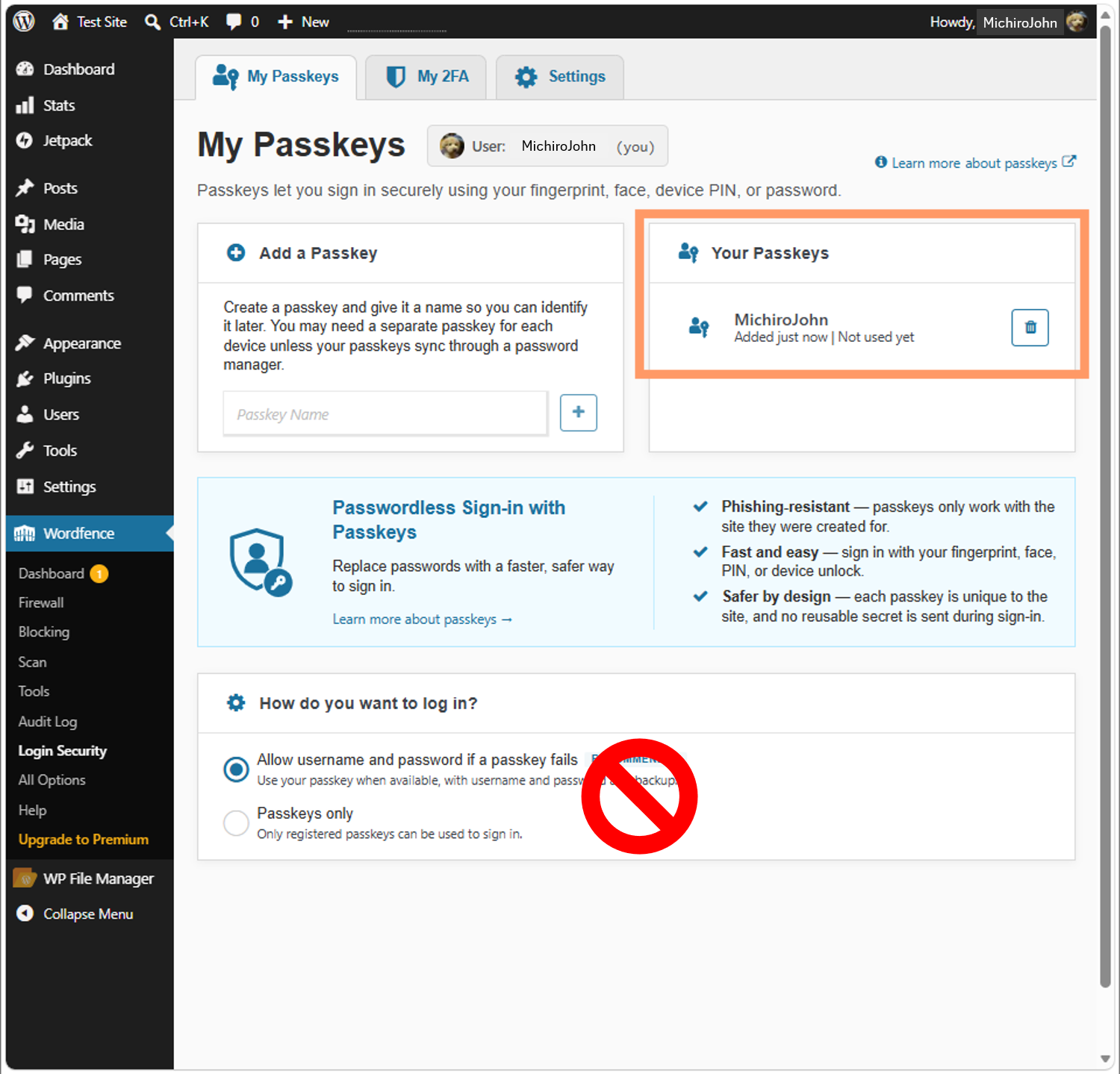
The setup is complete when the configuration is like above.
As a note, passkeys have to set for all devices you will use, so until you will configure them all, you do not change the login method to “Passkeys only”  . If you would change this part, you cannot login the site by other devices.
The configuration by mobile devices
The way is same.
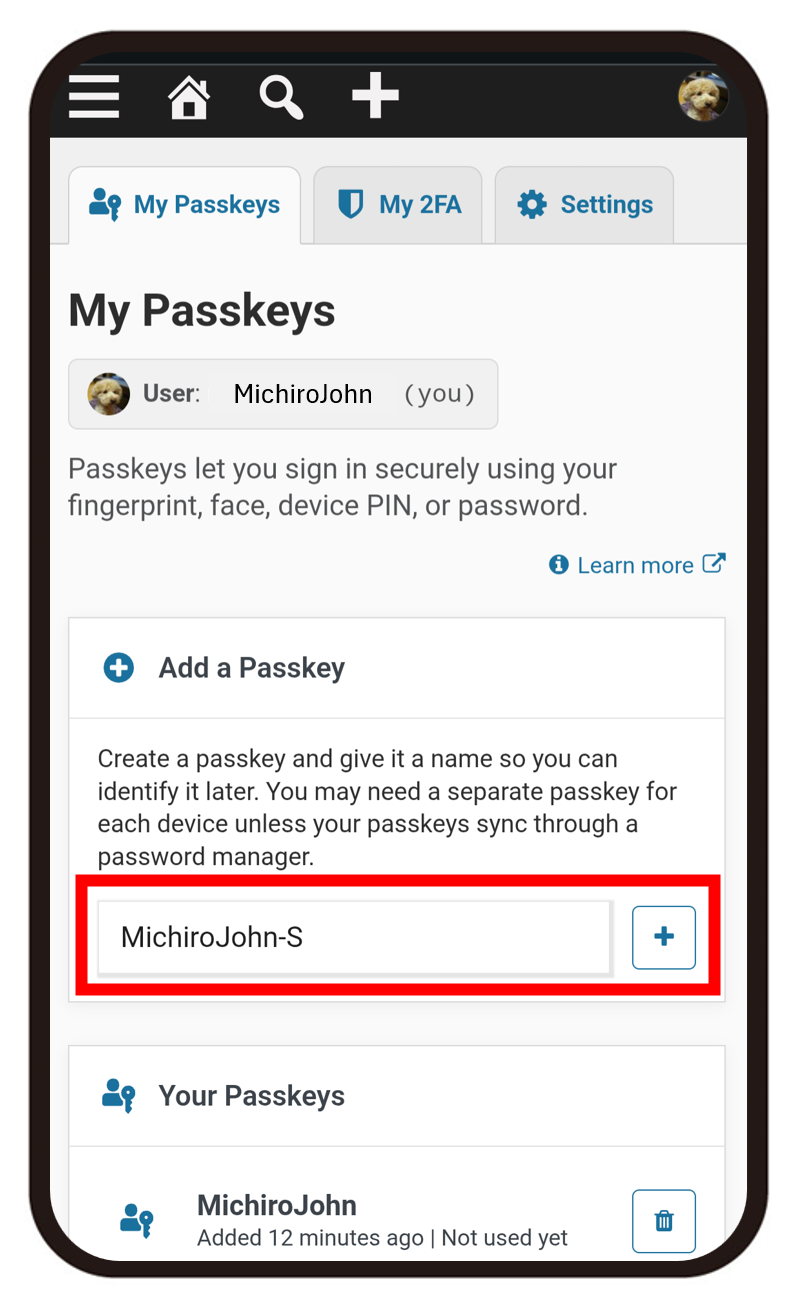
Enter a passkey name then click the button “+”.
Google account’s or Apple iCloud’s will be used. Even when these are mixed (included Microsoft’s), nothing is happened as the conflict. To think about the case of Passkey is lost or broken, it is better to create passkeys with multi-devices.
Create passwordless environment
Wordfence is not recommended, but you can make the login passkeys only. By default, both ID-&-password-login and passkey-login are available. Make it Passkey Only.
After creating passkeys on all devices, let you do it.
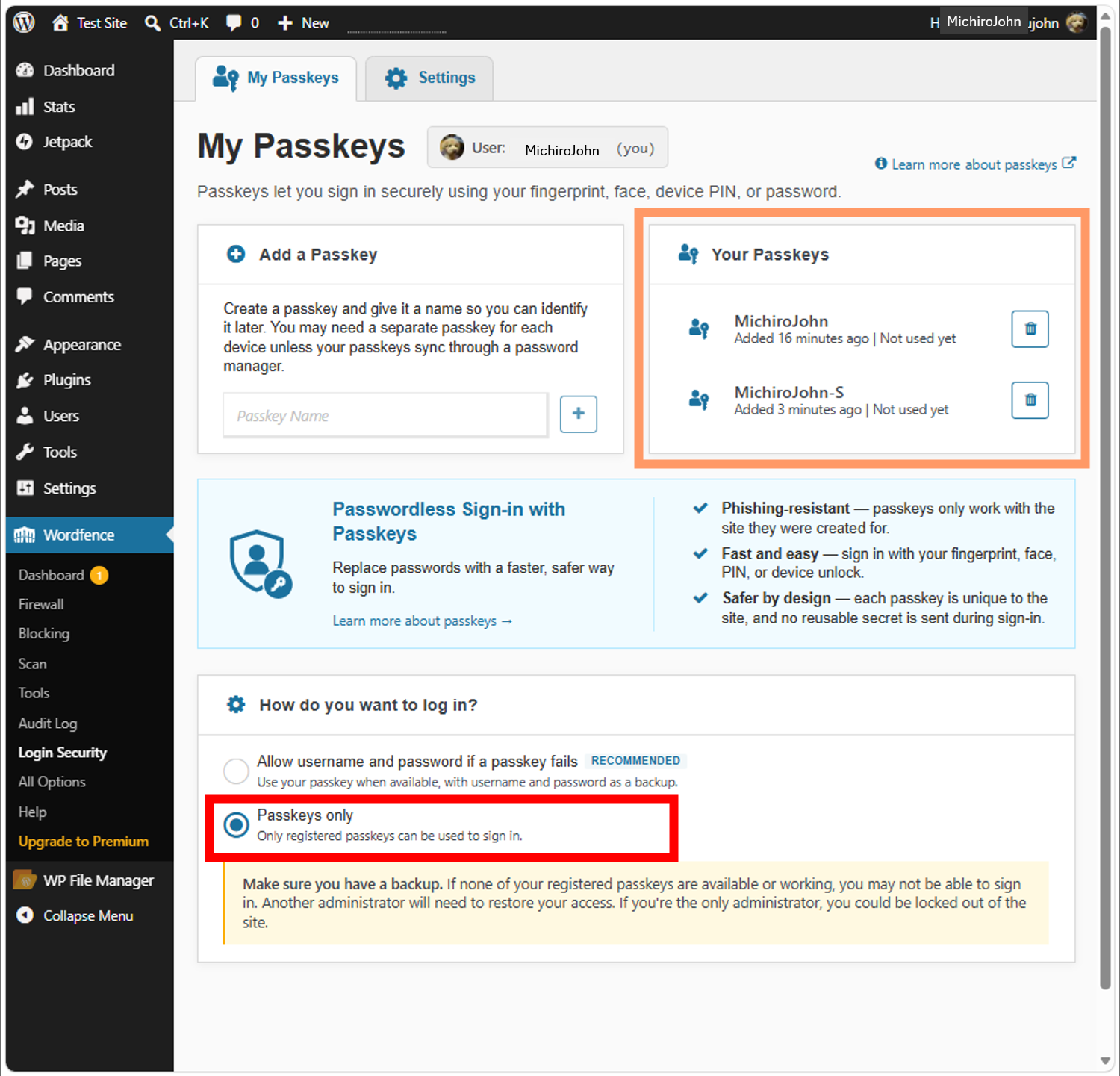
Just checking the radio button, Passkeys-only is turned on.
Now, you can reuse the same password, right?!
About this passwordless environment
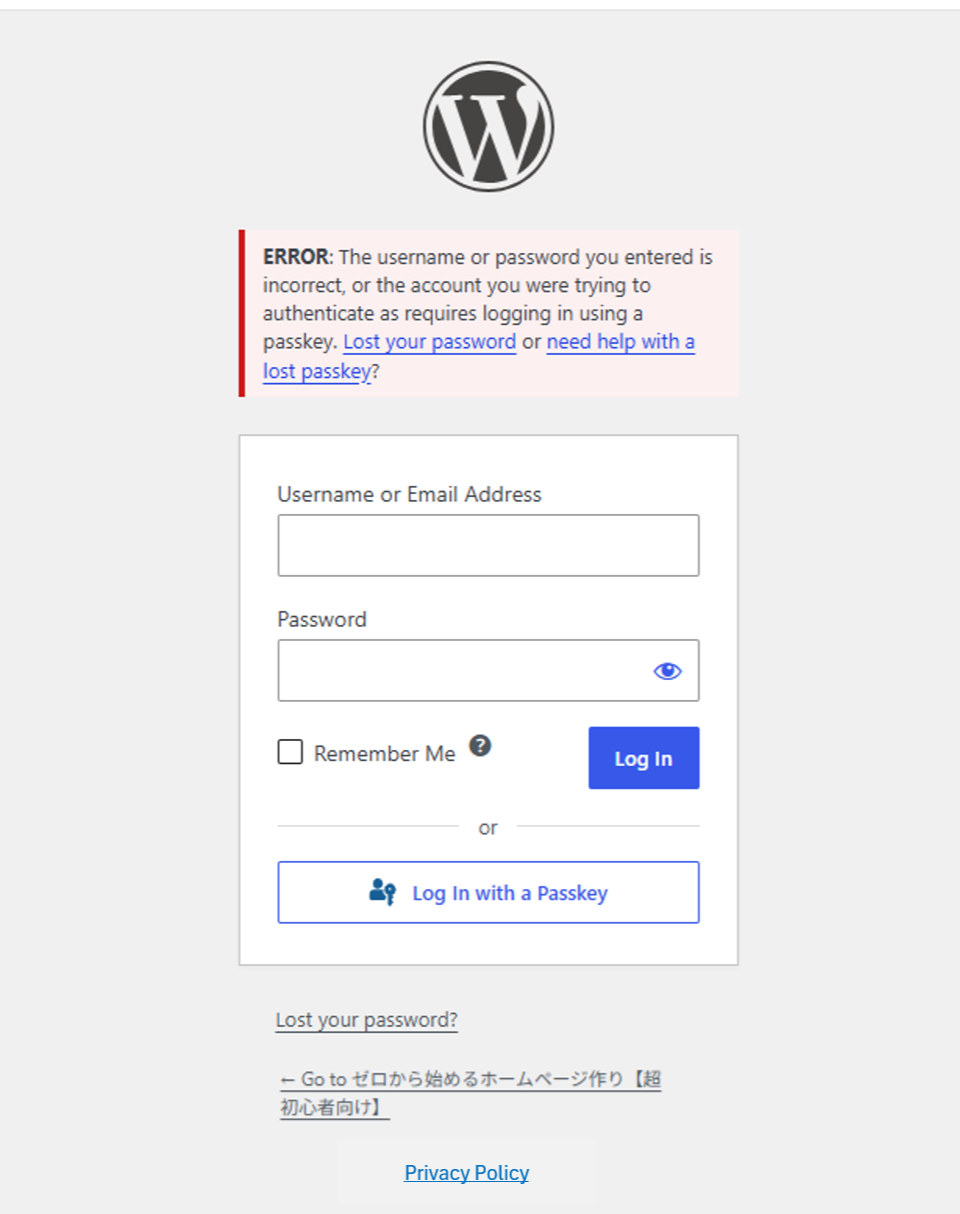
Due to the specifications of self-hosted WordPress (for web hosting service), login screen appears once every two weeks. You have to verify each time.
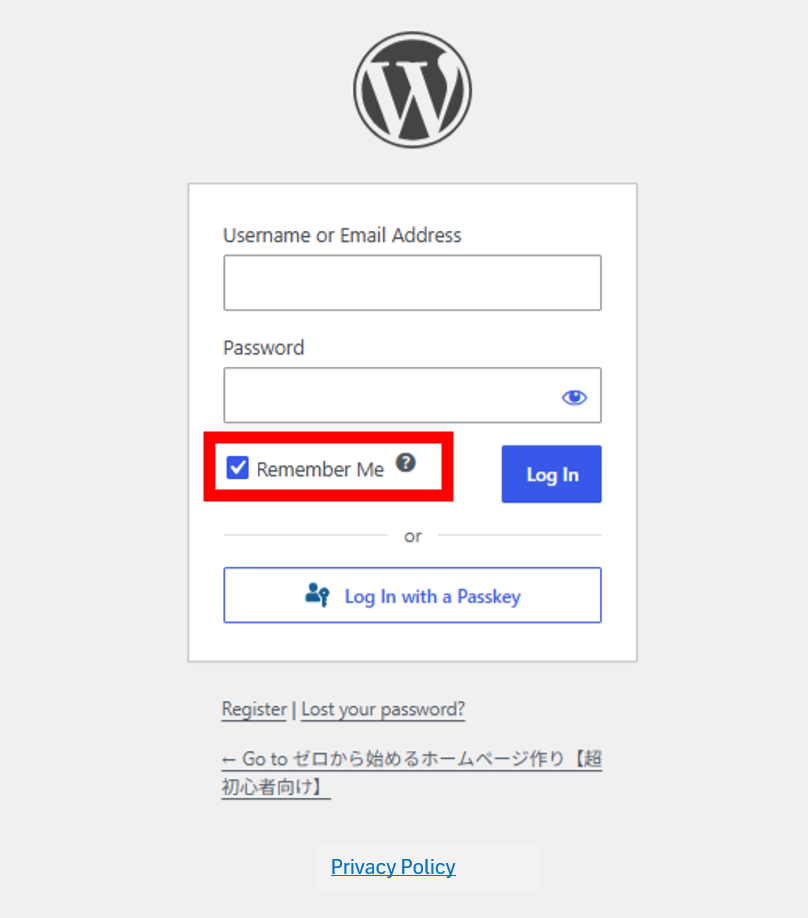
If you do not check “Remember Me”, you will encounter this screen every 48 hours. It may be shorter by the configuration of your service (my server is every 6 hours). Anyway, do not forget to check “Remember Me”.
I considered it to be fine, just every two weeks is.
Disable 2FA
Wordfence has a function to disable “XML-RPC call authentication”. It is a feature that disables 2FA such as Authenticator. This is a place where many hackers would target, so if it’s not needed, it’s better not to have it. Passkey does not use it.
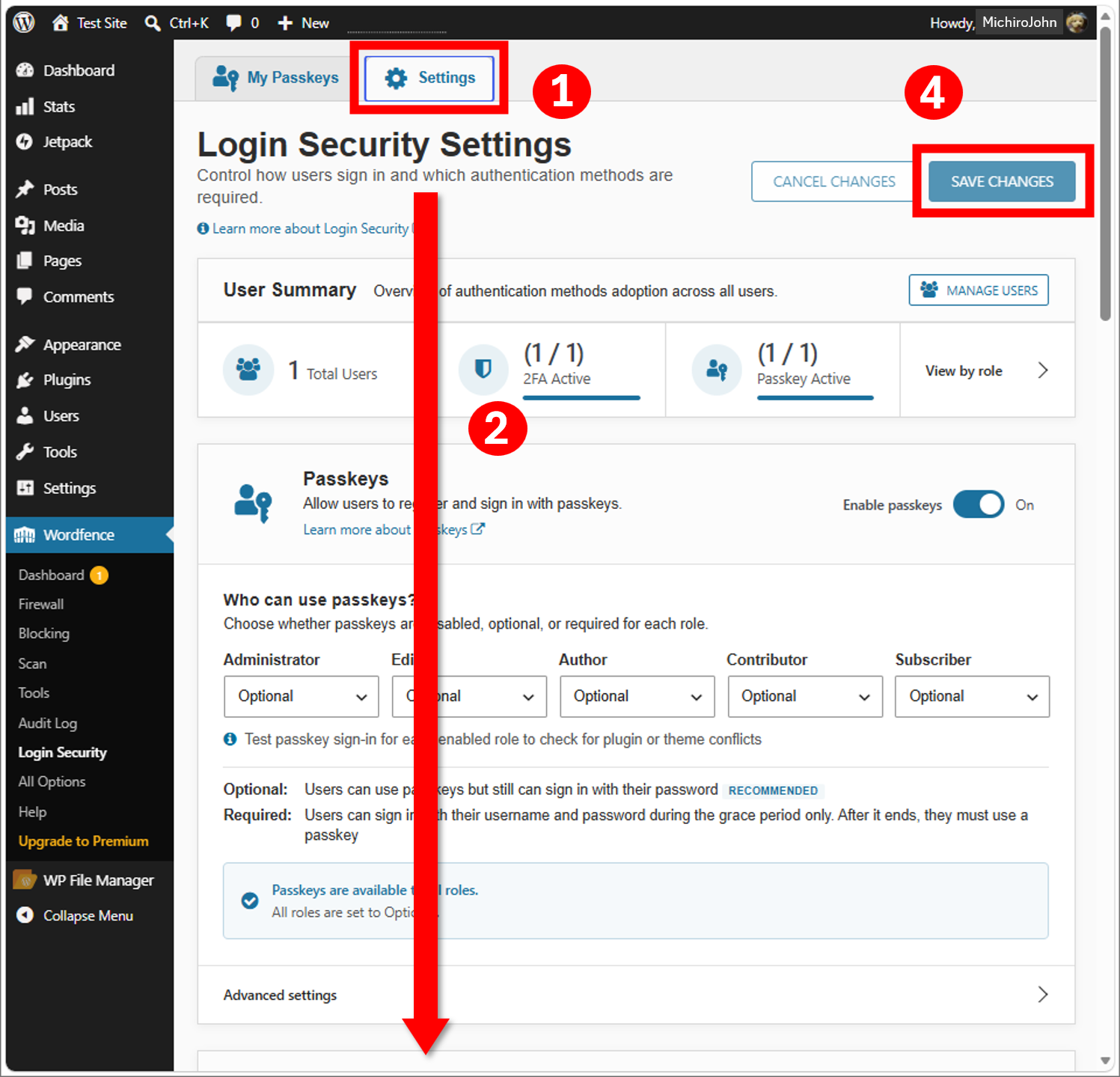
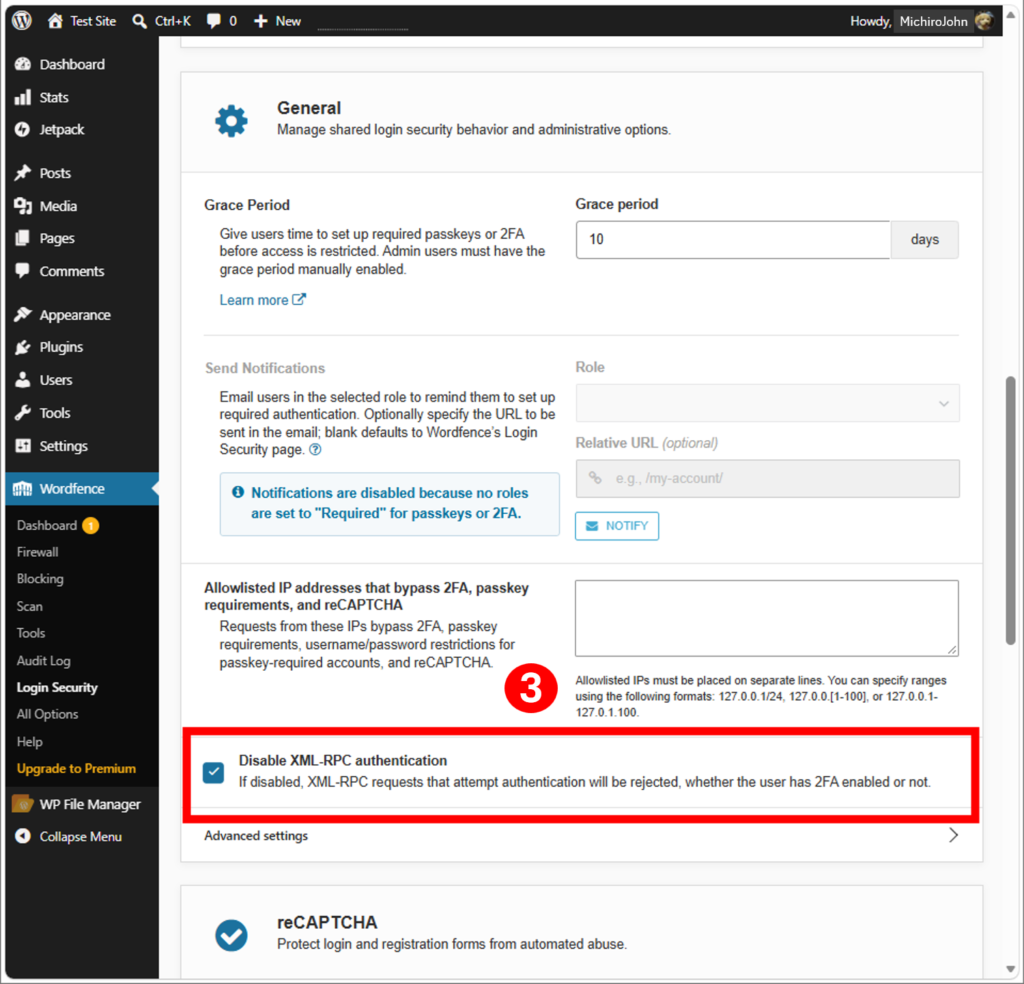
Do not forget to press the button “Save Changes”.
The situation where XML-RPC call authentication is required is supposed when using “Jetpack login”, but it is less problem even if you are using Jetpack. Most functions are available. Jetpack connection is also kept. Because the verification is used OAuth (not XML-RPC call authentication).
Also, if you are already using Authenticator or other 2FA, there is no problem. Additional verification does not occur after the verification by passkey. I do not find any loss of site loading speed. So it is supposed to be better to leave the 2FA as it is, until any issues would be arised.
But Passkey is same as 2FA, be sure to remove them after.
If you feel this article “Like!”, click the ads below ⇩⇩
Your click makes my affiliate income. It motivates me (^^;.
If you give a tip ——
Reader's comments(読者の反応)