


Googleアカウントを作成したら、Googleアカウントのセキュリティー設定をしていきましょう。『2段階認証』といわれるものです。ID・パスワードを入力した後に、さらに別のコード入力が要求されます。
英語で『Two Factor Authentication』とか『2-step Verification』と呼ばれ、略して『2FA』とか『2fa』とも呼ばれています。ログインに2つ目の要素(factor)を入れてセキュリティーの向上を図ります。3つ以上あると『多要素認証(MFA)』と呼ばれます。Googleアカウントではこちらが行えます。
Googleアカウントの2FA
初期状態で2段階認証はオンになっていません。設定していきましょう。
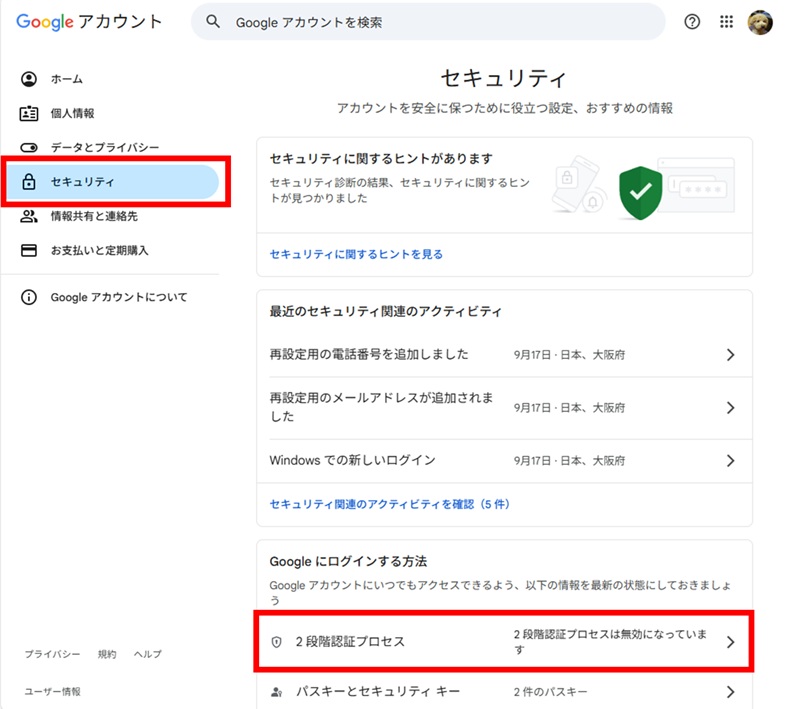
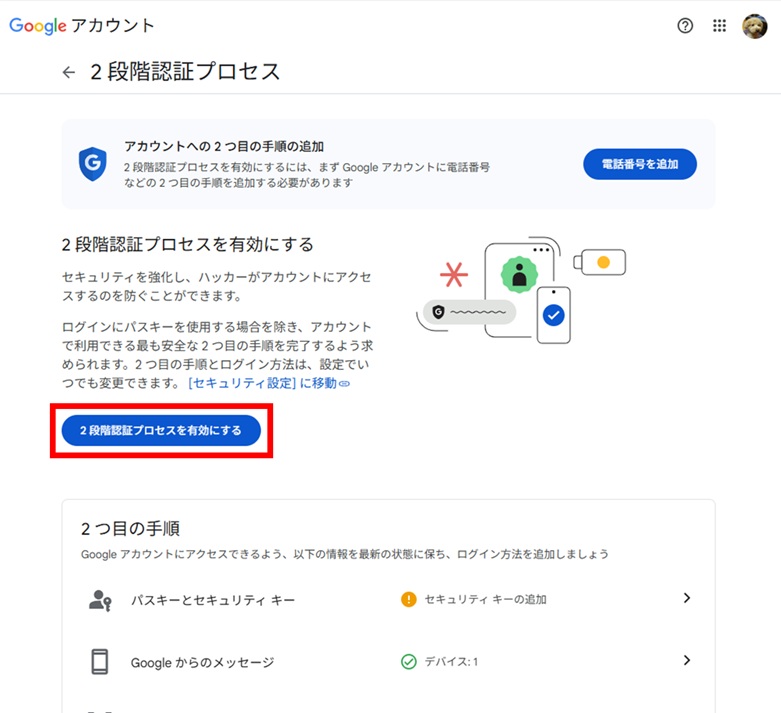
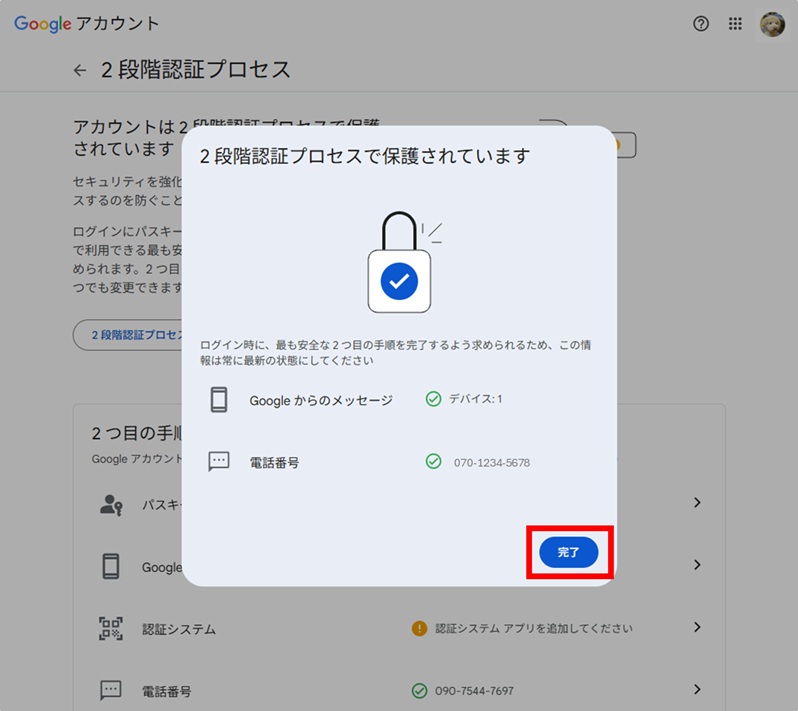
これで『Googleプロンプト』と呼ばれる確認のメッセージがスマホに届くようになります。
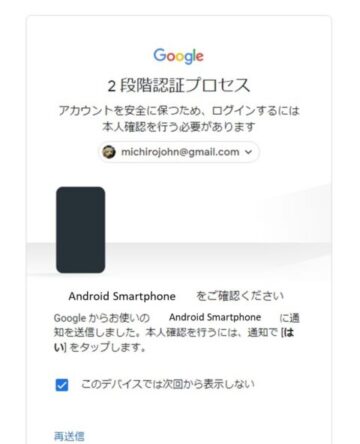

『はい、私です』をタップすると、以後このメッセージは現れなくなります。
Googleアカウントのパスキー
GoogleアカウントをPC上に取り込んだ際にすでにパスキーが設定されています。でもそれはスマホ用のパスキーのようなので、PC用のパスキーも作成しておきましょう。
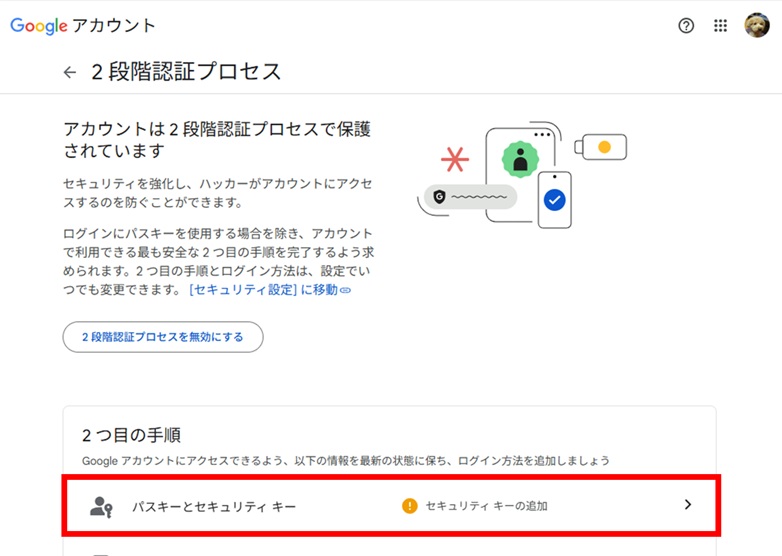
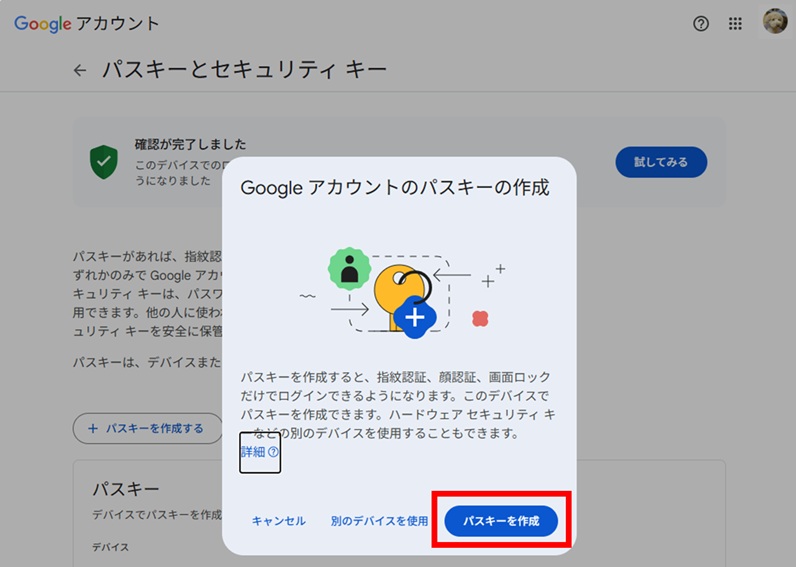
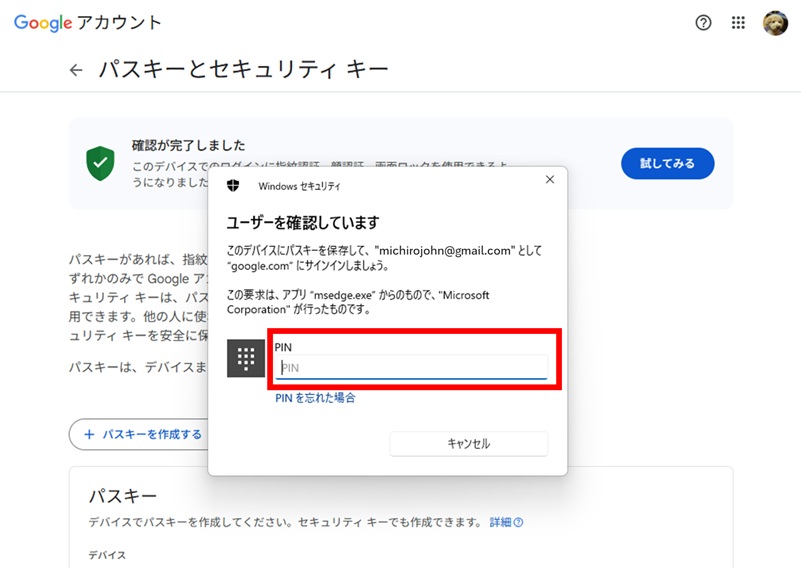
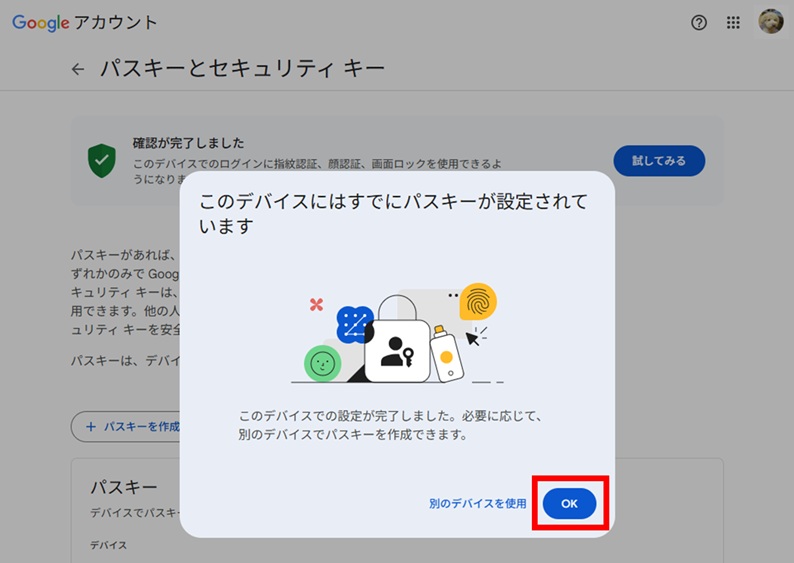
これでパスキーが2つ作成されます。
画像や動画をバックアップさせない
機種変更後にGoogleアカウントを取り込むと、デフォルトのGoogleアカウントが画像や動画をバックアップする設定に変わっています。新たに作成した場合を含め、確認しておいたほうが良いでしょう。解除すれば機密性が上がります。
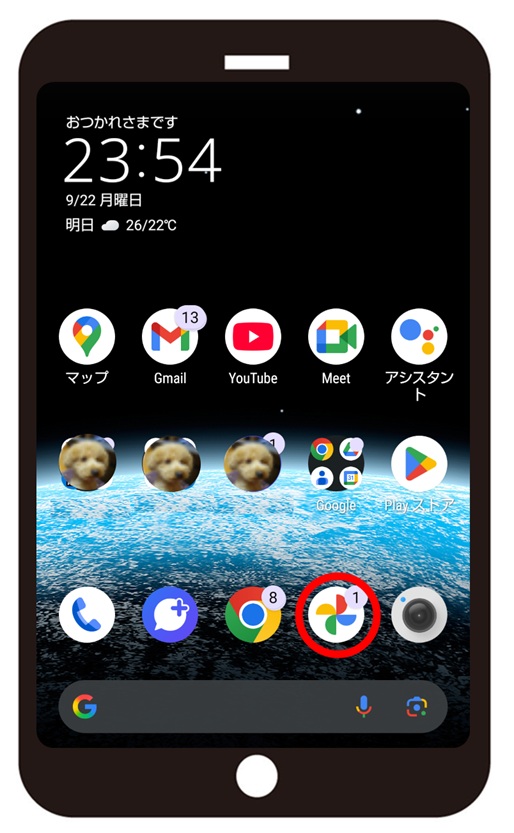
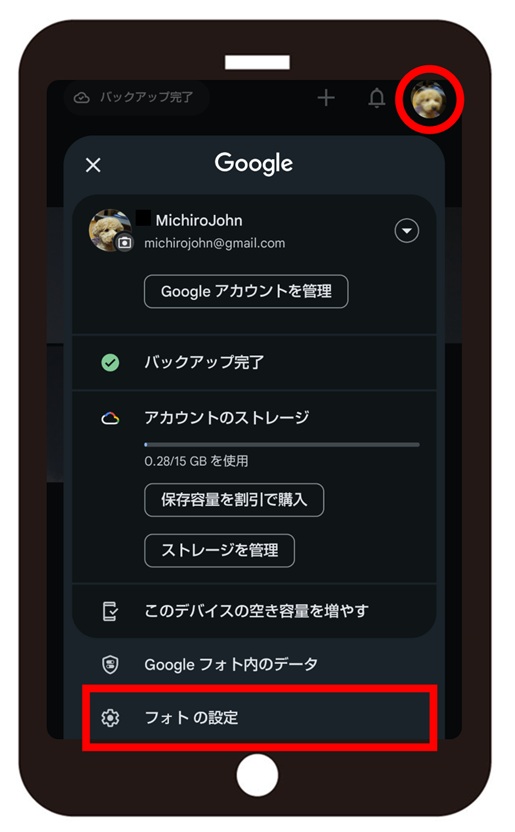
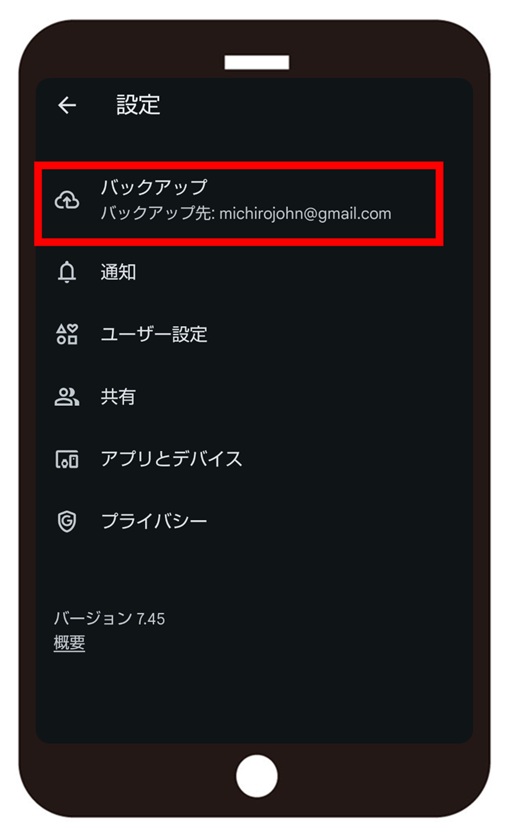
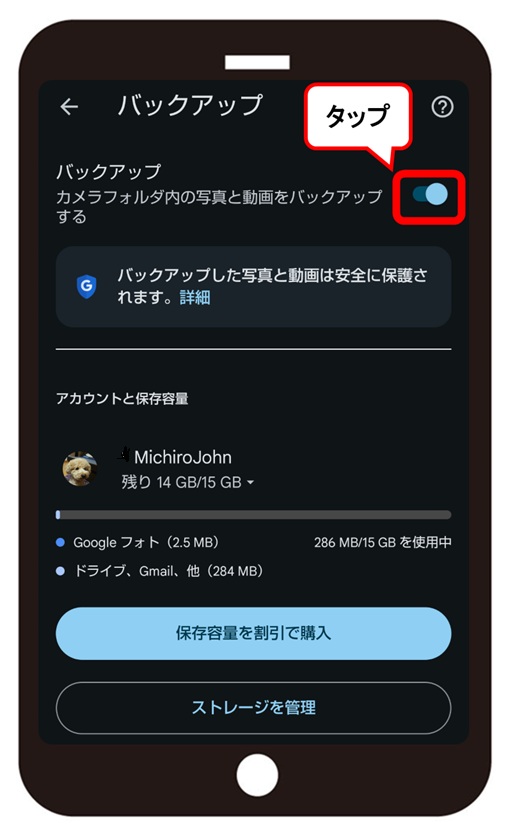
これでナイショの写真を撮っても大丈夫ですね?!
ちなみに、画像や動画は『Files』に保存されています。またAuthenticatorのカメラから撮られた画像は、フォトのバックアップをオンにしていてもGoogleアカウントには保存されないので、機密性には問題がありません。
お疲れさまでした。
この記事が『いいね!』と思ったら、広告をクリック ⇩⇩
そのクリックが私の収益につながります。やる気も出ます (^^;。
投げ銭するなら ——
Leave a comment(コメントを残す)
An impressive share, I just given this onto a colleague who was doing a little analysis on this. And he in fact bought me breakfast because I found it for him.. smile. So let me reword that: Thnx for the treat! But yeah Thnkx for spending the time to discuss this, I feel strongly about it and love reading more on this topic. If possible, as you become expertise, would you mind updating your blog with more details? It is highly helpful for me. Big thumb up for this blog post!
Thanks for your proposal. But my intention is to get along as an amateur. I’ve given up becoming something of writer or programmer 20 years ago. It’s too twisted business, and I believe there is a necessity to mention as an amateur. The mentions by power users only can make the process much easier.
So I decribe my posts shorter as possible, for the super beginners can understand,
It’s good the straysheep are much fewer.