

Extract (Excerpt)
Category & Tag
Back to Draft
Comment on/off
Return & Space
Block Template (Pattern)
Font Color & Frame
Fix a Block to the Top
Create a Button
Internal Page Jump
Display an Image over the Image
Use a Video as like GIF
Add a Menu Bar
Set a page/post as Home

The left sidebar of WordPress contains a lot of block templates. They are called “Patterns”. If you create My Pattern, you can simplify the work.
Create My Pattern
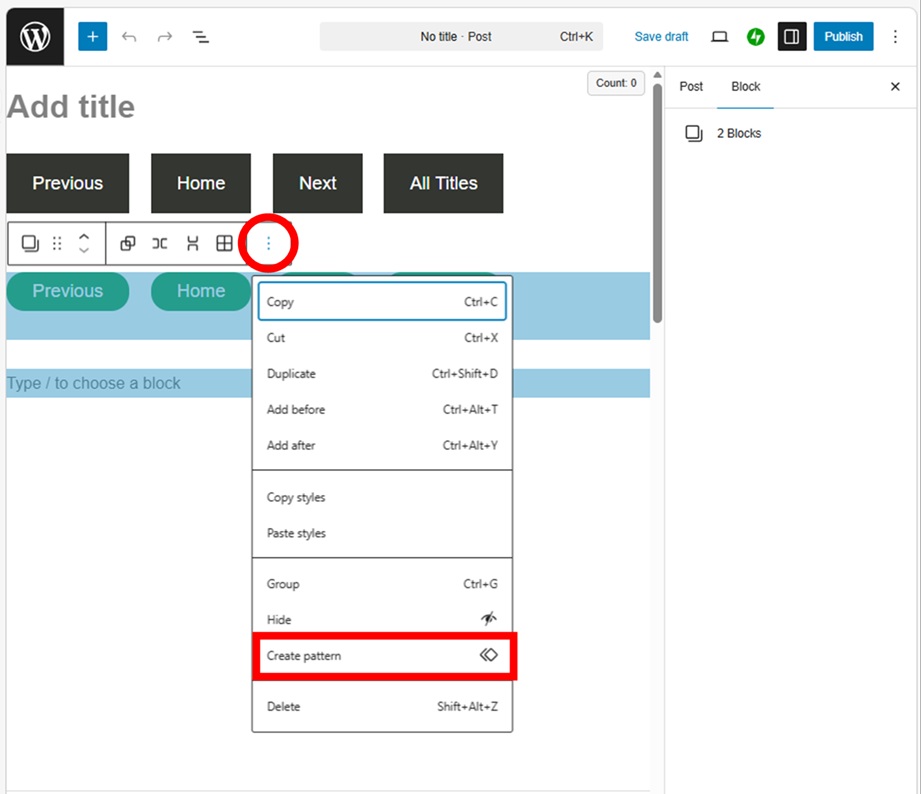
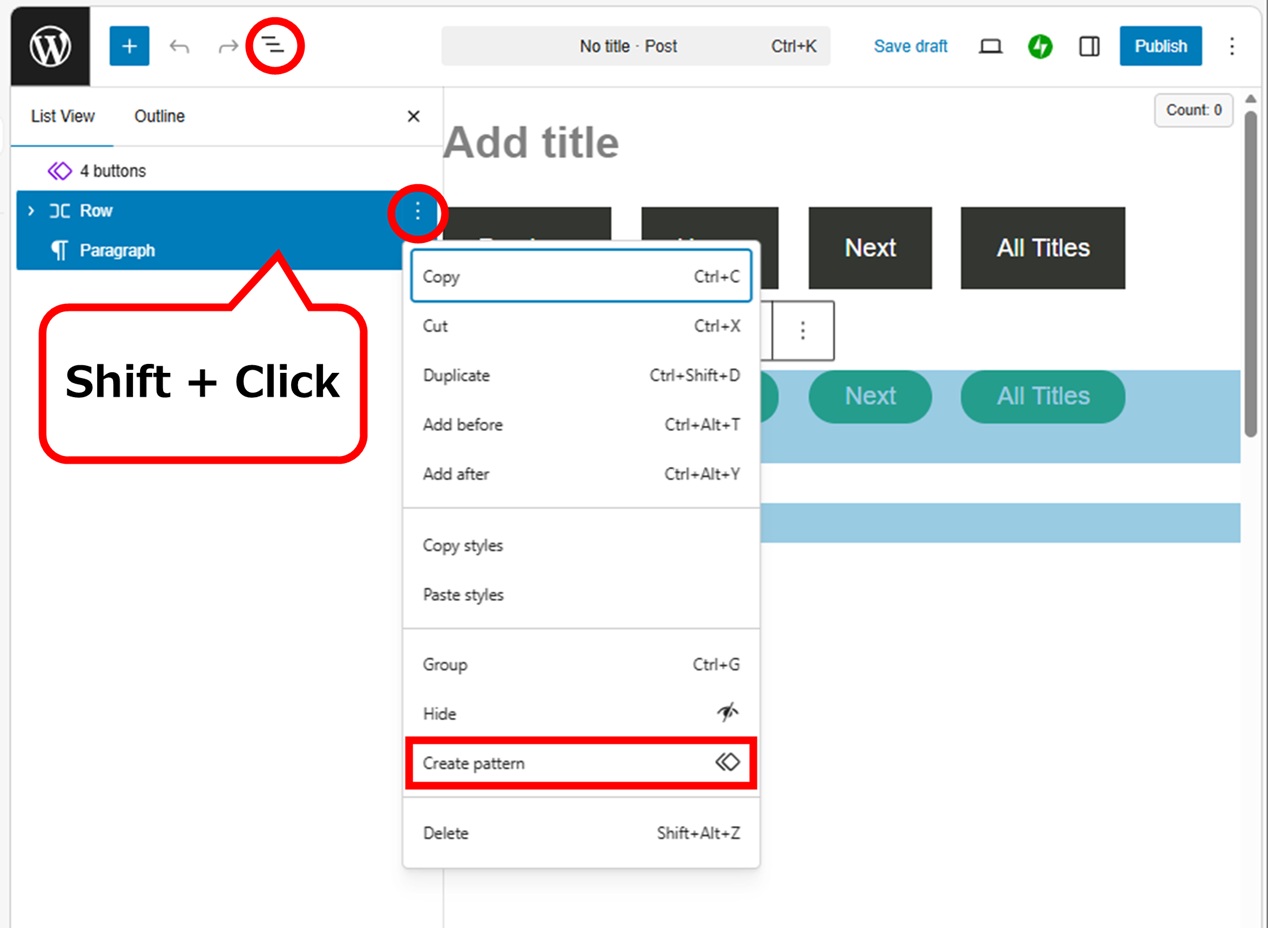
Select the block(s) you want, then click the three-dots (options menu). But it is a bit difficult to select the blocks, so it’s better to select them from the tree view.
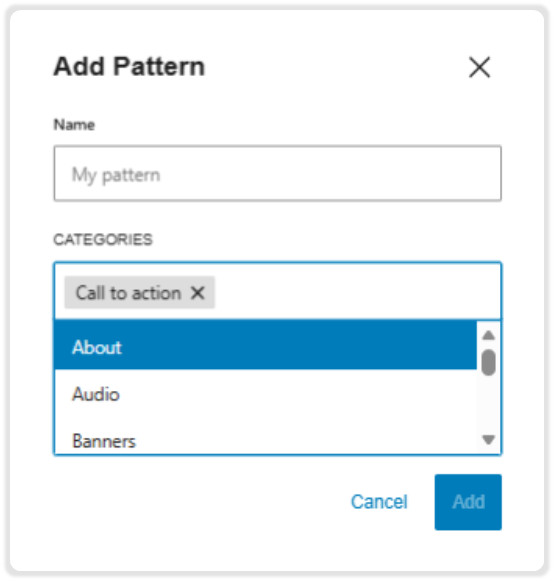
You can change a saving place by CATEGORIES.
Edit Pattern
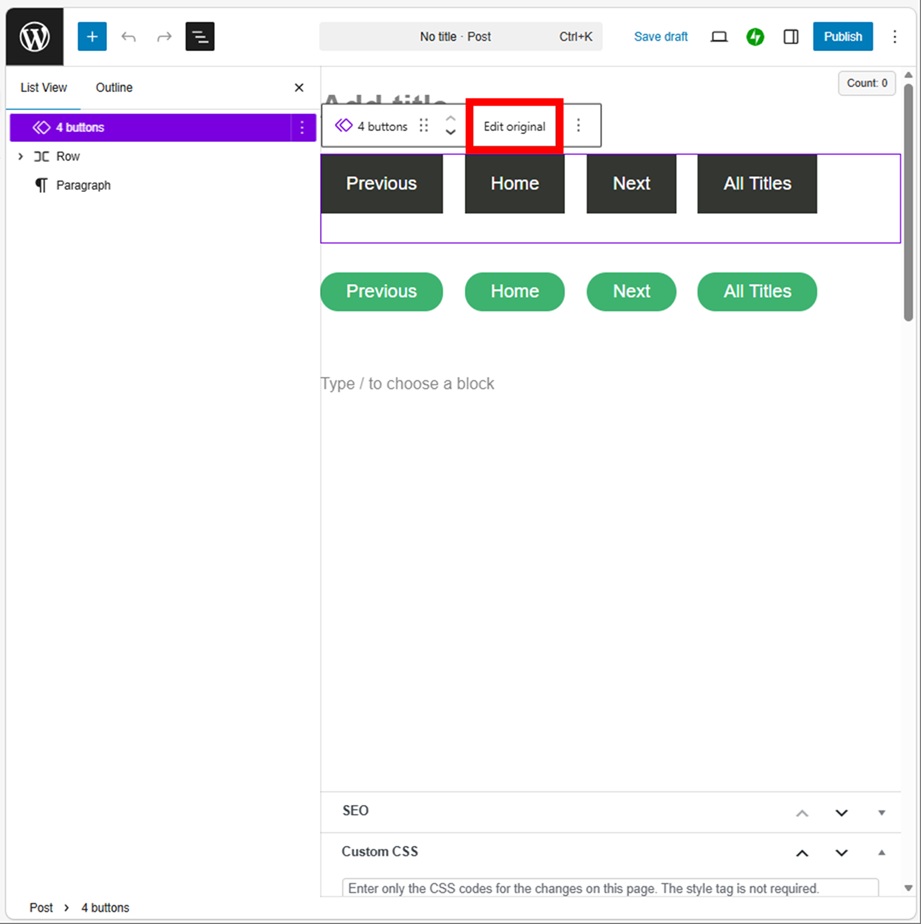
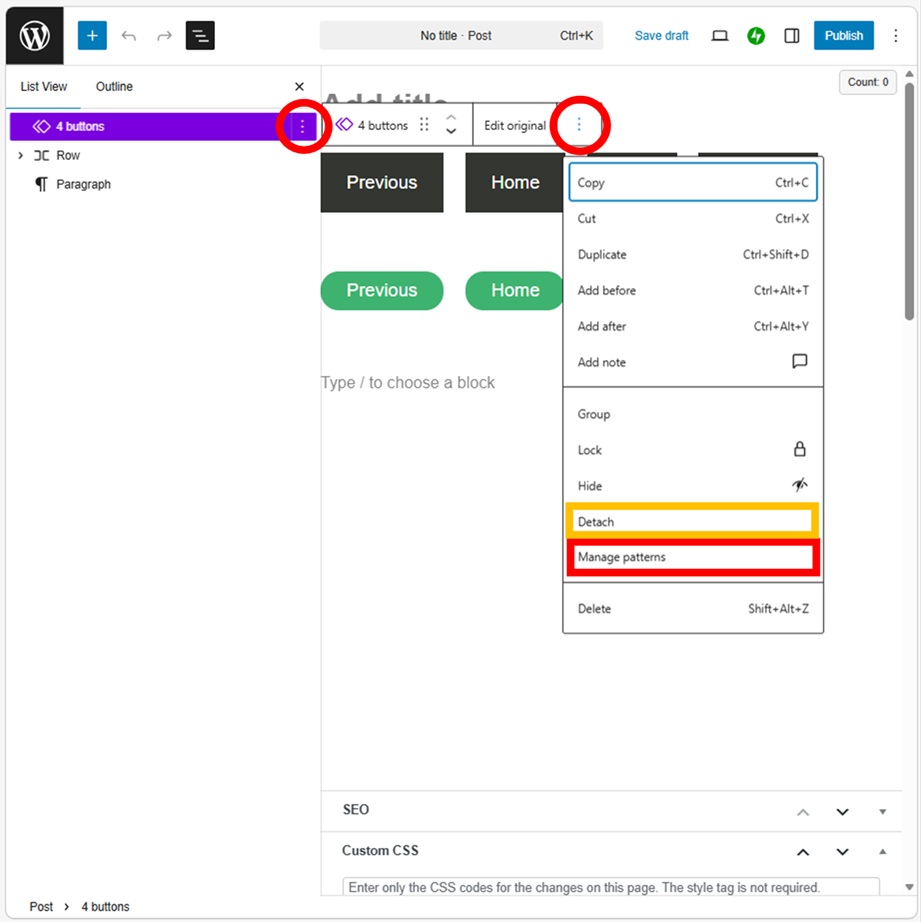
Select a block then press “Edit Original” to enter the editing screen. You can also enter to press the three-dots on the right edges.
This pull-down menu has a button to detach the pattern. Detached the pattern, it is alternated to a normal block. Use it for the case of every page has a little different contents and links. By this action, this My pattern is not deleted.
Create a lot of patterns to simplify the work.
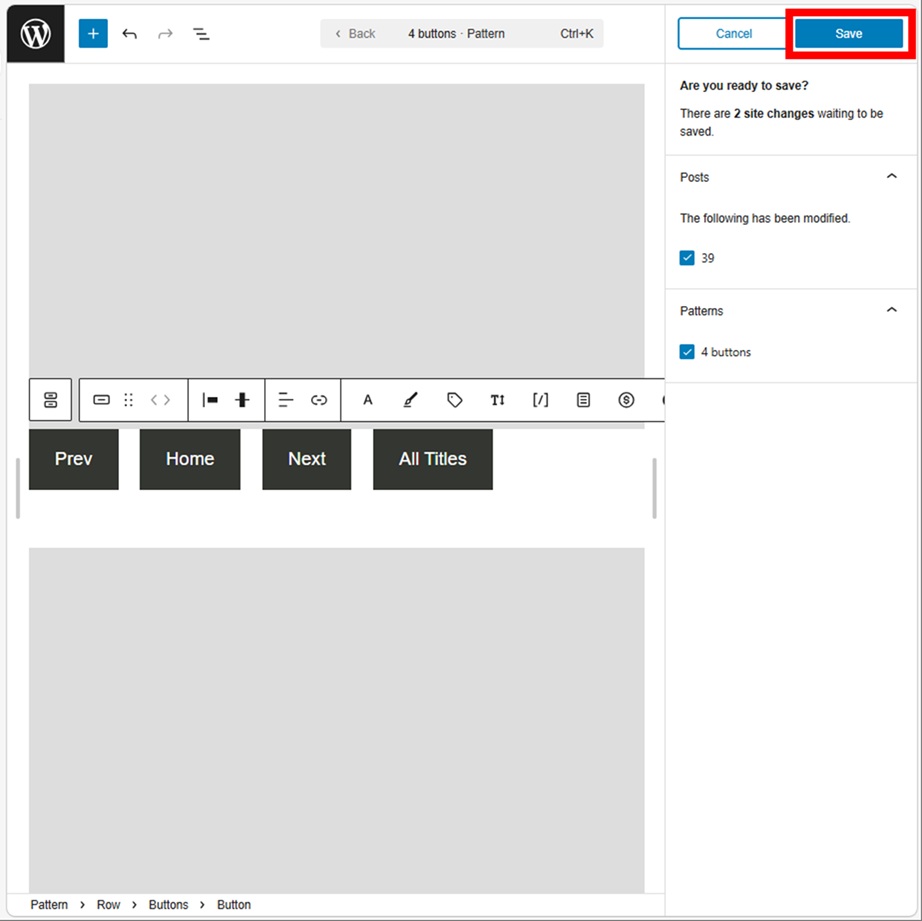
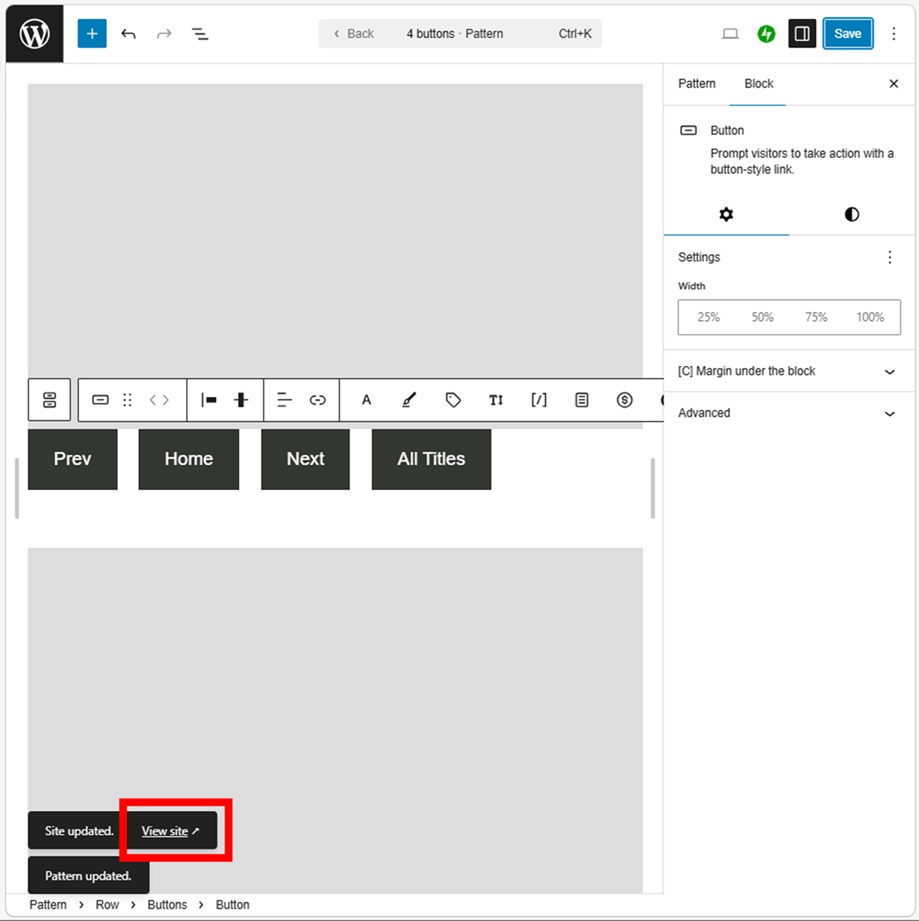
Finished editing, press the “Save” button at the top right, then go back to an original page/post pressing “View site” at the bottom left.
Changed section in the page/post has been saved.
Where is My Pattern
You can edit My pattern directly.
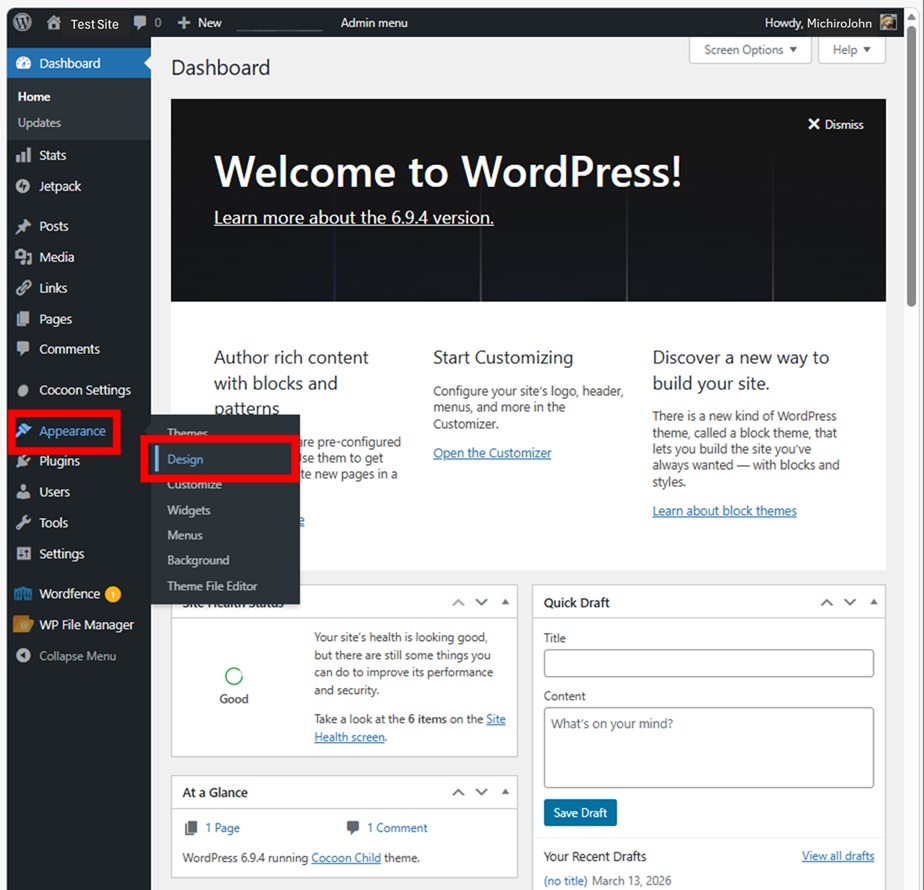
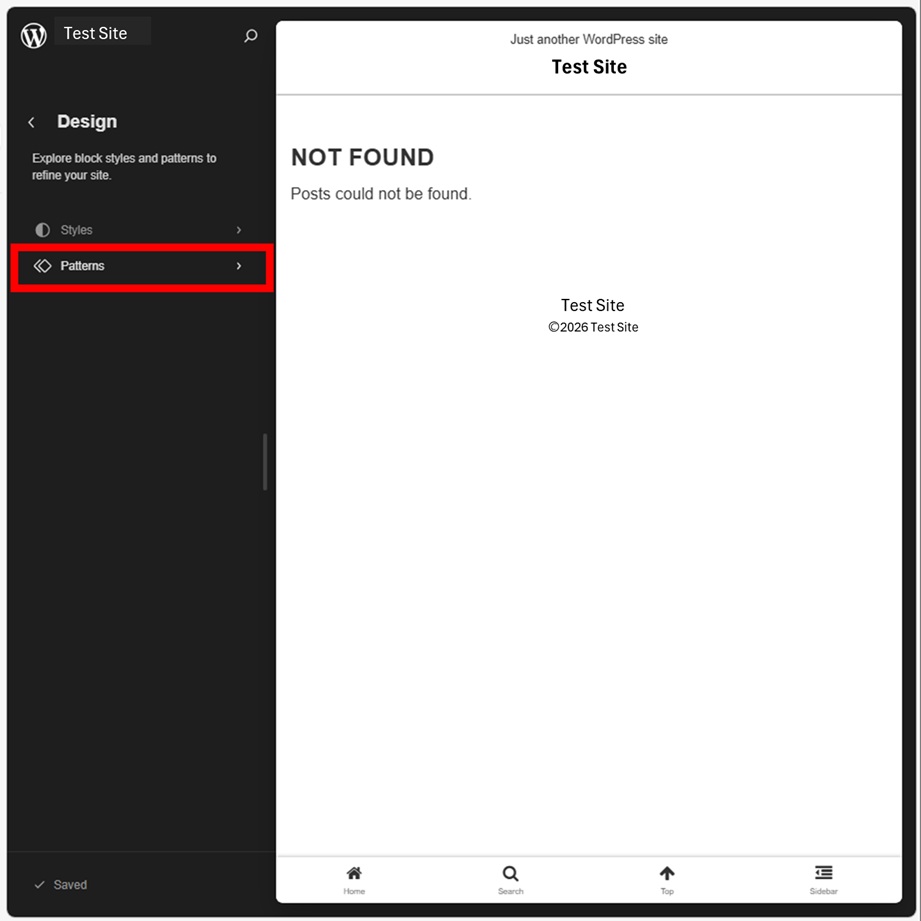
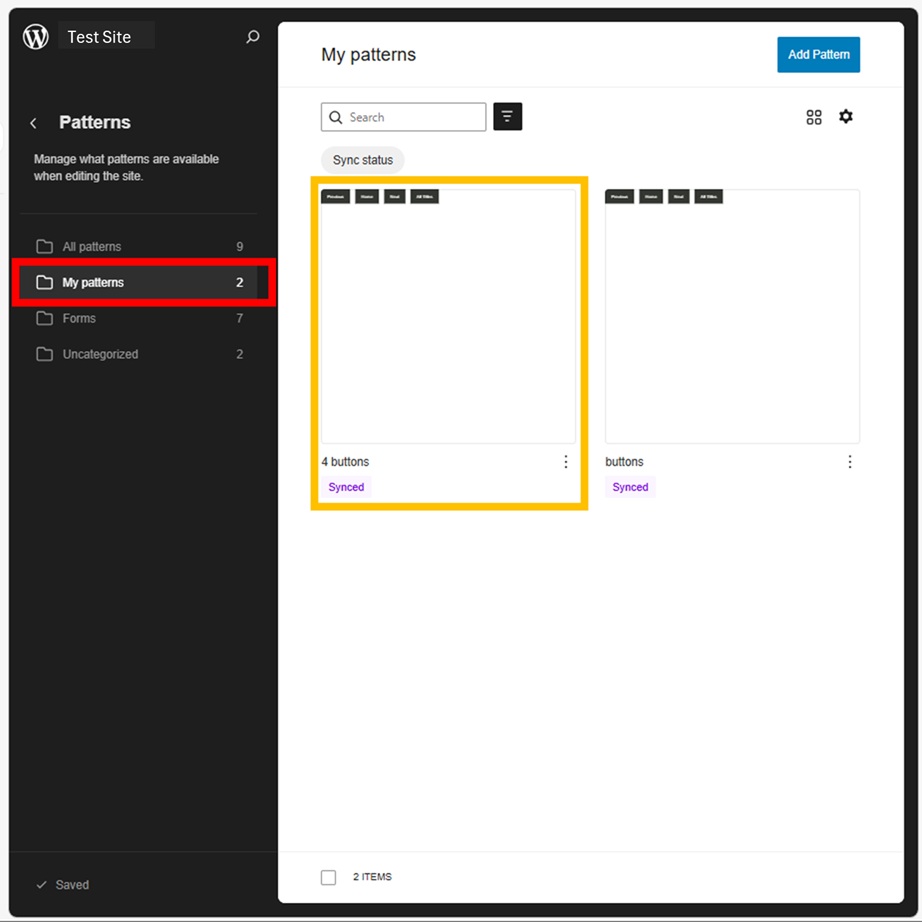
Appearance > Design > Patterns > My Pattern.
A bit deep place (^_^;.
If you feel this article “Like!”, click the ads below ⇩⇩
Your click makes my affiliate income. It motivates me (^^;.
If you give a tip ——
Leave a comment(コメントを残す)