

Extract (Excerpt)
Category & Tag
Back to Draft
Comment on/off
Return & Space
Block Template (Pattern)
Font Color & Frame
Fix a Block to the Top
Create a Button
Internal Page Jump
Display an Image over the Image
Use a Video as like GIF
Add a Menu Bar
Set a page/post as Hometo the Top
Create a Button
Internal Page Jump
Display an Image over the Image
Use a Video as like GIF
Add a Menu Bar
Set a page/post as Home

If a navigation bar is pinned to the top of the page, it improves user’s convenience. The views will increase. WordPress has the function of sticky block.
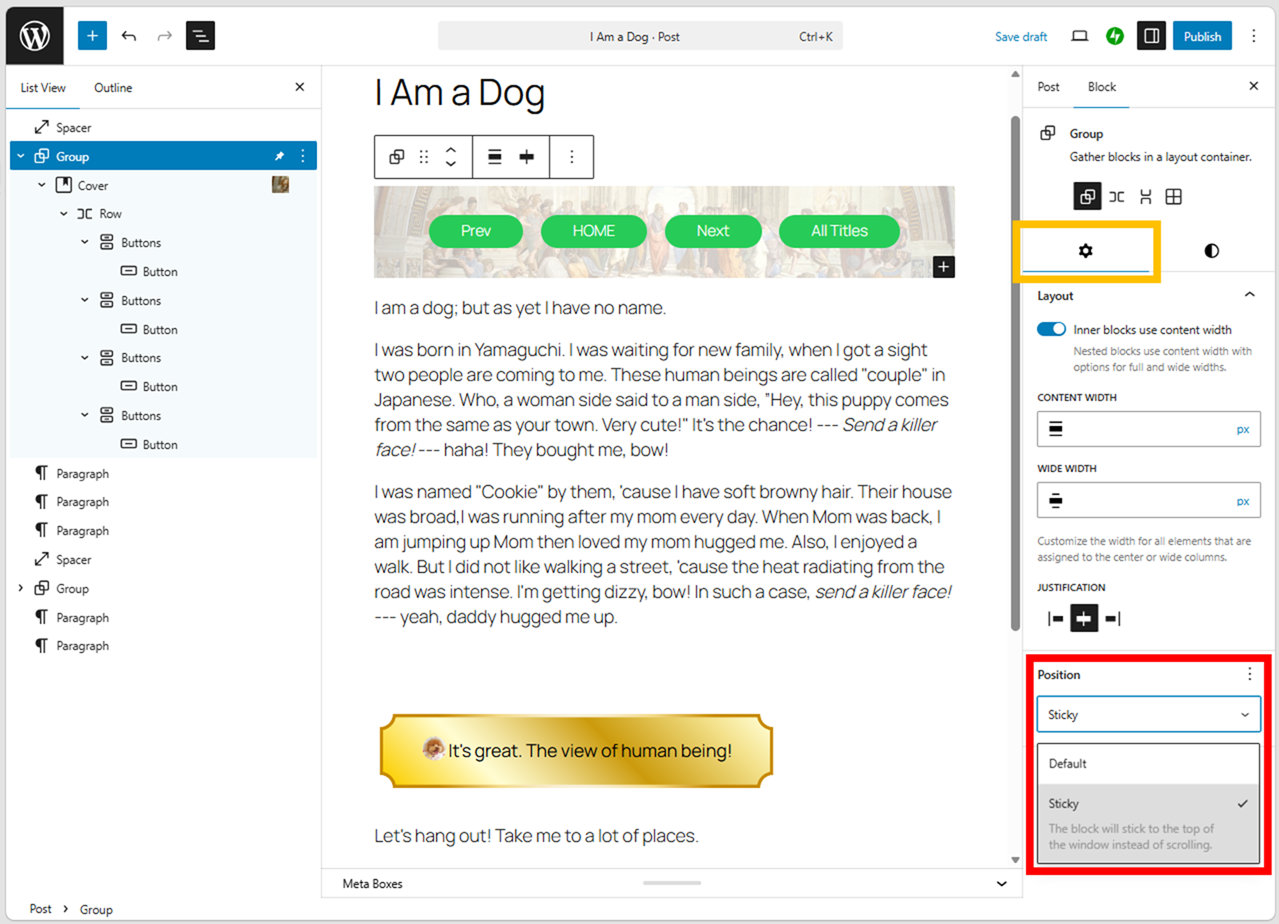
Pin a block to the top
There are three blocks can be pinned to the top — “Group”, “Row” and “Stack”.
The operations are same of all.
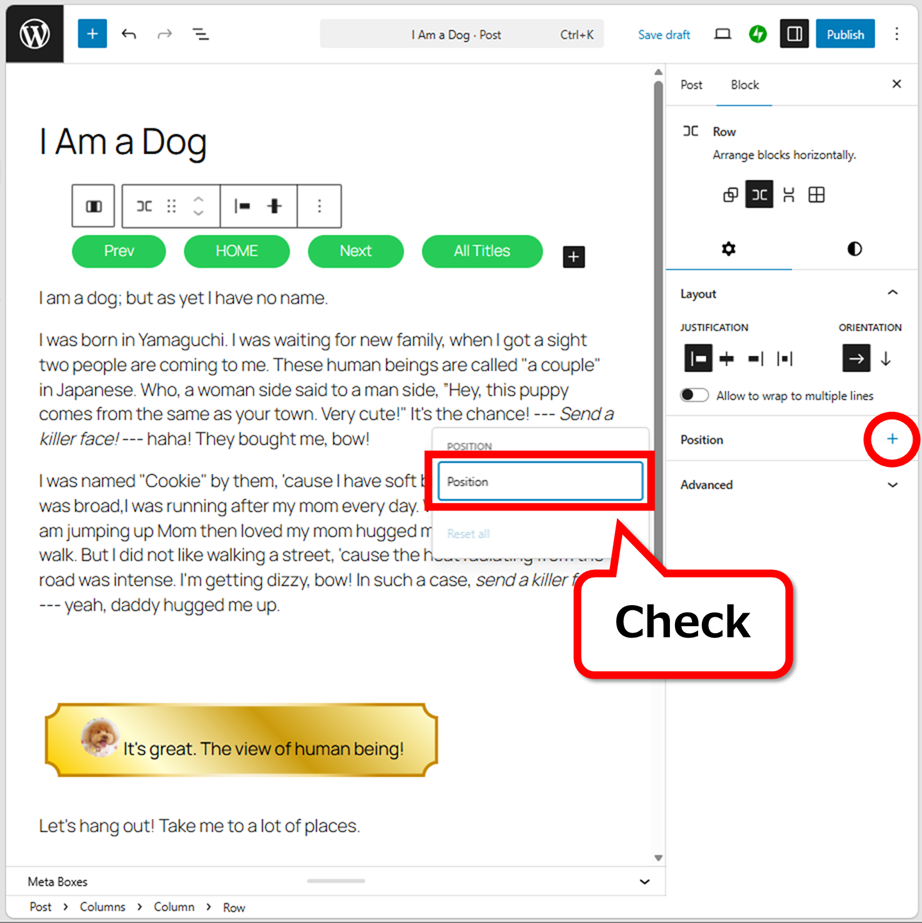
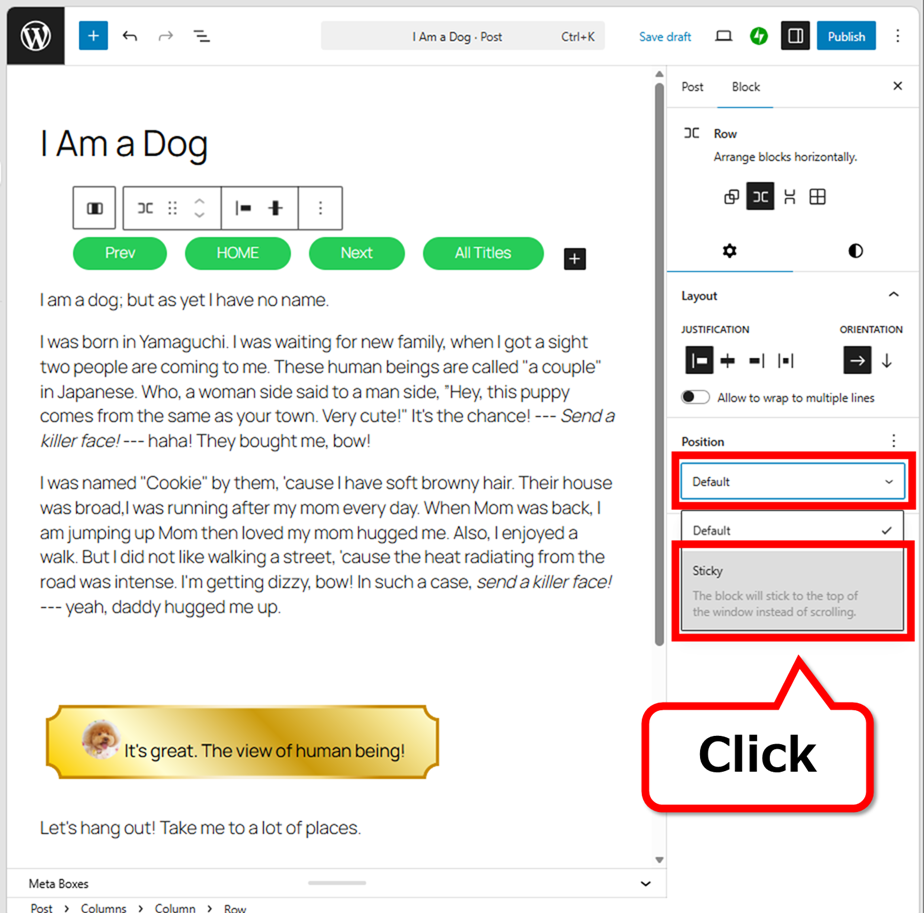
That’s all.
It cannot fix a block to the bottom or both sides.
And the sticky block needs to position at the top of tree.
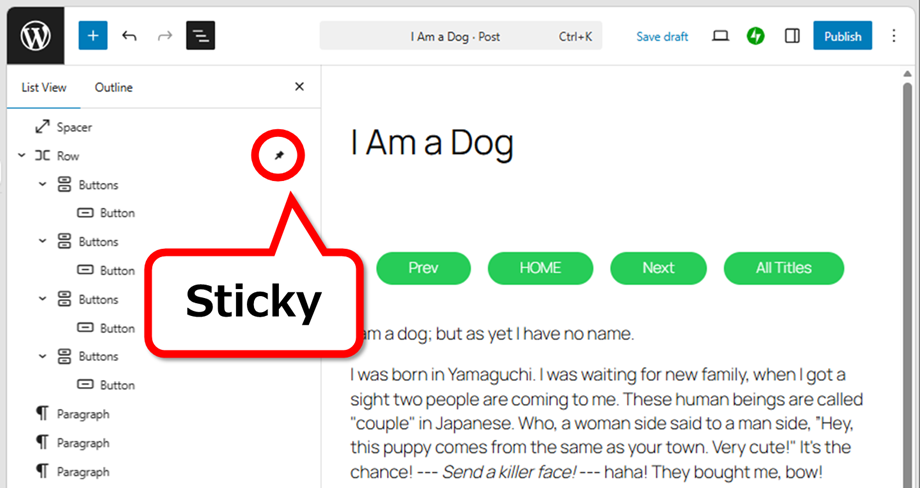
Also, keep in mind that older themes do not support a sticky block. In the genuine WordPress theme, it is before “Twenty Twenty-One”.
Add color in a sticky block
The background color is transparent by default.
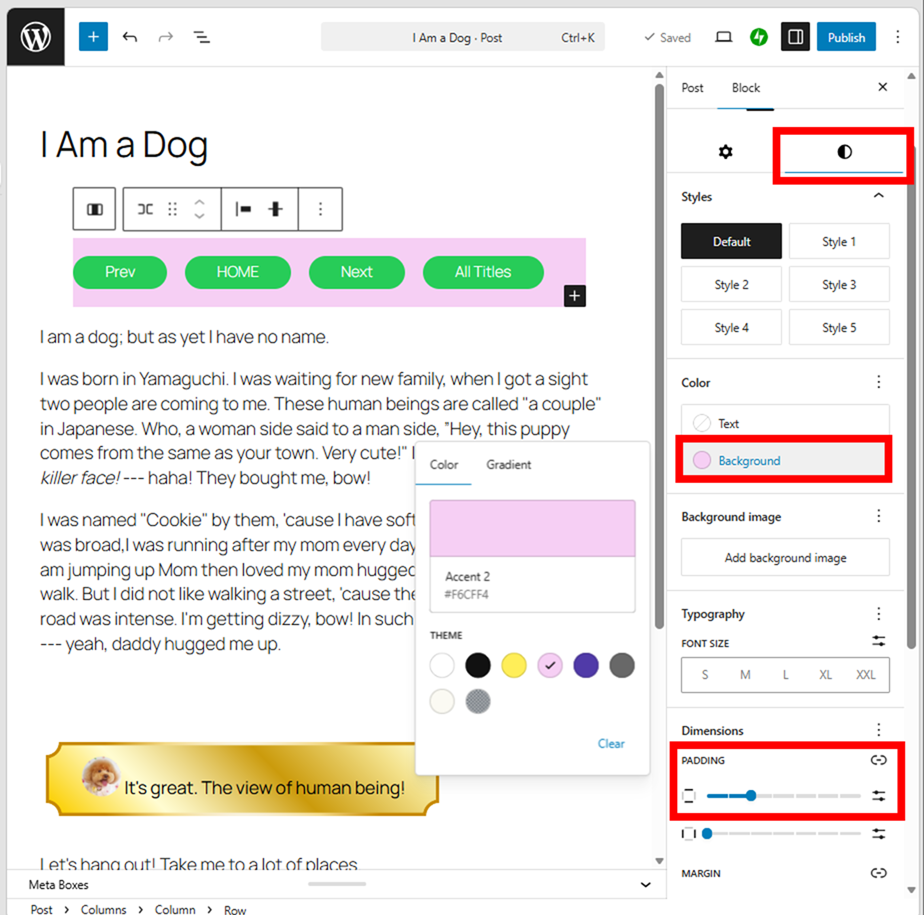
Add color like this way. Generate the hight with PADDING.
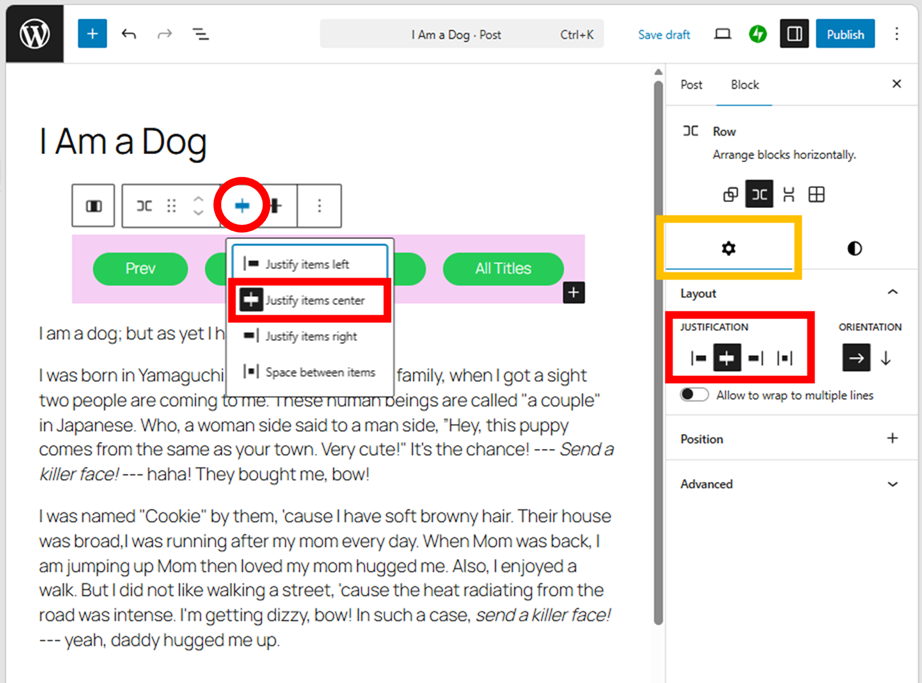
Don’t forget to center a block.
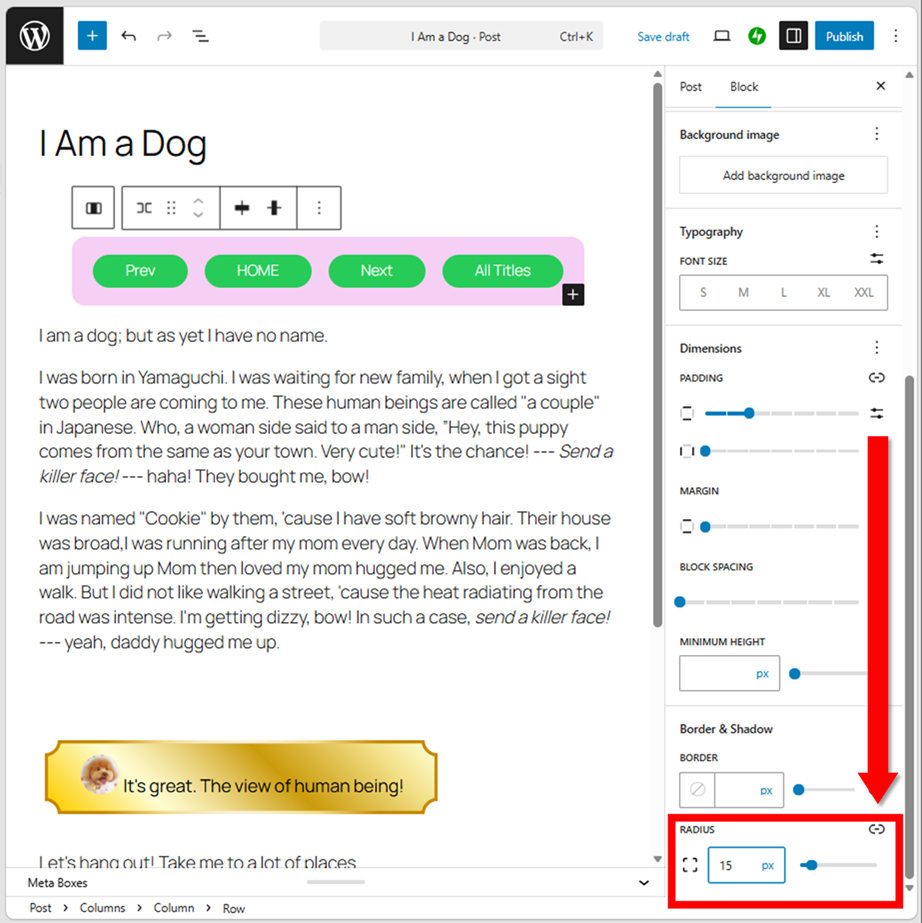
You can round the edge.
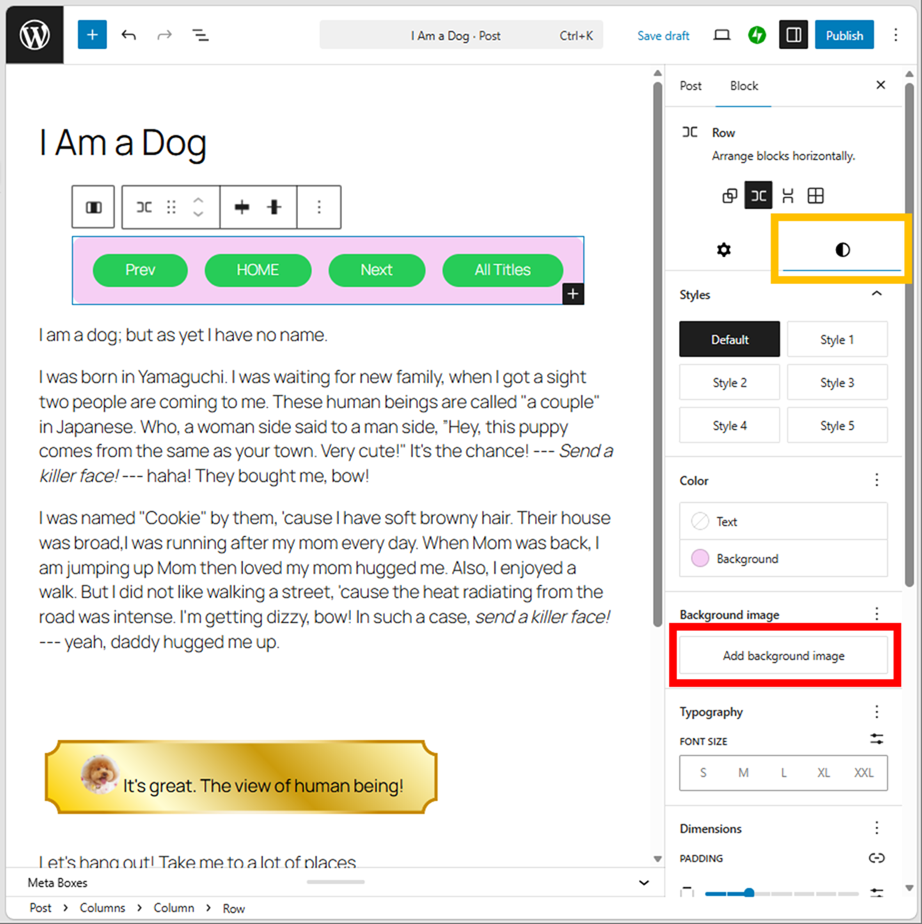
Genuine WordPress has less color, it’s better to choose the color by hex number.
Here’s how.

This is the way of character box, the method is same.
Make the background an image
The impression will be changed significantly if you change the background to an image.
Prepare a long and thin image first.

Paste it to a block.
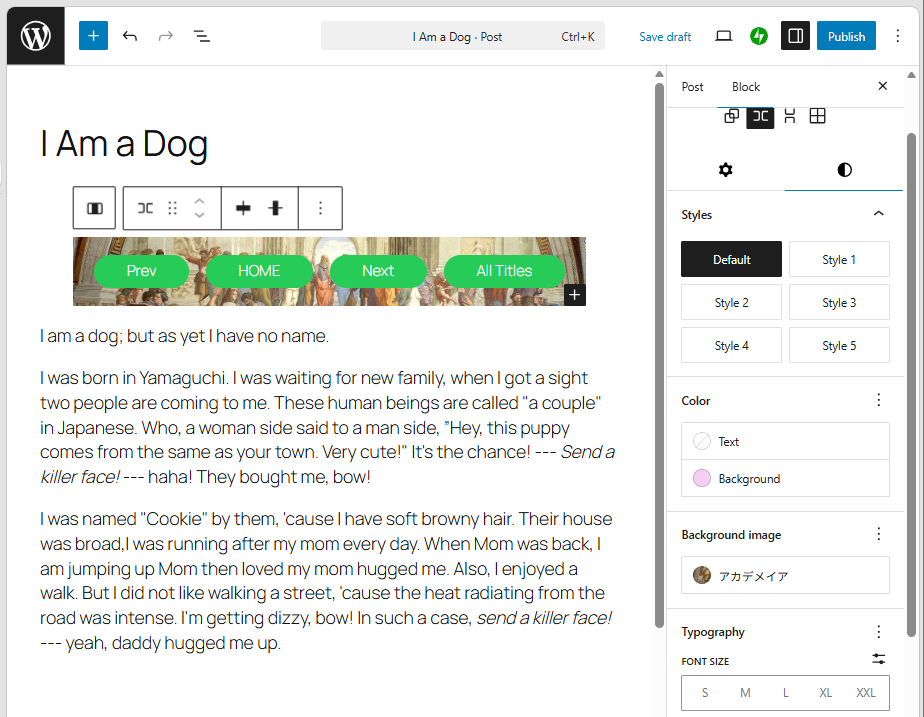
The impression becomes much better.
But it can’t blur the image. If you want to blur, use the block “Cover”. Create a Row block (buttons) on this Cover.
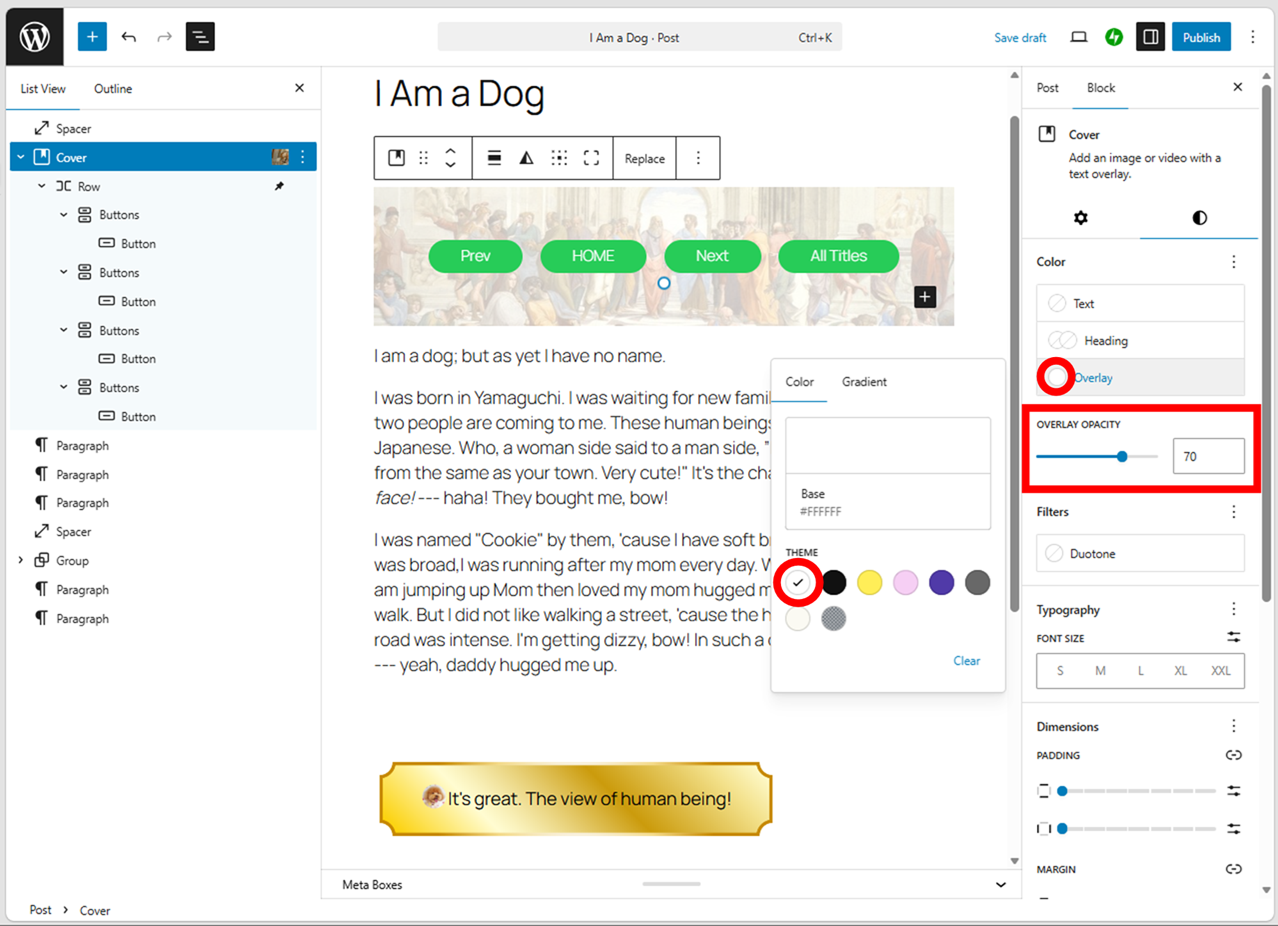
Pay attention for the height of block. If you change it with padding, the background image cannot display by full size like the above.
Here’s how to use “Cover”.
This is also the way of character box, the method is similar. Narrow the cover image until the entire image is visible, and increase the opacity without reducing it to 0%.
Then, create “Group” on this Cover block, because Cover block cannot fix to the top.
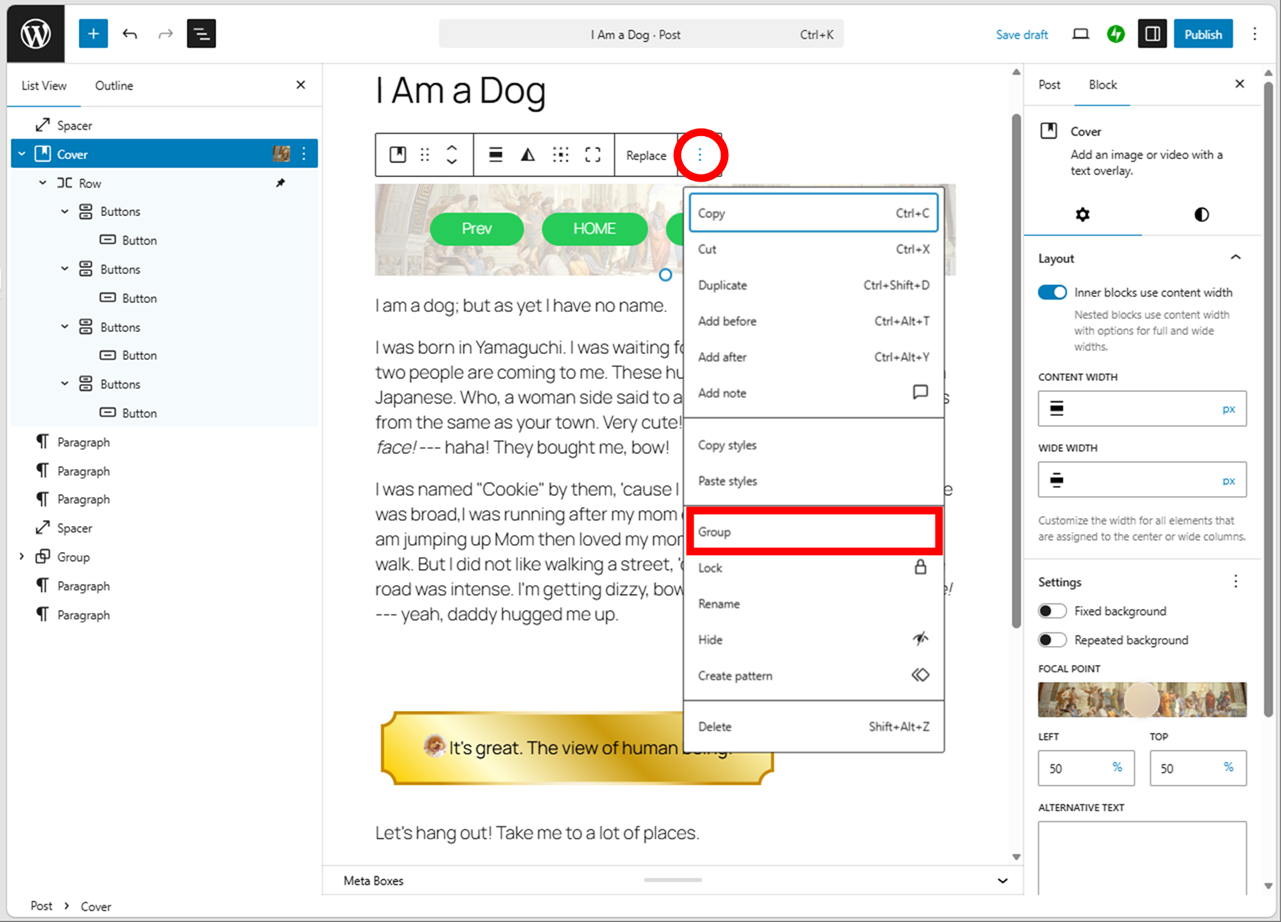
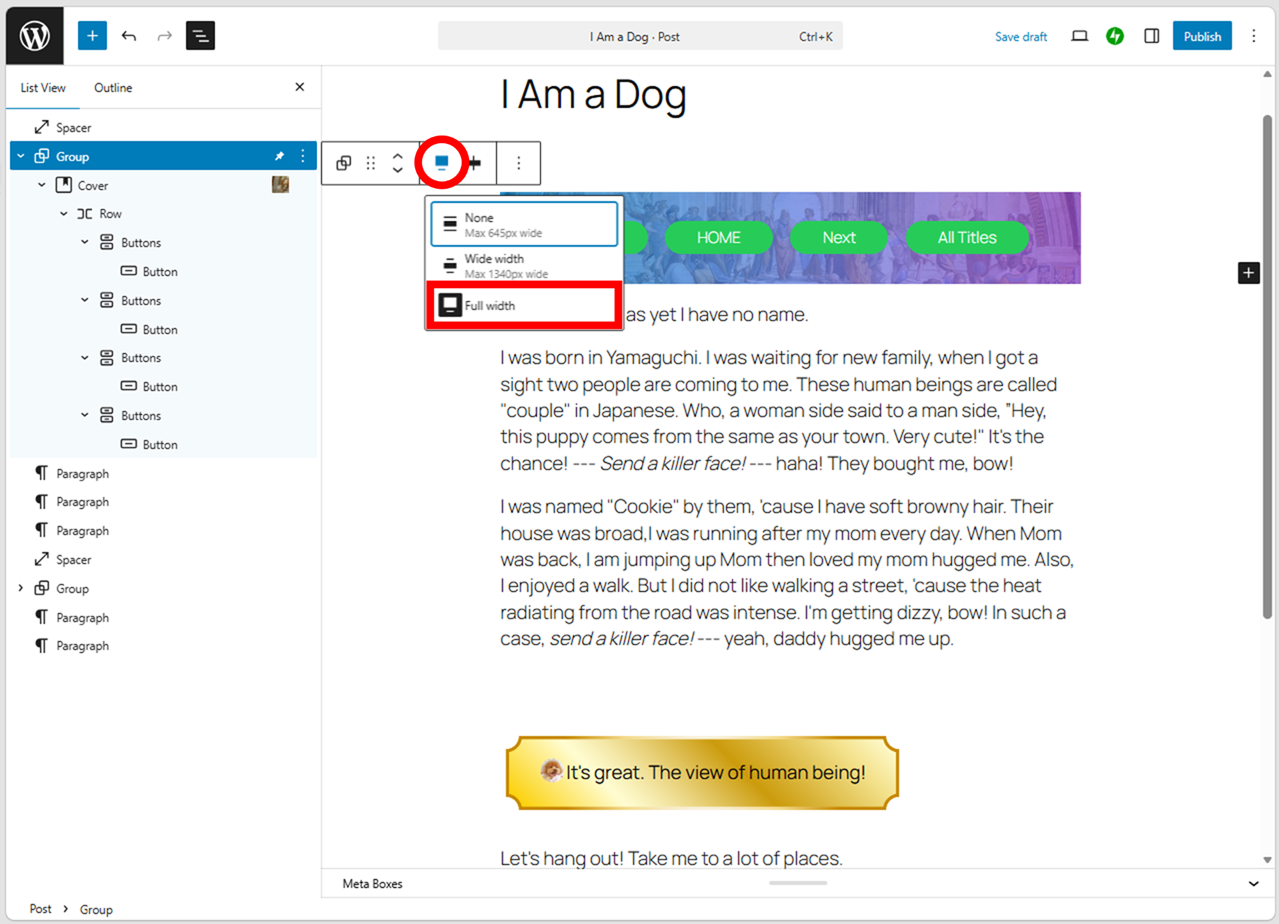
Widen a sticky block to full screen
It’s easy by using Gutenberg editor.
Both “Group” and “Cover” are changed to full screen.
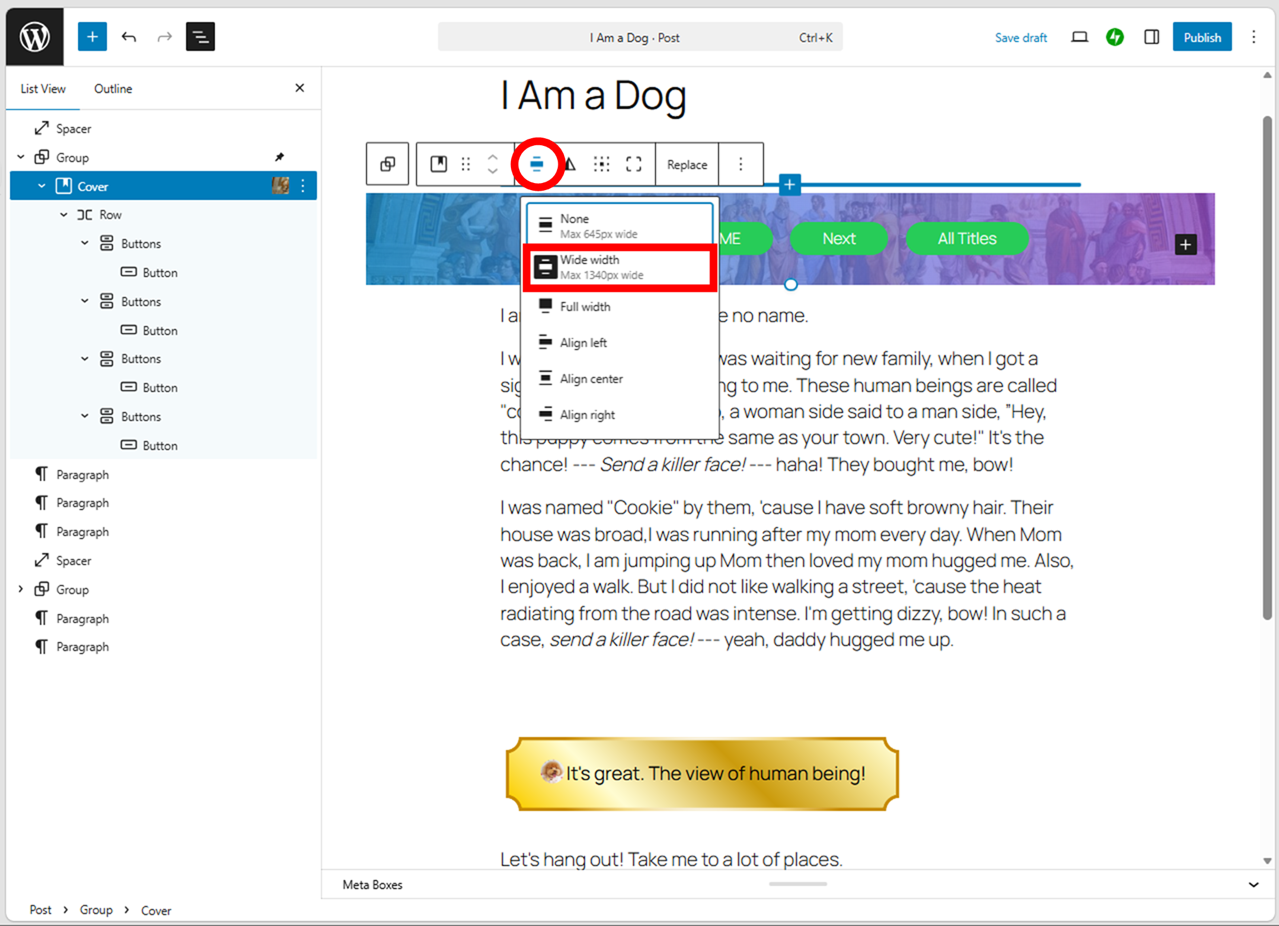
And change the layout of “Row”. The appearance looks better.
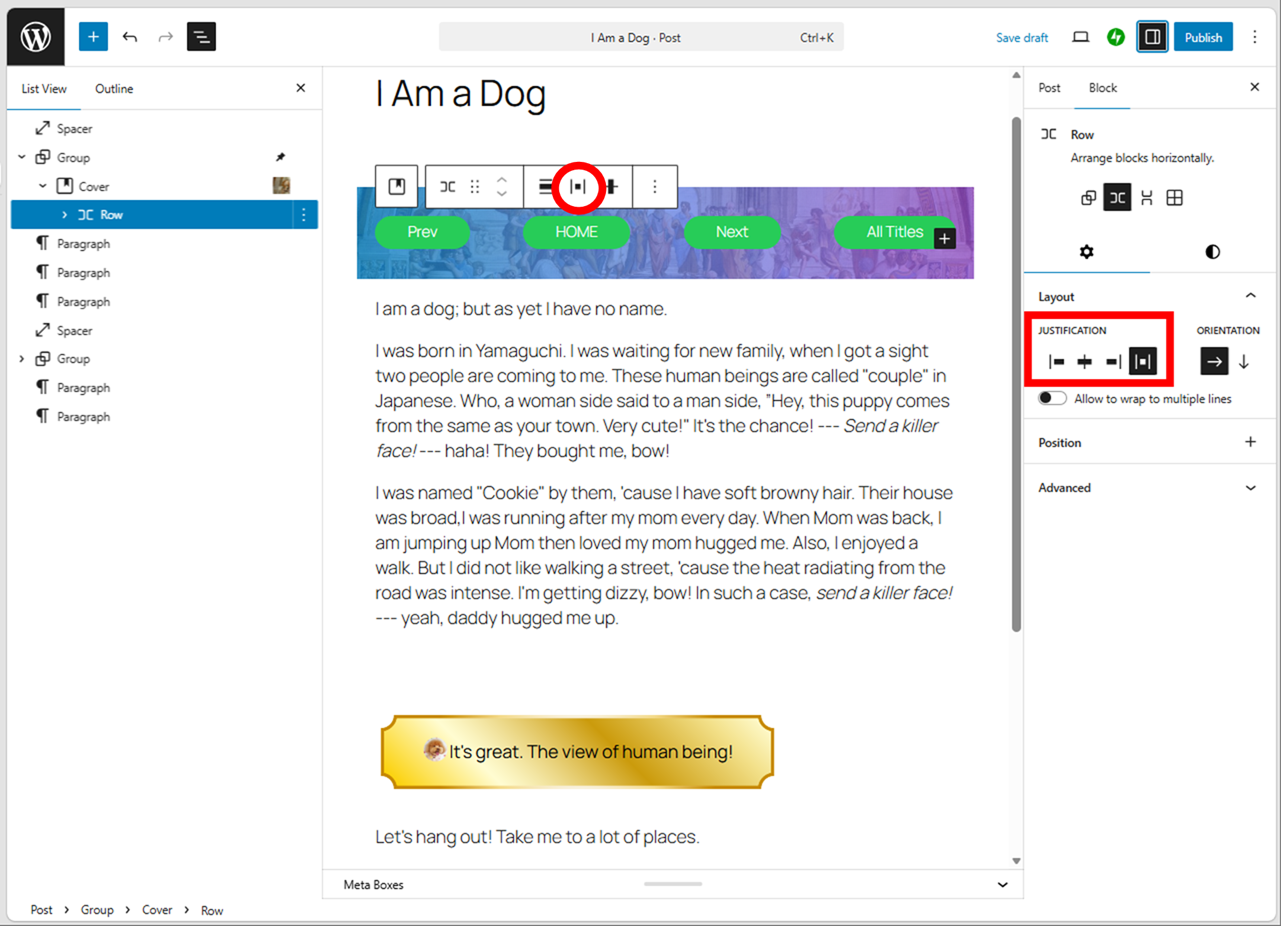
It can use for menu bar.
Thank you for reading.
If you feel this article “Like!”, click the ads below ⇩⇩
Your click makes my affiliate income. It motivates me (^^;.
If you give a tip ——
Leave a comment(コメントを残す)